
Primary signal
Pickup
Assignments get picked up
More assignments are opened and started soon after the notification goes out.
By clicking “Accept All Cookies”, you agree to the storing of cookies on your device to enhance site navigation, analyze site usage, and assist in our marketing efforts. View our Privacy Policy for more information.
We use cookies to understand how the workflow library is used and to improve it.
Pick how you want to build it.
 Build with the SuprSend Agent
A round of assignments floods the assignee. Sprint planning or triage hands out many tasks at once, and each one fires its own notification.
An urgent assignment looks the same as a routine one. Work that needs attention now arrives with no more weight than a low-priority task.
Picking up your own task triggers a pointless notification. Users who assign work to themselves get pinged for an action they just took.
An assignment sent on just one channel goes unseen. If the assignee is not checking that one channel, the handoff is missed.
An assignment fires
Work is assigned to someone (TASK_ASSIGNED or TASK_REASSIGNED), and the workflow starts.
Self-assignments are skipped
If the assigner and the assignee are the same user, the run exits without sending.
High-priority assignments send immediately
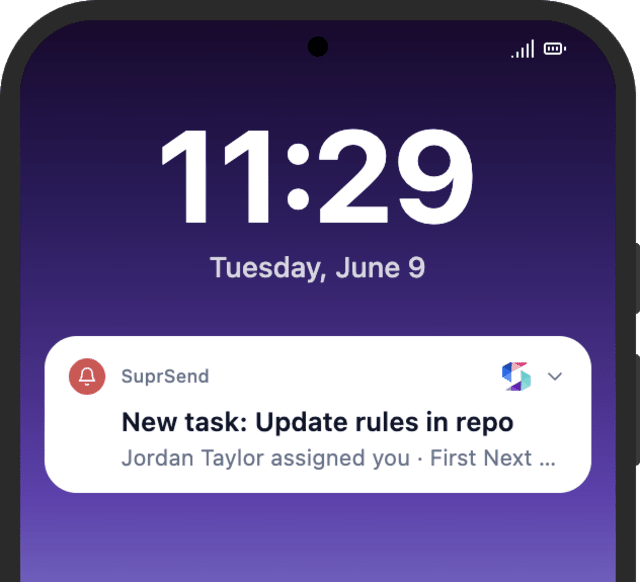
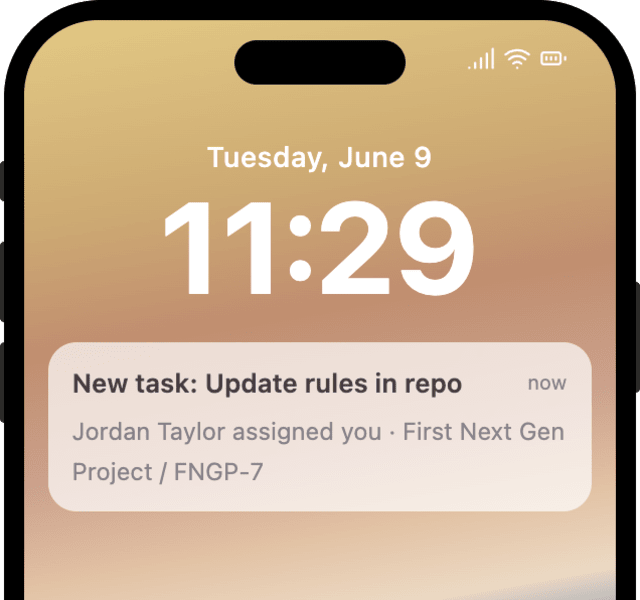
A high-priority task notifies the assignee right away.
Routine assignments are grouped
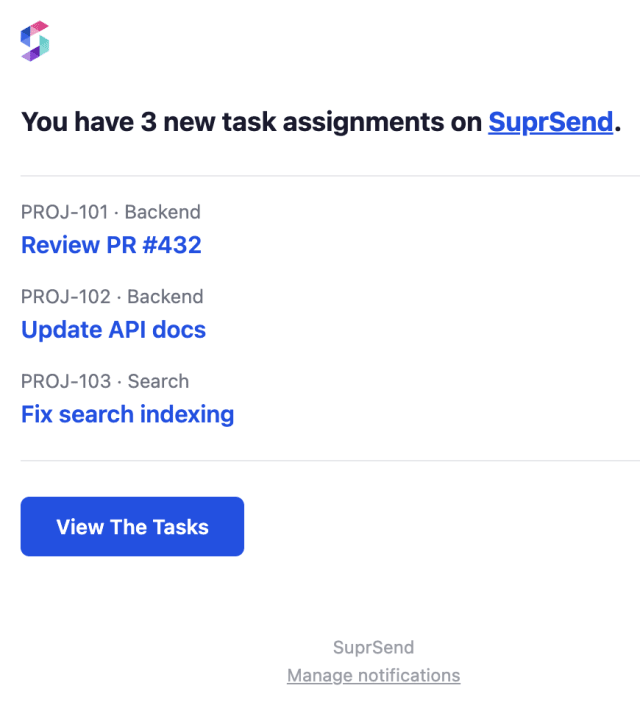
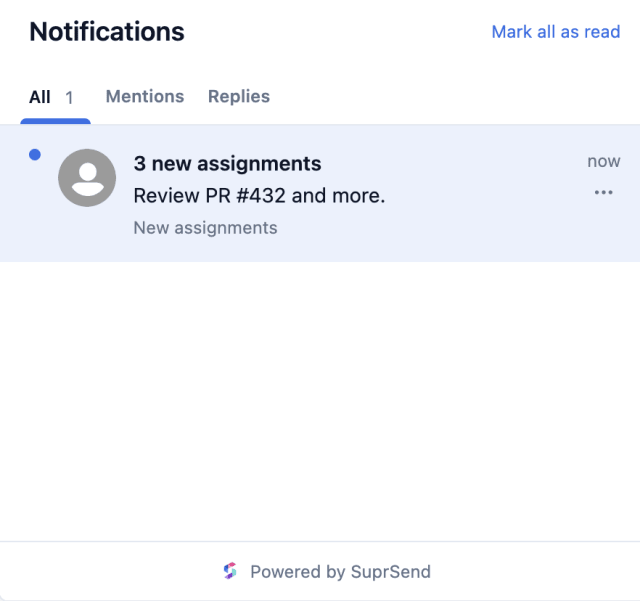
The first assignment sends immediately; the rest in the next 30 minutes arrive as one.
"Sarah assigned you 'Update homepage'" gets opened. "You have a new task" gets ignored.
Set the batch to group by project so each summary covers one project, which keeps it readable for people working across several at once.
A 2 AM summary is buried by morning. Keep it inside the assignee's working hours and timezone with a time window.
Mark everything high and people stop reacting. Mark everything standard and the urgent work sits in the 30-minute batch.
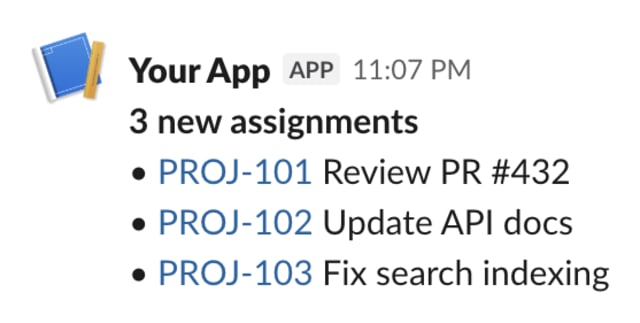
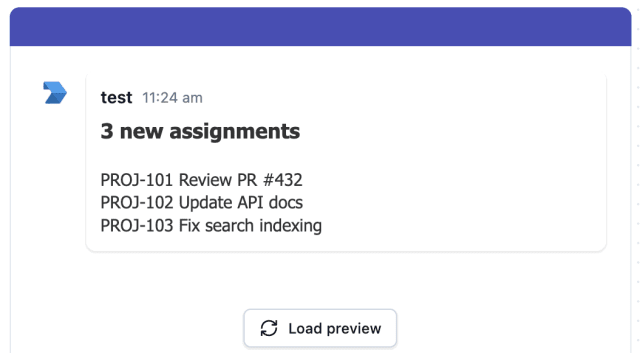
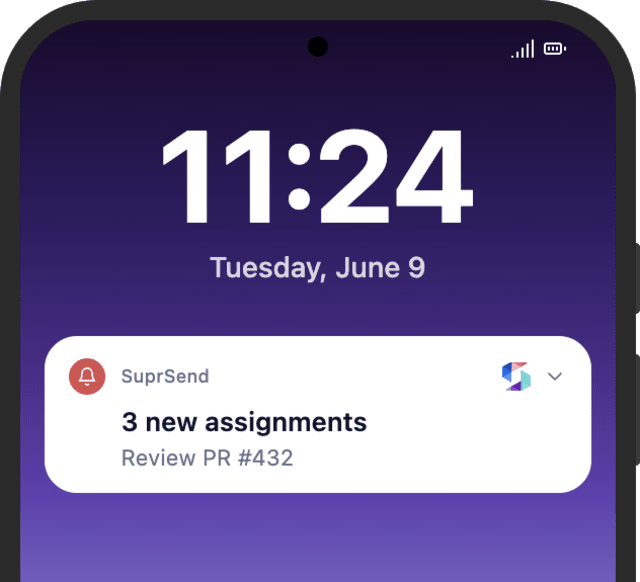
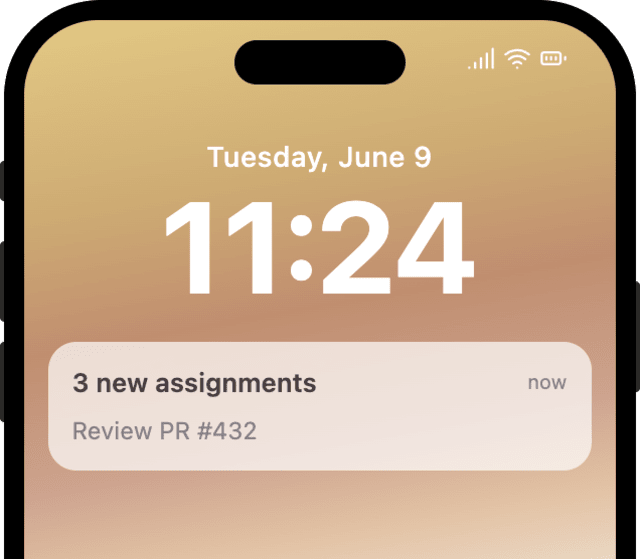
The immediate send is a single urgent task. The grouped send is a short list. They need different layouts.
Without it, a user who assigns a task to themselves gets notified about their own action - a notification no one needs.
The actual notifications this workflow sends, on each channel.
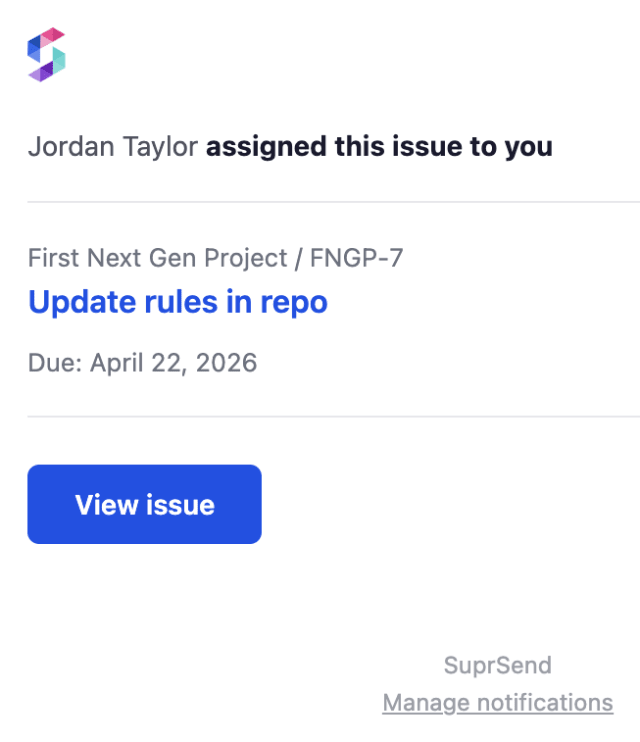
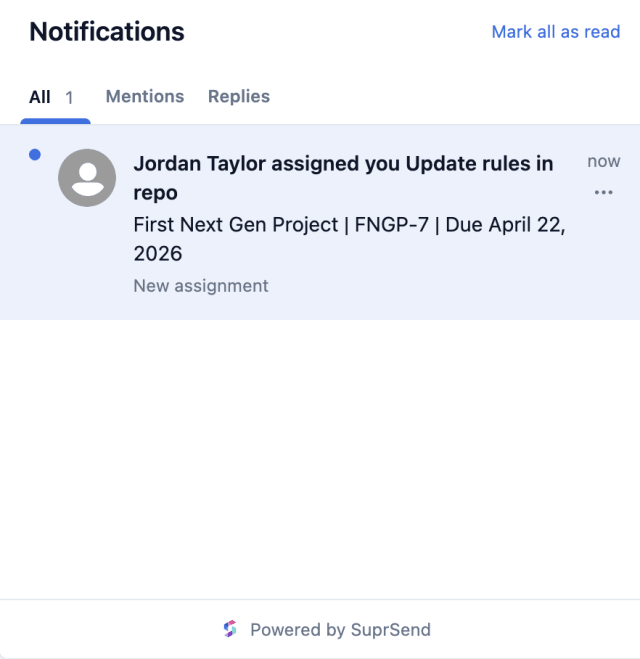
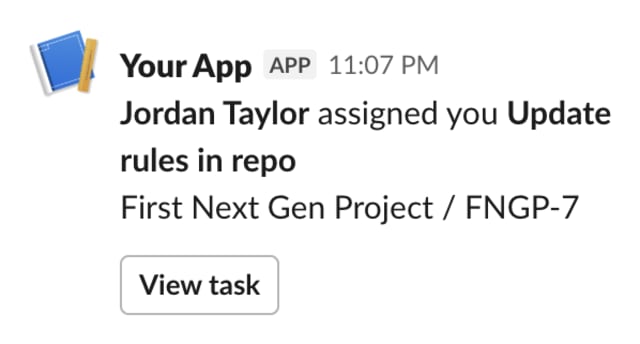
 Microsoft Teams
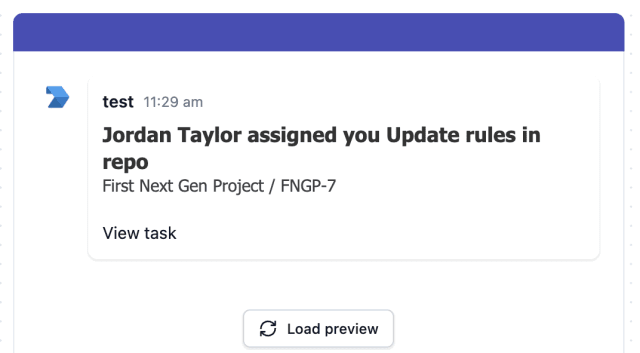
.png)
.png)
 Microsoft Teams
.png)
.png)
More assignments are opened and started soon after the notification goes out.
When assignees start switching off standard assignment updates, they are getting more pings than the routine work needs.
Quick answers about setting up and running this workflow.
No. The workflow checks who acted, and when the assigner and the assignee are the same user it exits before sending. Picking up your own task stays quiet.
No. The first assignment sends immediately, so nothing waits. Every other task assigned to the same user in the next 30 minutes is grouped into one notification.
Tag it high priority. High-priority assignments send the moment they are assigned and skip the 30-minute batch. Only standard assignments are grouped.
Assignments can go out on in-app inbox, email, Slack, Microsoft Teams, and mobile or web push. Each assignee only gets the channels they have enabled, and any they have turned off in their preferences are skipped automatically.
No. This workflow notifies once per assignment. For nudges as a due date approaches, pair it with Deadline Reminders, which runs alongside it.
Trigger it with a payload shaped like the TASK_ASSIGNED event: a recipient, an actor, and a priority. You can do this from the Test button in the workflow editor, by asking the SuprSend Agent in the dashboard, or through the API, CLI, or MCP.
Sign up and test the workflow directly in the dashboard.
Copy the prompt, paste it into the Agent in your SuprSend dashboard, and the workflow gets built for you.
Set up SuprSend MCP in Claude Code, Cursor or Windsurf, copy the prompt, and the workflow builds itself in your workspace.