
Primary signal
On-time
On-time completion
More tasks get finished before the deadline once reminders are running, compared with tasks that have none.
By clicking “Accept All Cookies”, you agree to the storing of cookies on your device to enhance site navigation, analyze site usage, and assist in our marketing efforts. View our Privacy Policy for more information.
We use cookies to understand how the workflow library is used and to improve it.
Pick how you want to build it.
 Build with the SuprSend Agent
Tasks need more than one reminder. One nudge is easy to miss, so the deadline passes with the task still open.
Reminders keep going after the task is done. Completed or reassigned tasks still get reminded when they shouldn't.
A reminder sent on just one channel gets missed. If the user isn't checking that channel, they never see it.
Reminders keep firing for an old due date. When a deadline moves, the reminders for the old date don't stop.
Reminders start
A task is created with a due date (TASK_CREATED), and the reminder sequence begins.
First reminder - a day before
A day before the deadline, the user gets an early reminder.
Second reminder - hours before
Four hours before the deadline, a sharper reminder follows.
Overdue alert - at the deadline
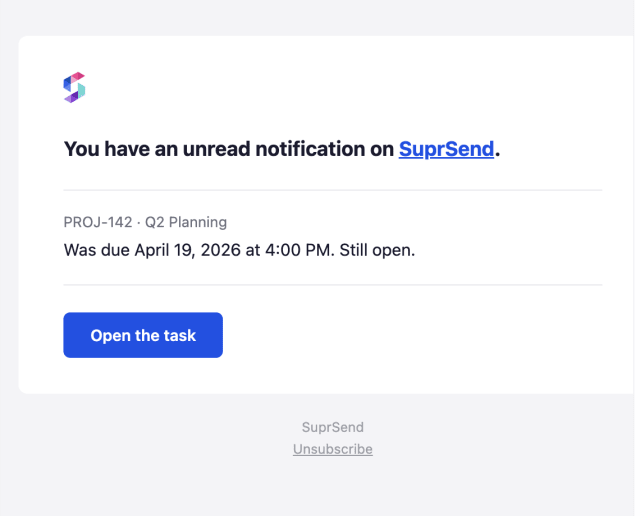
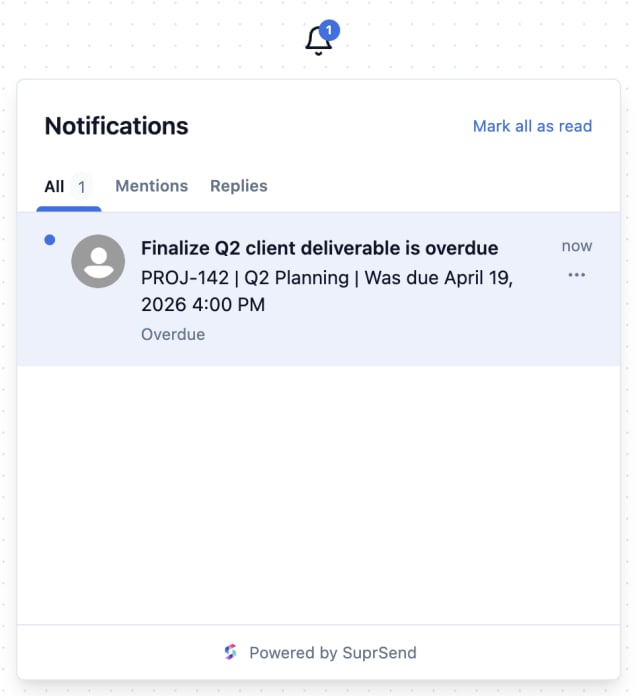
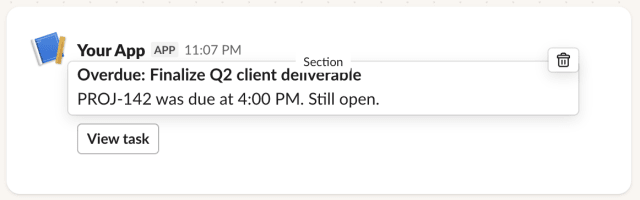
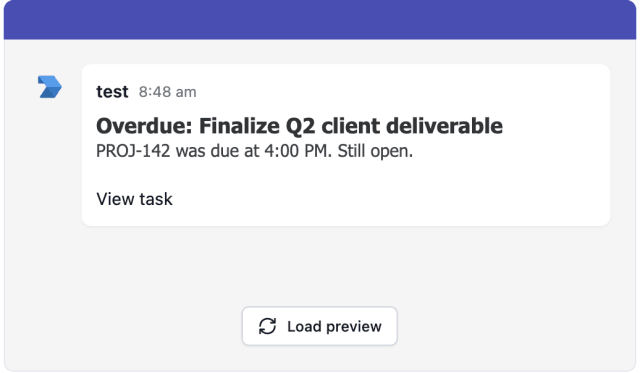
If the deadline passes with the task still open, one overdue alert goes out.
Stops when the task is handled
Finishing, reassigning, or rescheduling the task cancels every remaining reminder.
A reminder shouldn't hit someone on email, Slack, and push at the same time. Send one channel, and try the next only if the first isn't seen - Smart Channel Routing handles this.
The 24-hour and 4-hour defaults fit most teams. For same-day tasks, try 4 hours and 1 hour; for week-long ones, 2 days and 4 hours.
A reminder timed for hours before a 5 PM deadline should land at the right local time, not overnight. A time window handles both.
"'Update homepage' is due tomorrow at 5 PM" gets acted on faster than "You have a task due soon."
A task due in three hours shouldn't wait a full day for its first reminder. Time every reminder from the due date.
The completion event has to point to the same task the reminders are for. Otherwise finishing one task quietly stops the reminders for all the user's other tasks.
Each one should escalate: a day-before heads-up, an hours-before reminder, an overdue alert. If they all read alike, the escalation is lost.
A daily overdue alert turns the warning into background noise. Send it once, when the deadline passes.
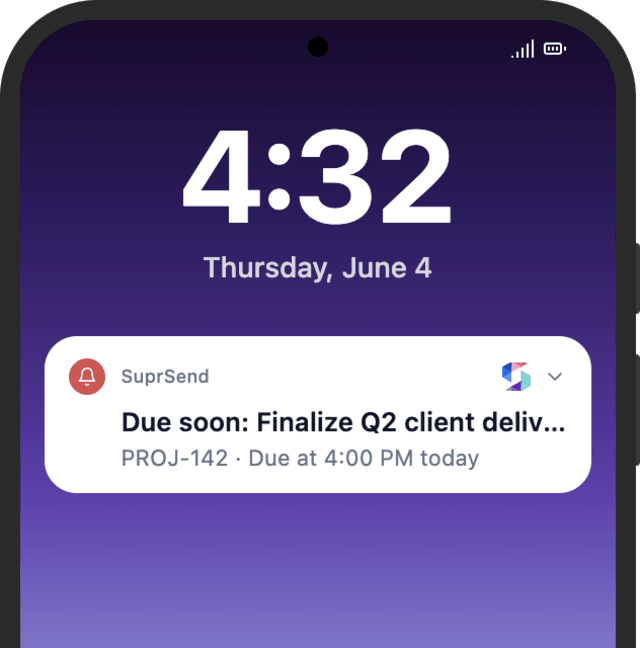
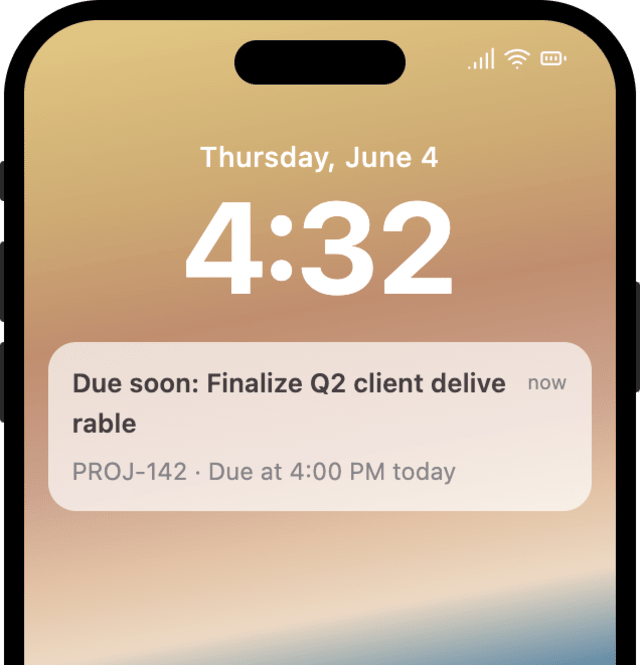
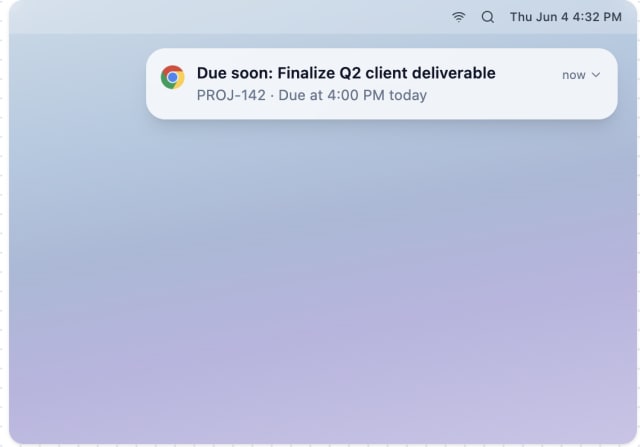
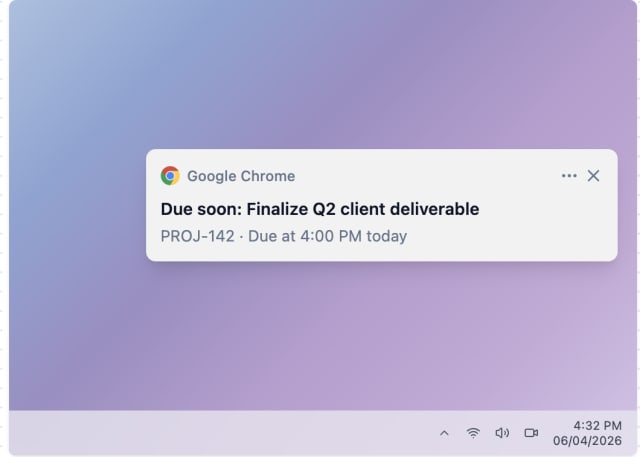
The actual notifications this workflow sends, on each channel.
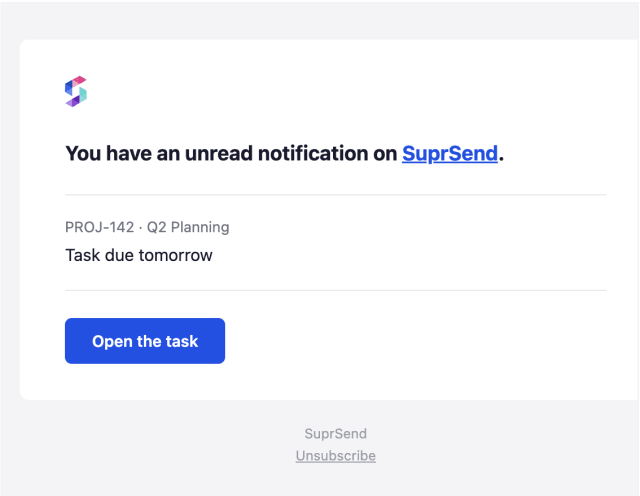
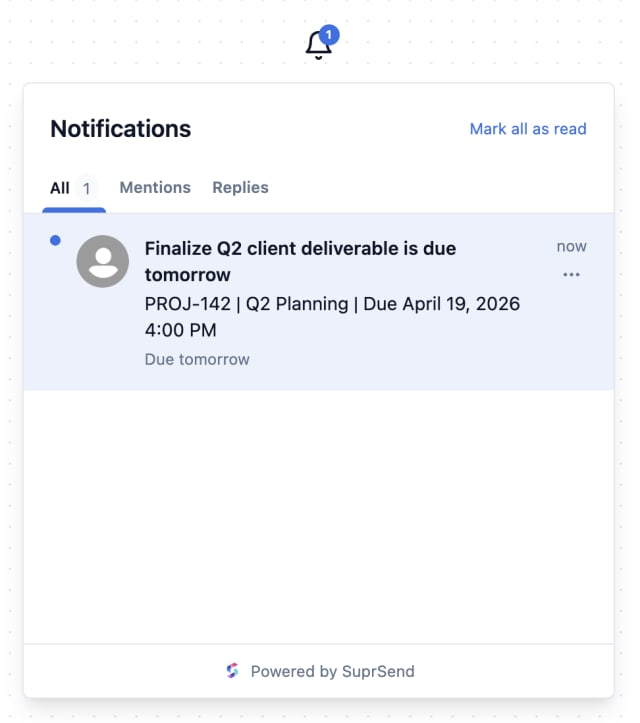
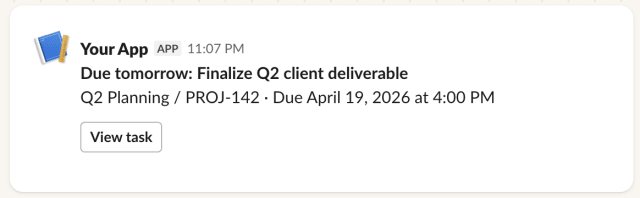
 Microsoft Teams
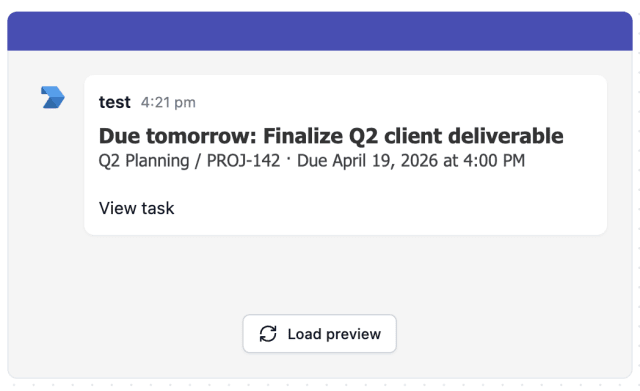
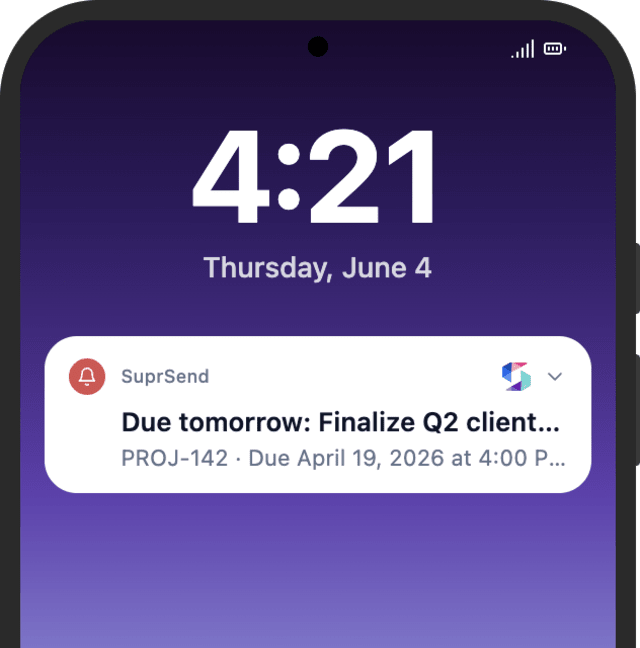
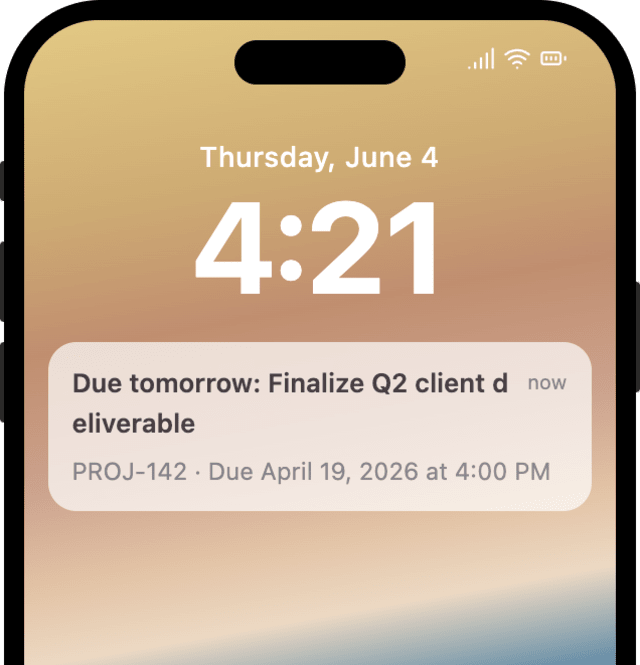
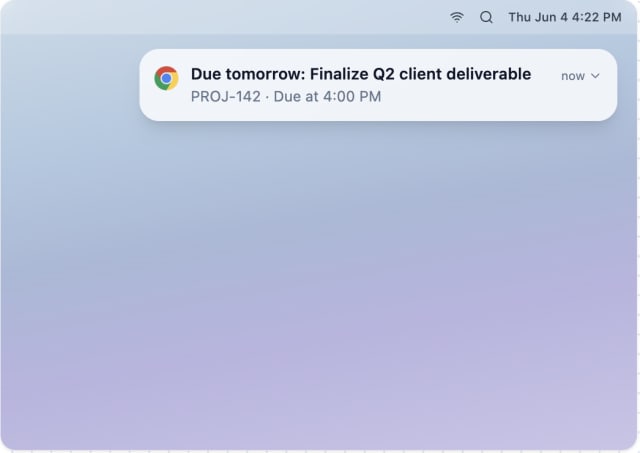
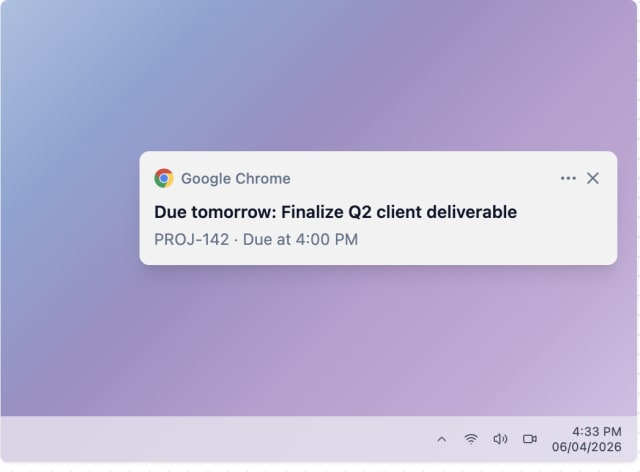
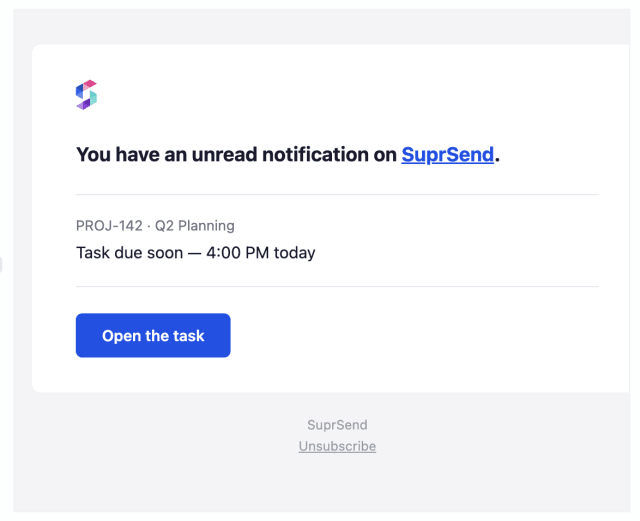
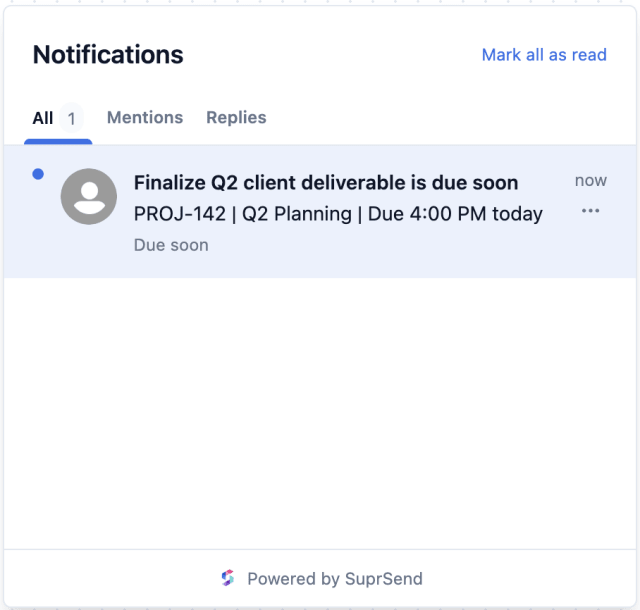
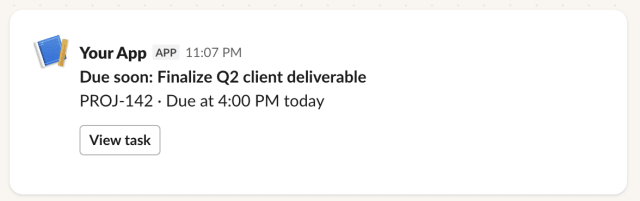 Microsoft Teams
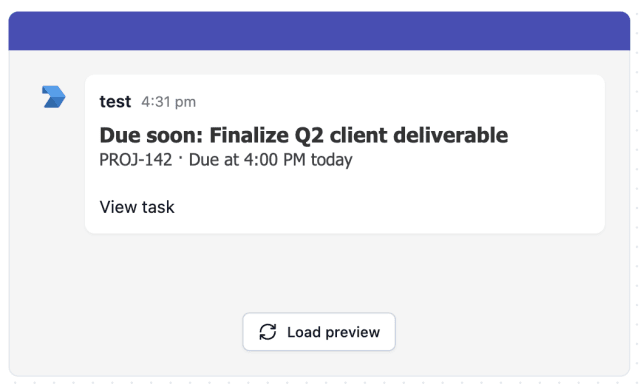
 Microsoft Teams
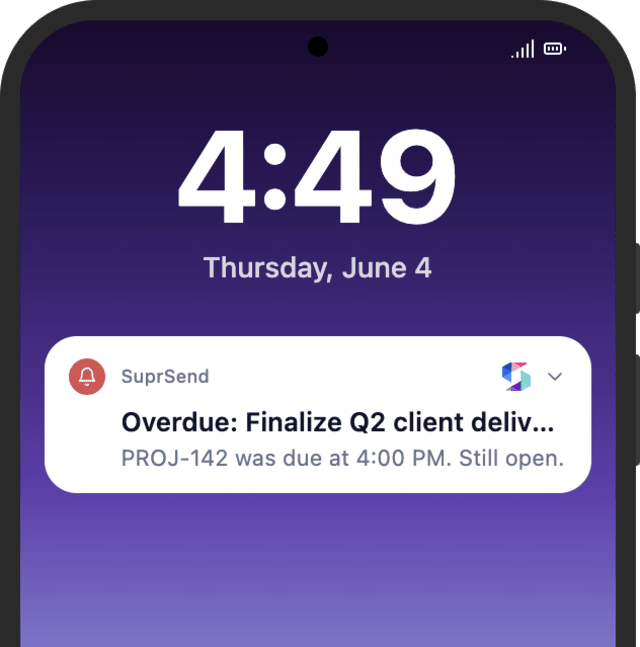
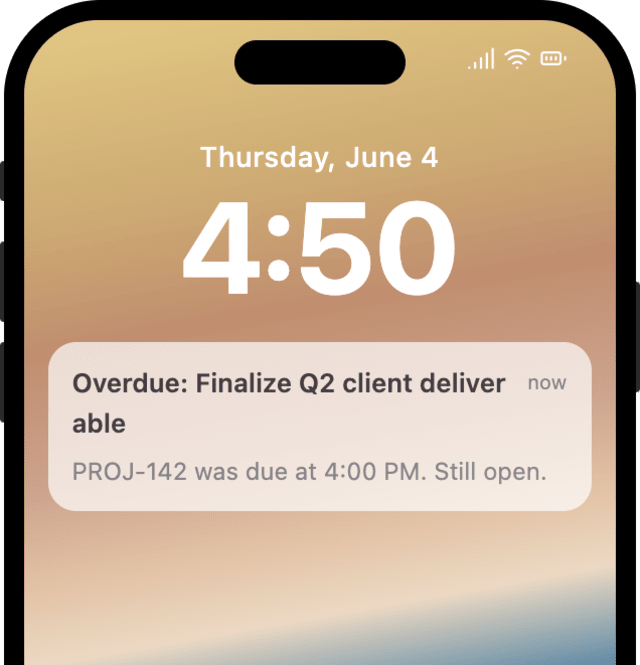
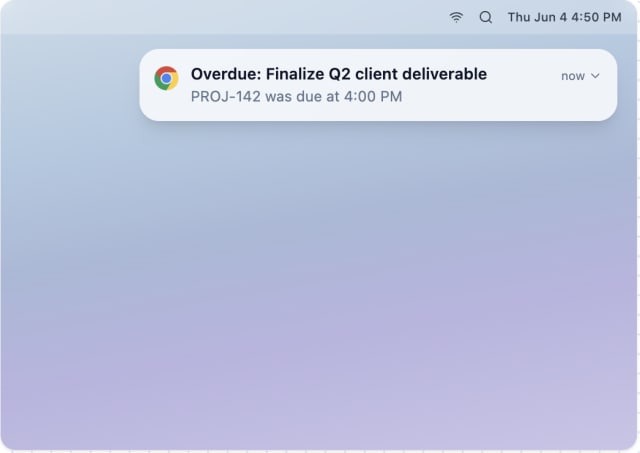
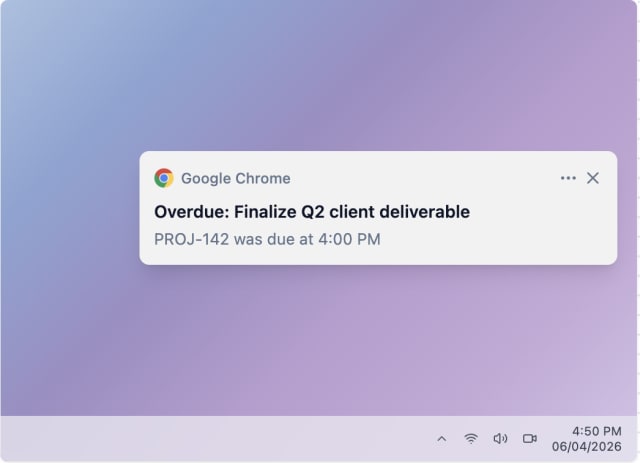
More tasks get finished before the deadline once reminders are running, compared with tasks that have none.
When people start muting deadline channels or reminders stop driving action, they're getting more reminders than the task needs.
Quick answers about setting up and running this workflow.
No. The moment a task is completed or reassigned, the reminders stop and anything not yet sent is cancelled.
In-app inbox, email, Slack, Microsoft Teams, and mobile or web push. A user only gets reminders on the channels they're set up for, and any they've turned off in their preferences are skipped automatically.
It moves to the next one. Smart Channel Routing sends on one channel at a time and only escalates if the reminder hasn't been seen, so a missed email or push still gets followed up, without firing every channel at once.
Yes. Add a Branch to route by priority, sending urgent tasks through this reminder sequence. For low-priority deadlines you'd rather not send one by one, add a Batch node so several arrive as a single reminder.
Trigger it with a payload shaped like the TASK_CREATED event: a recipient plus a due date in .due_time. You can do this from the Test button in the workflow editor, by asking the SuprSend Agent in the dashboard, or through the API, CLI, or MCP.
The workflow handles it automatically. The current run exits when it receives DUE_DATE_UPDATED, and a new TASK_CREATED event carrying the updated due date starts a fresh countdown with the correct timing.
Sign up and test the workflow directly in the dashboard.
Copy the prompt, paste it into the Agent in your SuprSend dashboard, and the workflow gets built for you.
Set up SuprSend MCP in Claude Code, Cursor or Windsurf, copy the prompt, and the workflow builds itself in your workspace.