
Primary signal
Faster decisions
Approvals get resolved sooner
Requests get approved or rejected faster once reminders are running, instead of sitting open.
By clicking “Accept All Cookies”, you agree to the storing of cookies on your device to enhance site navigation, analyze site usage, and assist in our marketing efforts. View our Privacy Policy for more information.
We use cookies to understand how the workflow library is used and to improve it.
Pick how you want to build it.
 Build with the SuprSend Agent
A pending approval stalls the work behind it. Until the approver decides, whatever needs their sign-off has to wait.
A single request is easy to forget. One notification gets buried, and the approval sits for days.
Reminders keep chasing an approver who already decided. Once it is approved or rejected, the nudges should stop.
An approval sent on one channel is missed. If the approver is not checking that channel, they never see it.
Approval is requested
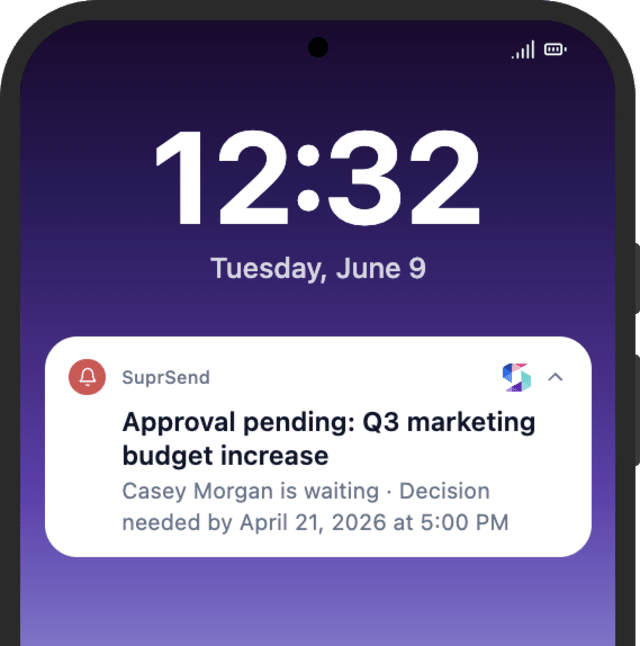
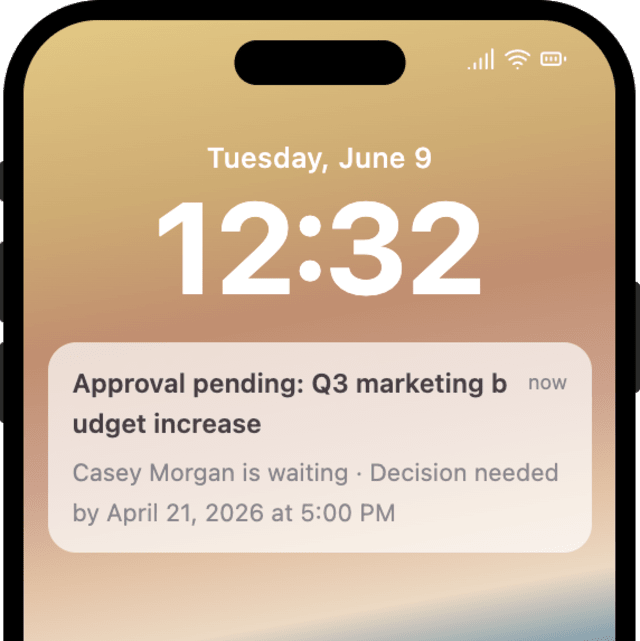
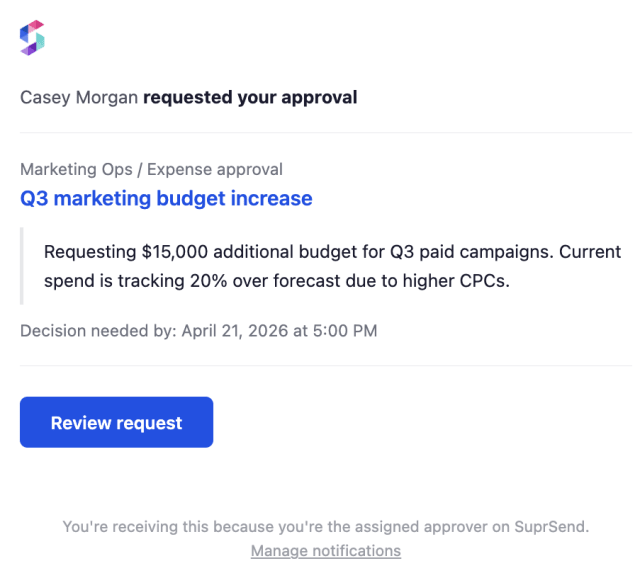
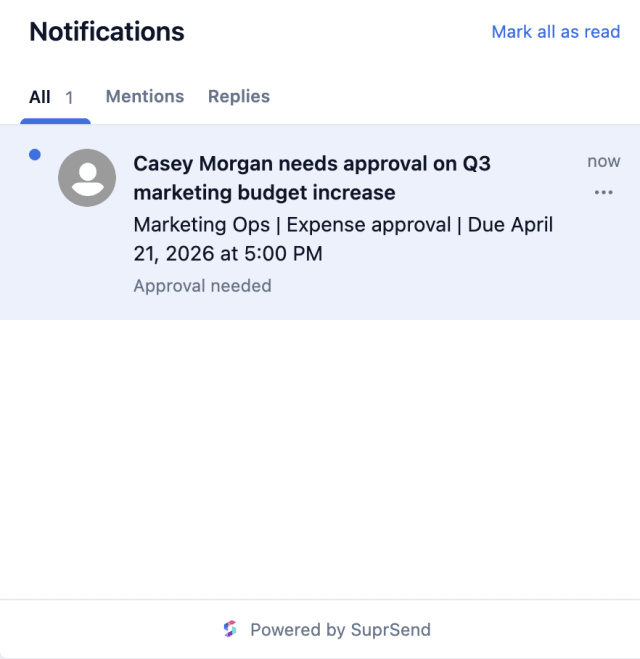
A request is raised (APPROVAL_REQUESTED), and the approver is notified.
Reminded each day
If the request stays open, the approver is reminded daily, up to three times.
Stops when resolved
Approving, rejecting, or withdrawing the request cancels the reminders.
"Sarah needs your sign-off on the Q3 budget" gets a faster decision than "You have an approval request."
Add an Invoke Workflow step on the resolved path to notify the requester with its own message, so they learn the decision without chasing it.
Once the approver has seen the request, sending it on the remaining channels adds nothing. Smart Channel Routing goes one channel at a time and stops as soon as it is seen.
After the last reminder the workflow stops. Route a still-open request to a backup approver so it is not lost.
Several reminders a day for one approval become noise the approver ignores.
If a reminder looks identical to the original, the approver cannot tell it is a nudge to act.
With no approve or reject action and no link, the approver has to go find the request, and the decision waits.
A reminder that lands at 2 AM is missed by morning. Keep it in the approver's timezone with a time window.
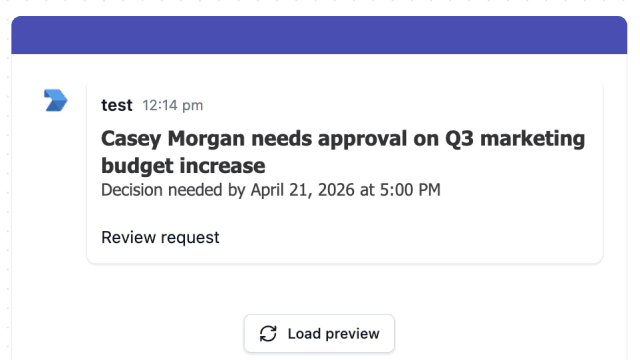
The actual notifications this workflow sends, on each channel.
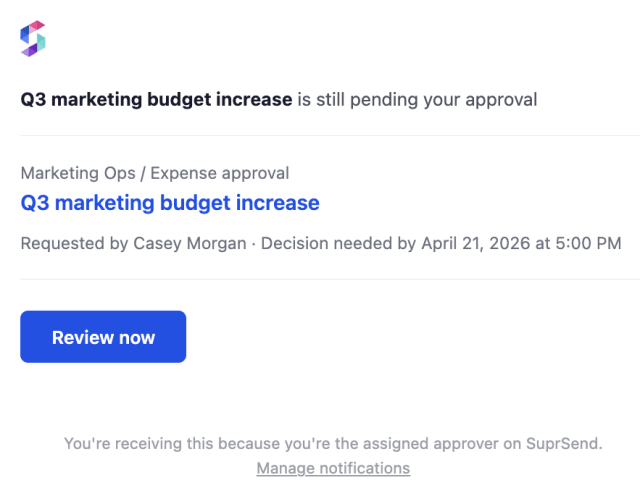
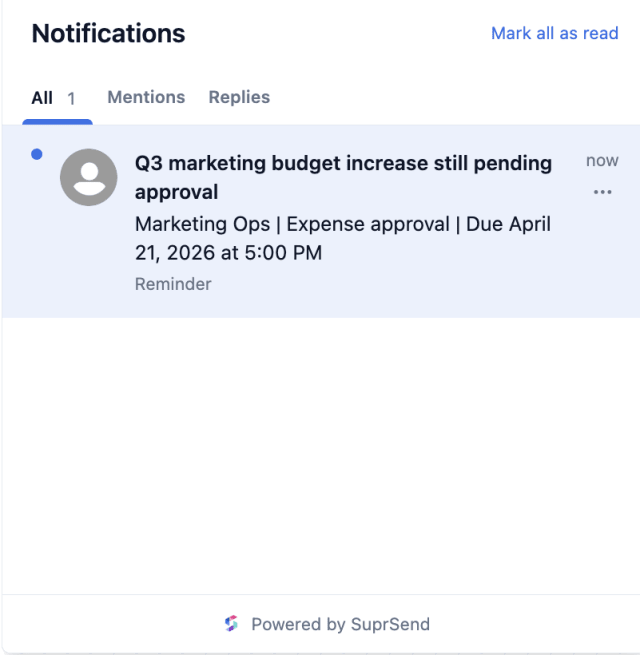
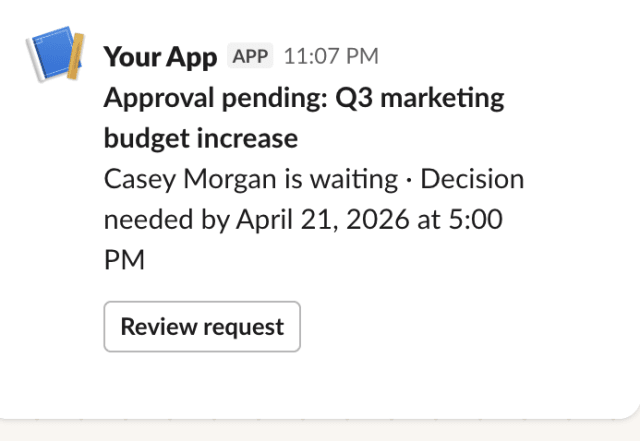
 Microsoft Teams
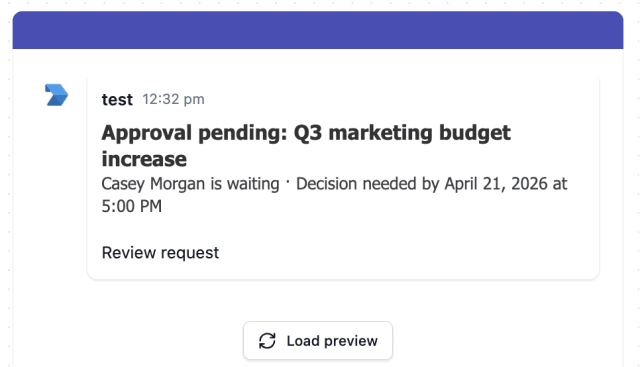
.png)
.png)
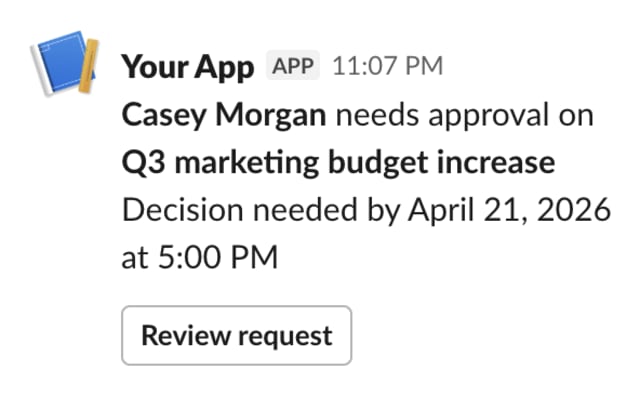 Microsoft Teams
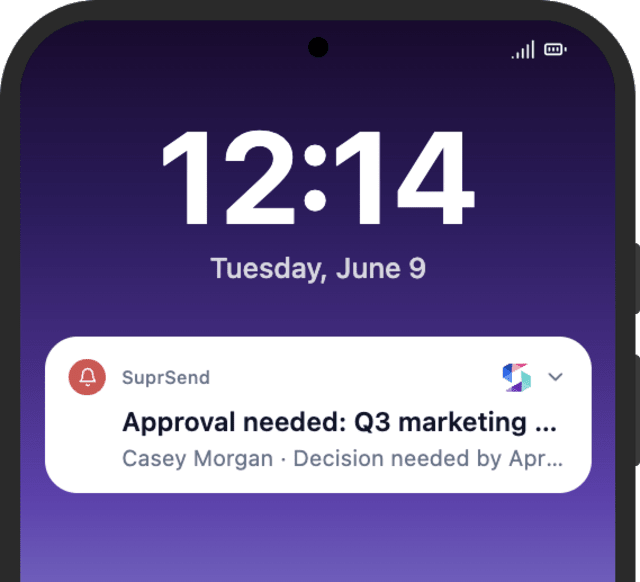
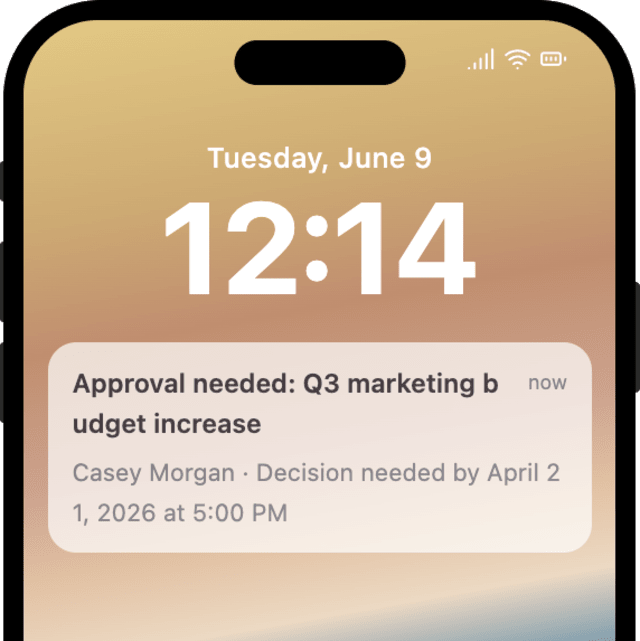
.png)
.png)
Requests get approved or rejected faster once reminders are running, instead of sitting open.
When approvers start muting the reminders, they are being chased more than the decision needs.
Quick answers about setting up and running this workflow.
Requests can go out on in-app inbox, email, Slack, Microsoft Teams, and mobile or web push. Smart Channel Routing sends them one channel at a time, lowest-cost first, and stops the moment the approver has seen the request, so paid channels are only used when needed. Any channel a user has turned off in their preferences is skipped.
By default the approver gets up to three reminders, one day apart. Adjust the Wait Until delays or the number of reminders in the workflow editor, or ask the SuprSend MCP to change them.
Yes. Trigger the workflow with more than one recipient, and each approver gets their own request and reminder sequence.
Yes. Each Wait Until ends the run once the request is resolved. Add or change the resolution events in the workflow editor, or ask the SuprSend MCP.
Trigger it with a payload shaped like the APPROVAL_REQUESTED event: an approver as the recipient plus a request_id. To check that reminders stop, fire APPROVAL_APPROVED with the same request_id. You can do this from the Test button in the workflow editor, by asking the SuprSend Agent in the dashboard, or through the API, CLI, or MCP.
Sign up and test the workflow directly in the dashboard.
Copy the prompt, paste it into the Agent in your SuprSend dashboard, and the workflow gets built for you.
Set up SuprSend MCP in Claude Code, Cursor or Windsurf, copy the prompt, and the workflow builds itself in your workspace.