
Primary signal
Awareness
The team starts the day informed
The team catches up from one morning summary instead of chasing scattered alerts all day.
By clicking “Accept All Cookies”, you agree to the storing of cookies on your device to enhance site navigation, analyze site usage, and assist in our marketing efforts. View our Privacy Policy for more information.
We use cookies to understand how the workflow library is used and to improve it.
Pick how you want to build it.
 Build with the SuprSend Agent
Every activity event pings the team all day. A stream of one-off alerts buries the signal and interrupts work.
Without a daily summary, the team starts blind. There is no single view of what happened overnight or yesterday.
Activity lives across email, chat, and the app. With no one place collecting it, things get missed.
A summary sent at the wrong hour is skipped. A digest that lands at midnight is stale by the time work starts.
Activity collects through the day
As activity events happen (ACTIVITY_EVENT), they collect through the day, newest first.
Sent as one summary each morning
Each morning, the day's activity goes out as a single digest.
Delivered where the team works
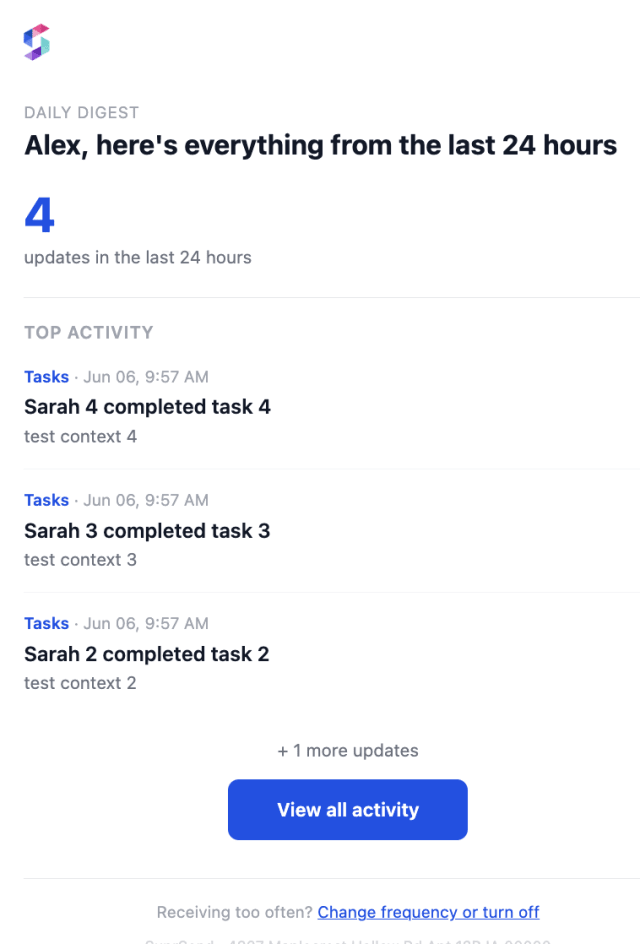
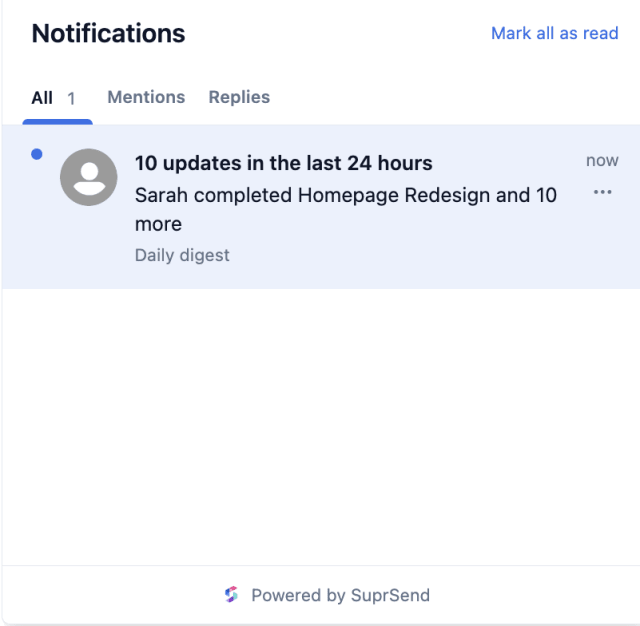
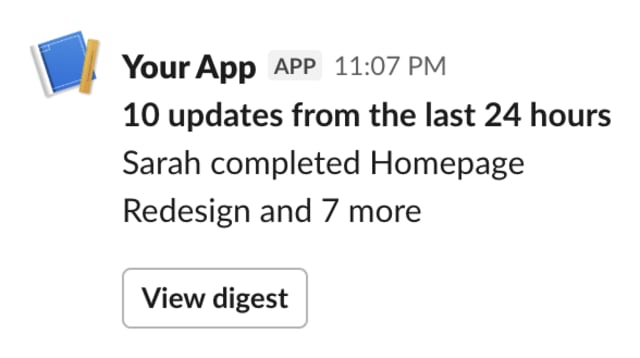
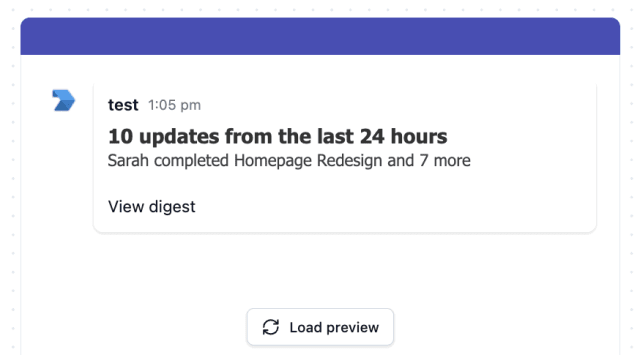
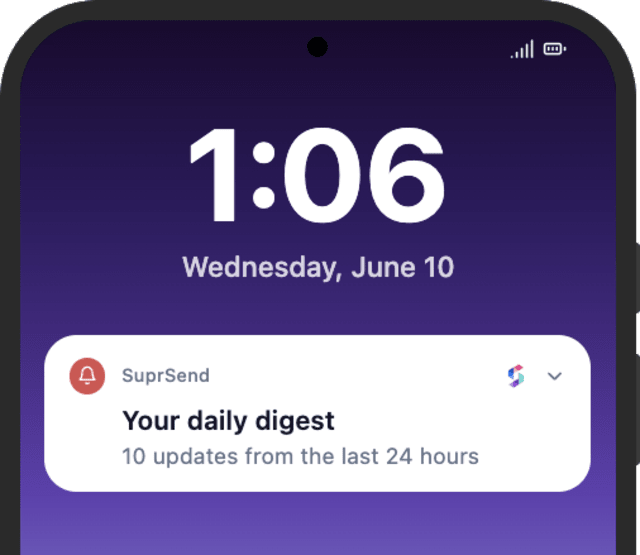
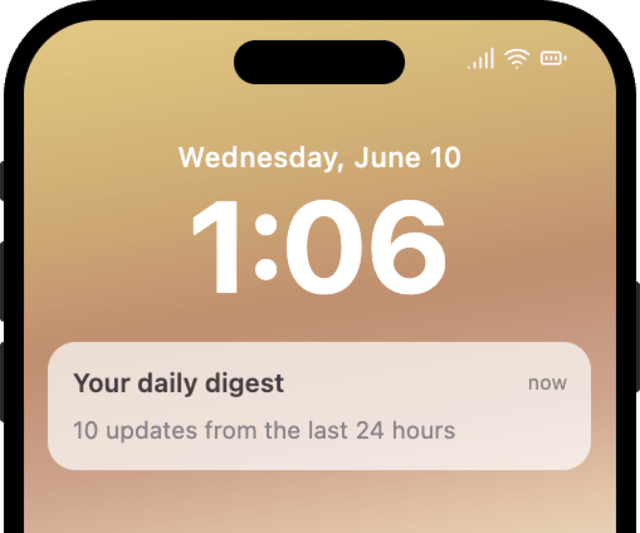
The summary lands on email, in-app inbox, Slack, and Teams together.
A summary lands best when the team sits down to work. The Digest sends at the set hour in each recipient's own timezone, so a team spread across regions each gets it at their local morning, not one global time that is midnight for half of them.
A flat list of everything buries the few items that matter. Put exceptions and anything needing a decision at the top, routine activity below.
Operational summaries get read in Slack and Teams, not a separate inbox. The digest goes to chat alongside email so no one has to go looking.
An outage or a failed job cannot wait until the 9 AM summary. Keep events that need action now on a real-time path, and use the digest for activity that can wait.
An ops lead and a support agent care about different activity. Give each team a digest of the events they own, not everything that happened across the product.
The digest goes out as long as one event lands, so a slow day produces a one-line summary that reads like a single alert arriving late. Raise the minimum number of events so it only sends when there is enough to be worth opening.
The actual notifications this workflow sends, on each channel.
 Microsoft Teams
.png)
.png)
The team catches up from one morning summary instead of chasing scattered alerts all day.
When the morning summary stops getting opened, it is too long or carries events the team does not act on.
Quick answers about setting up and running this workflow.
Each morning, with the day's activity collected into one message. Set the day and time on the Digest schedule, in the team's timezone.
Email, in-app inbox, Slack, Microsoft Teams, and push, so the team gets the summary wherever they work.
The five most recent events, newest first, with a count of any others, so a busy day still reads as a short summary instead of an endless list. Raise or lower that count in the Digest settings.
The activity digest summarizes a team's operational events each morning. Recommendation Digest sends an individual user their own personalized picks. Both gather items into one message, but one serves a team's work and the other a user's interests.
Fire a few ACTIVITY_EVENT events, then run the digest send from the Test button in the editor, the SuprSend Agent, or the API, CLI, or MCP.
Sign up and test the workflow directly in the dashboard.
Copy the prompt, paste it into the Agent in your SuprSend dashboard, and the workflow gets built for you.
Set up SuprSend MCP in Claude Code, Cursor or Windsurf, copy the prompt, and the workflow builds itself in your workspace.