
Primary signal
On-time
More invoices paid on time
More invoices are paid by the due date once the reminders are running, compared with sending the invoice alone.
By clicking “Accept All Cookies”, you agree to the storing of cookies on your device to enhance site navigation, analyze site usage, and assist in our marketing efforts. View our Privacy Policy for more information.
We use cookies to understand how the workflow library is used and to improve it.
Pick how you want to build it.
 Build with the SuprSend Agent
Invoices sent once go unpaid. With no follow-up, the customer misses the due date and the invoice sits open.
Customers forget a due date until it has passed. A nudge only after the invoice is overdue arrives too late to keep them on time.
One overdue notice rarely gets a late payer to act. Without escalating follow-ups, the invoice stays unpaid.
Reminders keep chasing an invoice that is already paid. A customer who paid still gets "your invoice is overdue".
Invoice sent
When an invoice is created (INVOICE_CREATED), the customer gets it by email.
Reminder before the due date
Three days before the due date, a reminder goes out if the invoice is unpaid.
Overdue notice
Three days after the due date, an overdue notice follows if it is still unpaid.
Final overdue notice
About two weeks after the due date, a final notice goes out.
Paying ends it
Paying (PAYMENT_SUCCEEDED) at any point stops the remaining reminders.
The first email should carry the amount, the due date, and a pay link, not just say an invoice exists. A customer who is ready then pays without waiting for a reminder.
The invoice goes by email, where it belongs. Once it is overdue, Smart Channel Routing adds SMS and push to reach a customer who is ignoring email; do not text someone the day the invoice is raised.
A customer can pay part of an invoice and still owe the rest. Add a Fetch to pull the current amount due before each reminder, so the message shows what is still owed and the reminders stop only once it is fully paid.
An overdue notice with no real consequence is easy to ignore. State what happens if the invoice stays unpaid, like a late fee or a service hold, so the follow-ups carry weight.
If you give a customer more time, the reminders still fire on the original due date. Re-issue the invoice with the new date, or they get "overdue" notices for a date you moved.
In a business, the contact who receives the invoice is often not the one who pays it. Add the person who settles the bill, like accounts payable, to the email CC so it reaches them too.
The actual notifications this workflow sends, on each channel.
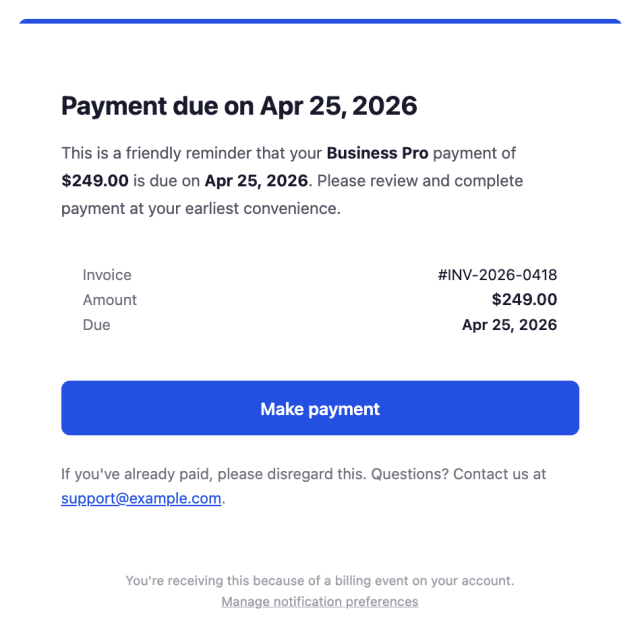
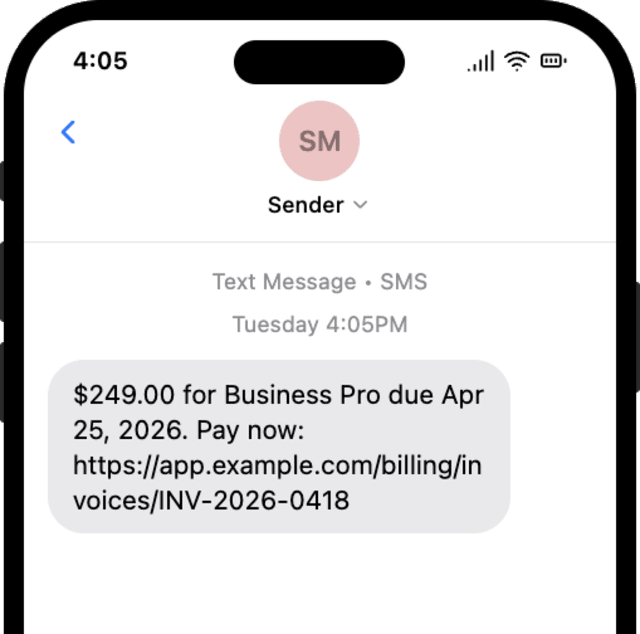
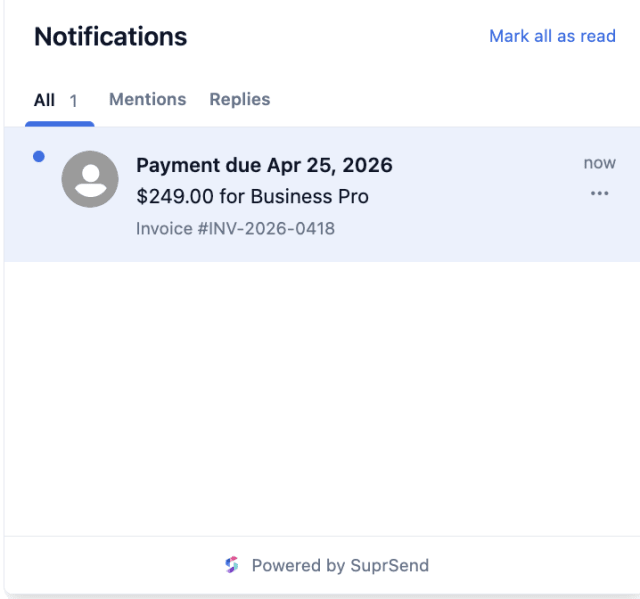
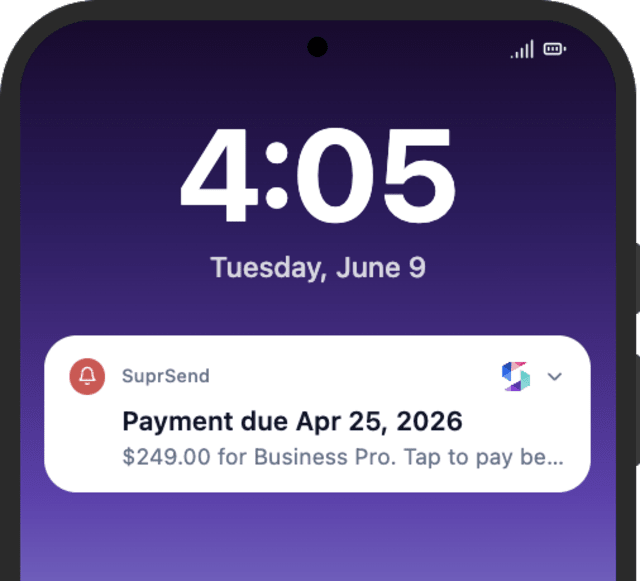
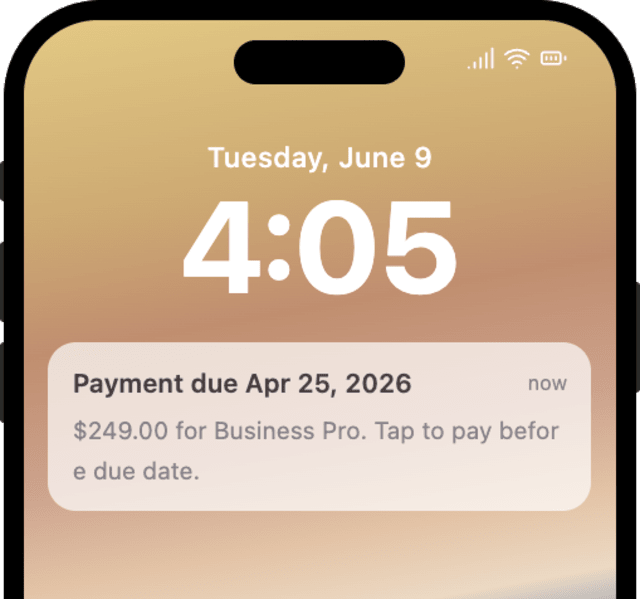
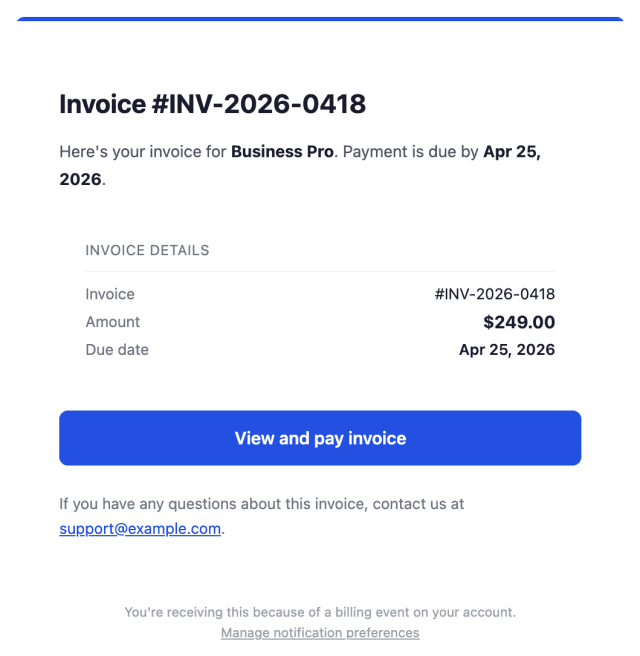
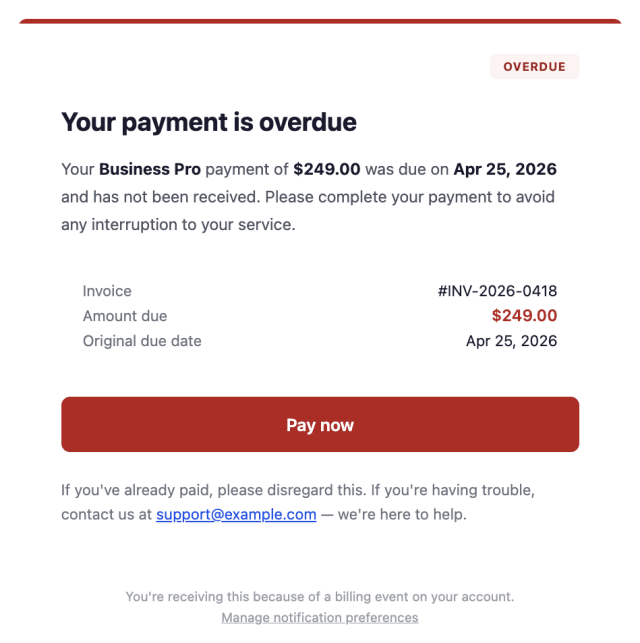
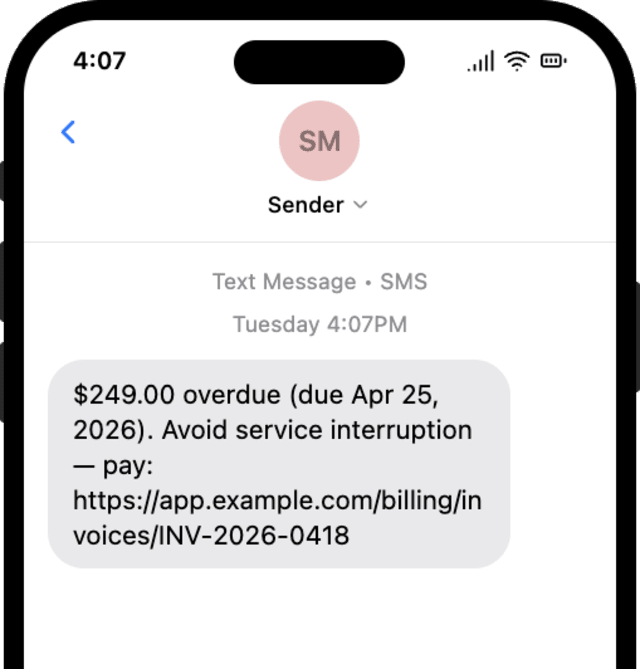
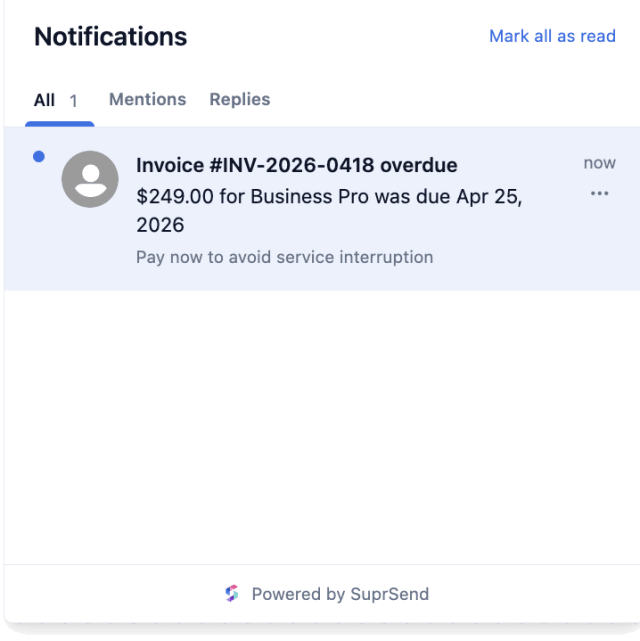
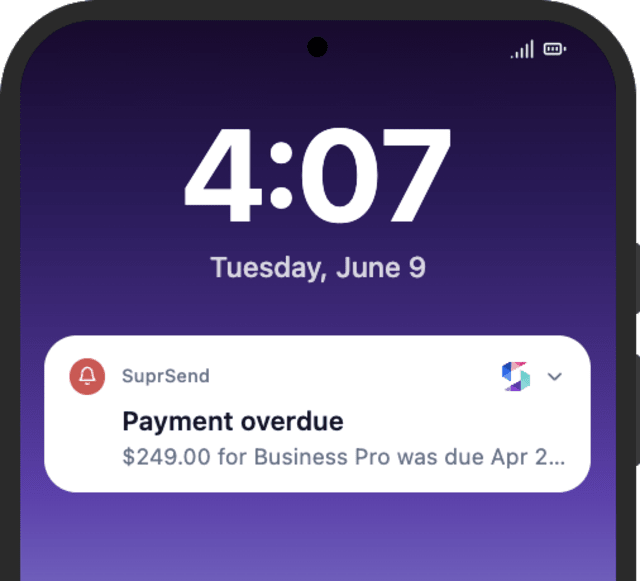
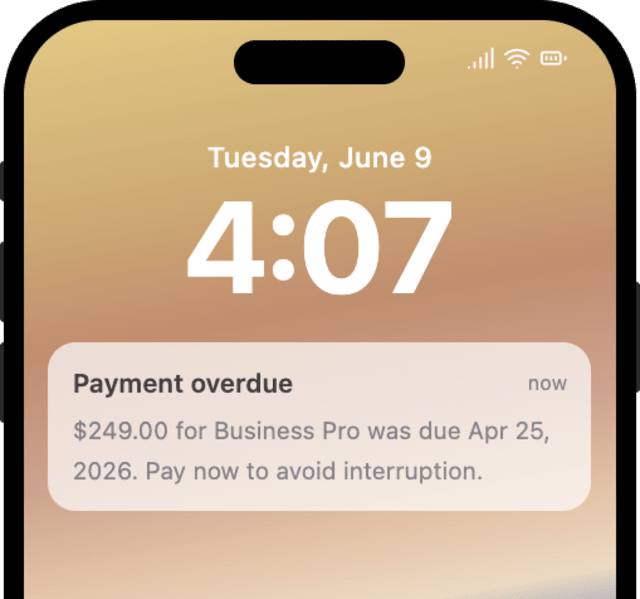
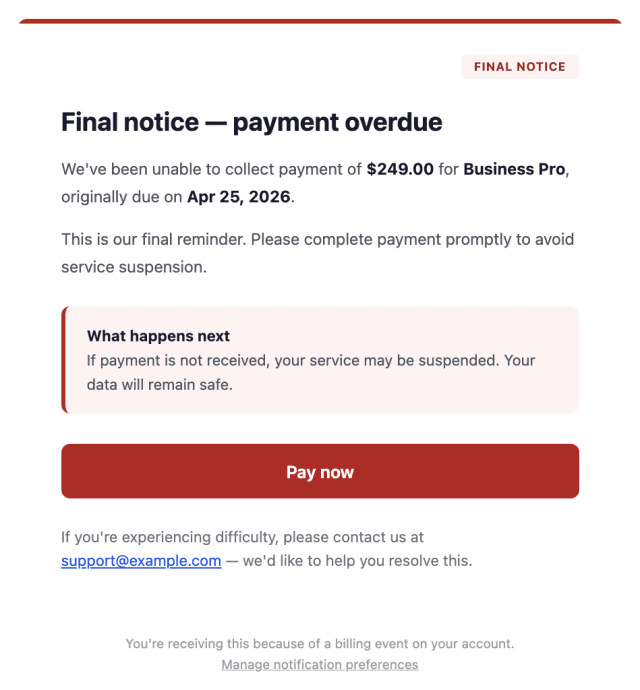
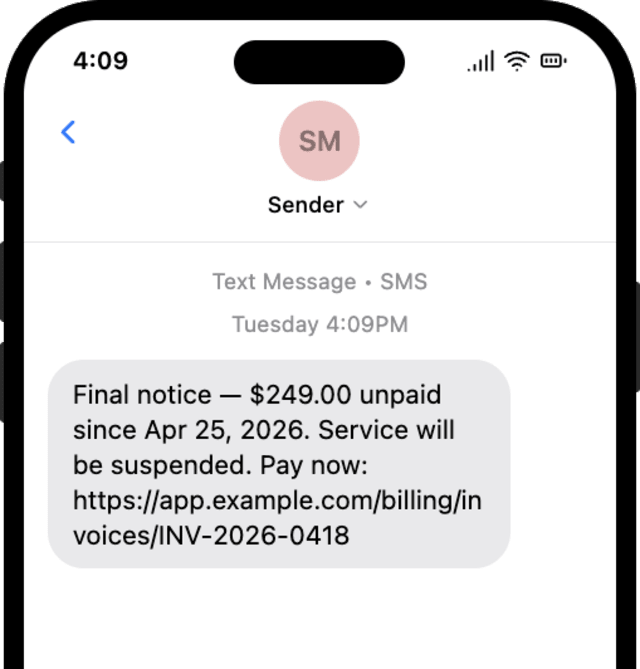
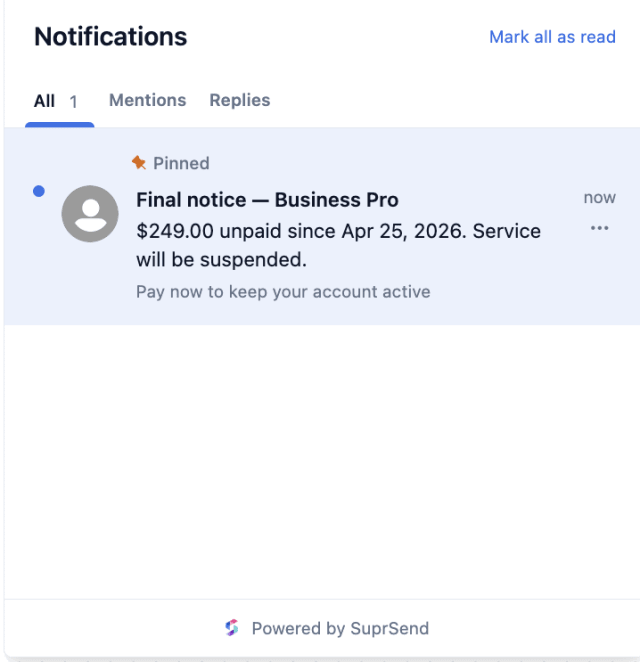
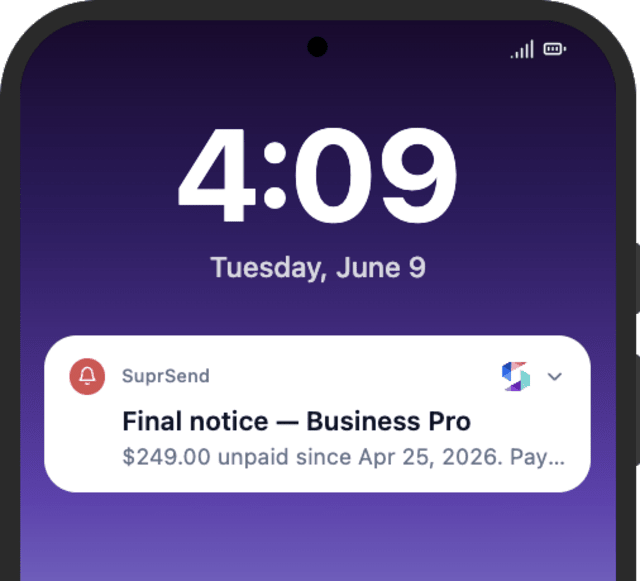
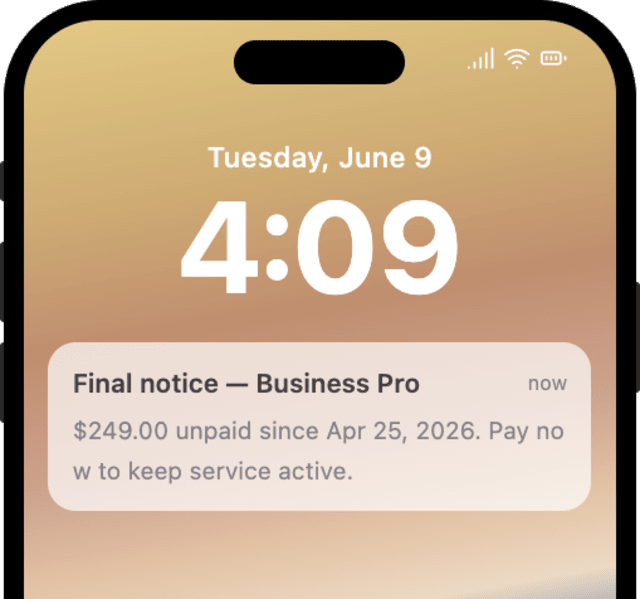
More invoices are paid by the due date once the reminders are running, compared with sending the invoice alone.
When customers who already paid still get overdue notices, the reminders are not stopping on payment as they should.
Quick answers about setting up and running this workflow.
Yes. A successful payment (PAYMENT_SUCCEEDED) for that invoice stops every remaining reminder at once, matched on invoice_id.
Both. Each invoice starts its own run on INVOICE_CREATED, so a monthly subscription invoice and a one-off invoice are each reminded, and stopped, on their own payment.
No. The workflow sends reminders only. A late fee and a receipt are handled by your billing system; you can add a receipt by sending a confirmation on the payment branch.
The invoice is sent by email. The reminders use Smart Channel Routing across email, in-app inbox, SMS, and mobile push, one at a time until the customer sees it.
Trigger a payload shaped like INVOICE_CREATED with an invoice_id and a due_date, then fire PAYMENT_SUCCEEDED with the same invoice_id to confirm the reminders stop. You can do this from the Test button in the workflow editor, by asking the SuprSend Agent in the dashboard, or through the API, CLI, or MCP.
Sign up and test the workflow directly in the dashboard.
Copy the prompt, paste it into the Agent in your SuprSend dashboard, and the workflow gets built for you.
Set up SuprSend MCP in Claude Code, Cursor or Windsurf, copy the prompt, and the workflow builds itself in your workspace.