
Primary signal
Recovered
More failed payments get recovered
More users update their card and keep their account once the dunning sequence is running, compared with a single notice.
By clicking “Accept All Cookies”, you agree to the storing of cookies on your device to enhance site navigation, analyze site usage, and assist in our marketing efforts. View our Privacy Policy for more information.
We use cookies to understand how the workflow library is used and to improve it.
Pick how you want to build it.
 Build with the SuprSend Agent
A failed payment with no follow-up loses the account. The user never updates their card and quietly loses access.
The cardholder is not always the person who can fix it. A finance contact's card declined, but the account admin needs to know the service is at risk.
Suspending with no warning loses goodwill. A hard cutoff surprises a paying customer who would have fixed the card.
Notices keep going after the user already paid. Someone who updated their card still gets "your account will be suspended".
Payment fails
A charge fails (PAYMENT_FAILED) and the user gets a first notice by email.
Account owner is informed
If the billing contact is not the account owner, the owner is notified as well.
A warning after a few days
Three days later, if the invoice is still unpaid, a stronger warning goes out.
A final notice
Four days after that, a final notice warns that access is about to be restricted.
Pay to stop, or the account is suspended
Paying (PAYMENT_SUCCEEDED) stops everything; otherwise, after a grace period, the account is suspended.
The card on file may belong to someone who cannot authorize the fix, like a finance contact, so a Branch checks whether the account owner differs from the billed contact and an Invoke Workflow alerts the owner who is actually responsible.
Your billing system retries a failed card on its own schedule. Send the warning and final notice after those retries, so you do not warn a user the day before their card is tried again.
The workflow waits a grace period before suspending. Set its length to what your terms promise, so cutting access stays fair and the final notice's deadline is real.
A user can owe on more than one invoice. Match the stop on the failed invoice (invoice_id), or paying one invoice cancels the dunning for another that is still open.
A failed charge on a plan the user already canceled should not trigger "pay or lose access" - they chose to leave. Make sure only active subscriptions enter the sequence.
Most failed cards are an expiry or a limit, not a refusal to pay. A blaming tone pushes away a customer who simply needs to update their card.
The actual notifications this workflow sends, on each channel.
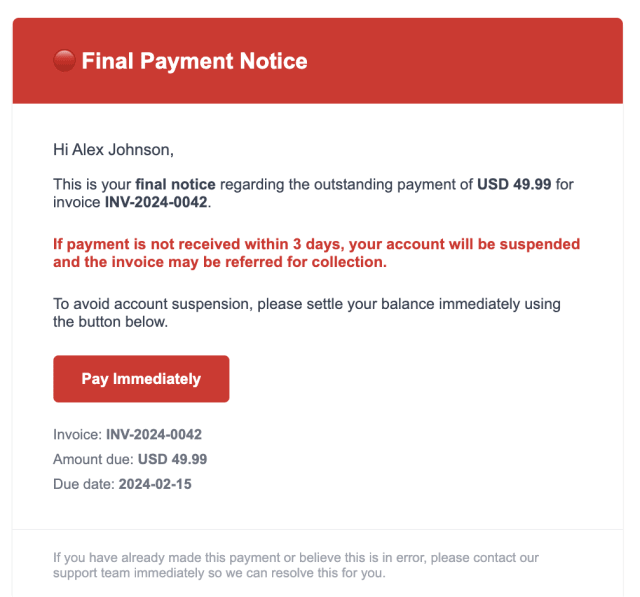
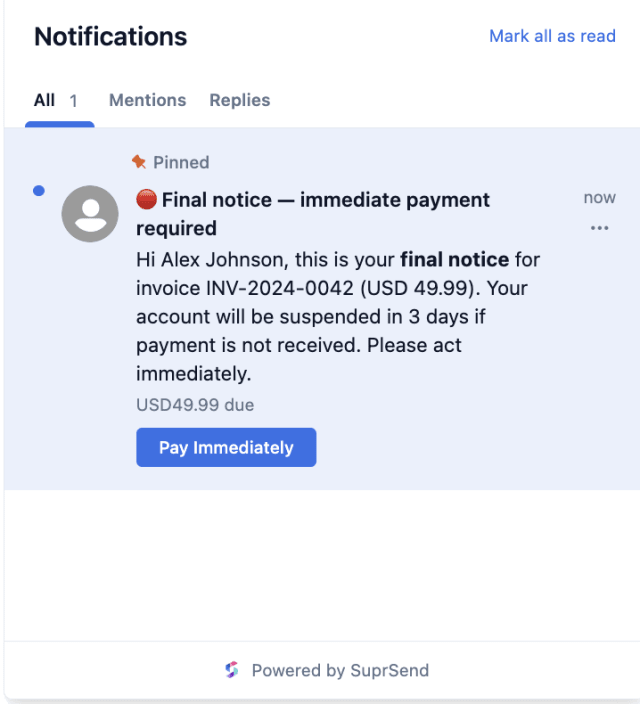
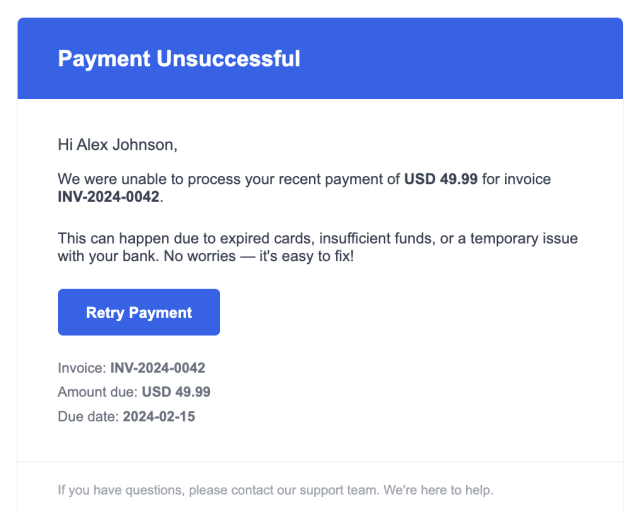
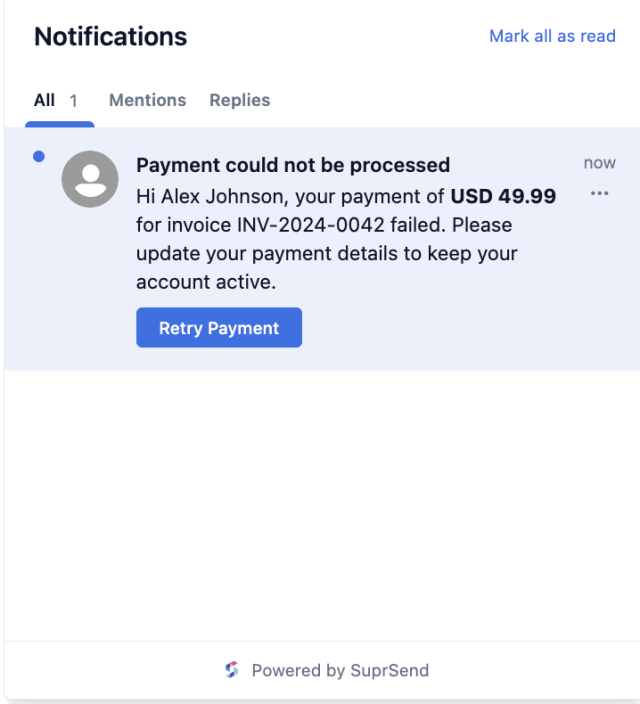
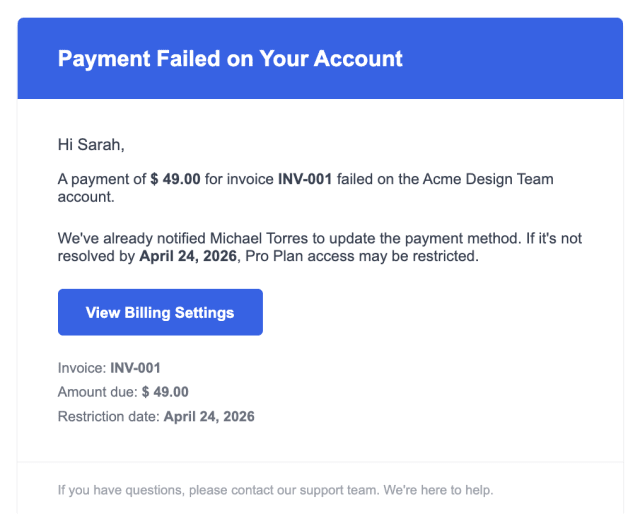
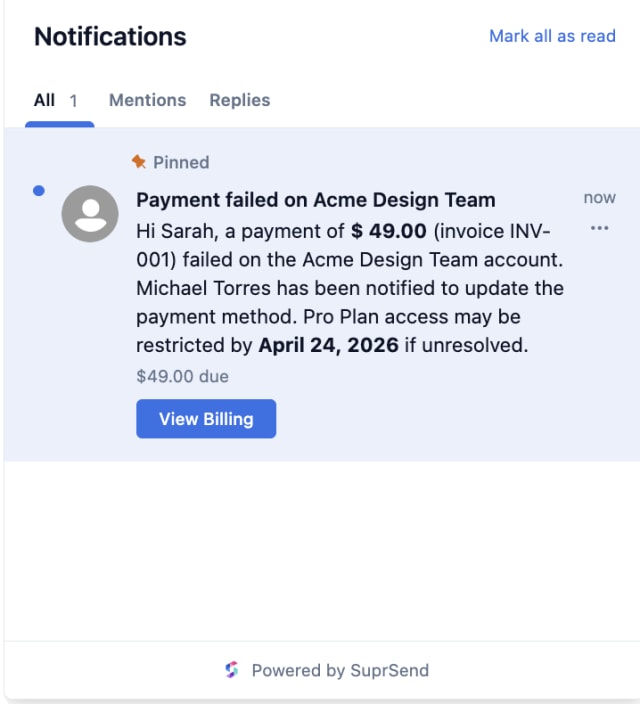
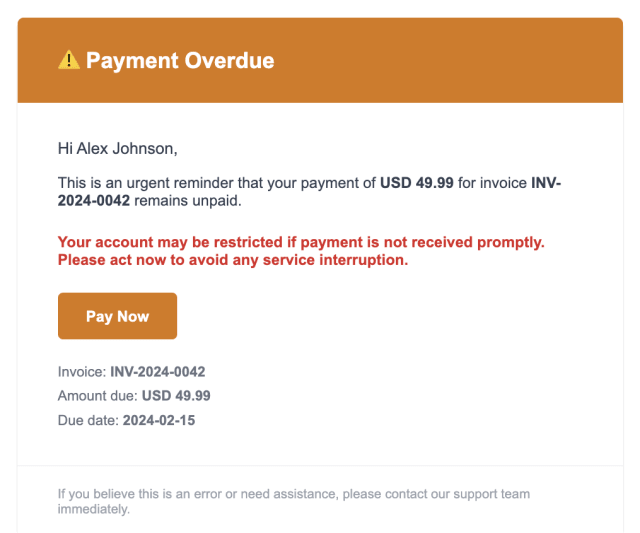
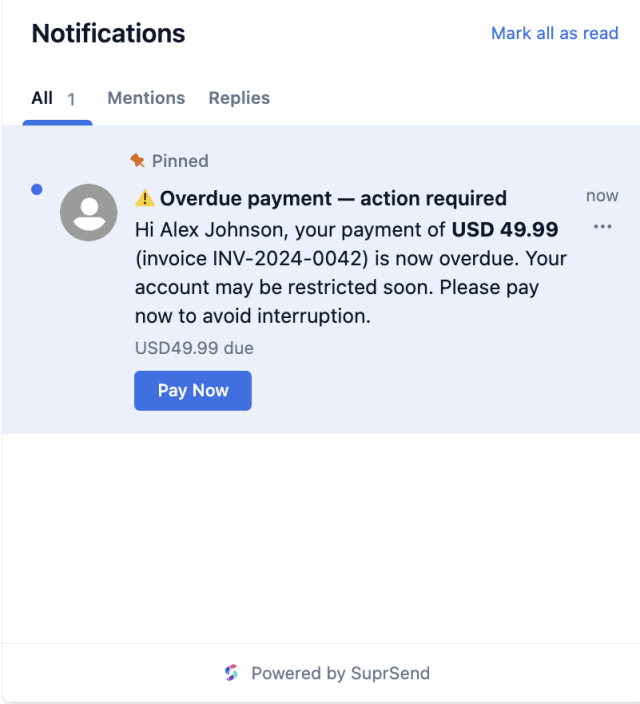
More users update their card and keep their account once the dunning sequence is running, compared with a single notice.
When users who already paid still get warnings, or paying customers churn, the notices are too aggressive or did not stop on time.
Quick answers about setting up and running this workflow.
No. A successful payment (PAYMENT_SUCCEEDED) for that invoice stops the rest of the sequence at any stage, as long as it carries the same invoice_id.
Email and in-app inbox. The first notice is email; the warning and final notice also use the inbox, since a paying user has an account. For a high-stakes failed payment, you can add SMS to the urgent notices to reach a user who ignores their inbox.
Yes. The default is a first notice, a warning after three days, a final notice after seven, and suspension after ten. Adjust the Wait Until delays or the number of notices in the editor or through the SuprSend MCP.
Trigger a payload shaped like PAYMENT_FAILED with an invoice_id and an account_owner_id. To confirm it stops, fire PAYMENT_SUCCEEDED with the same invoice_id. You can do this from the Test button in the workflow editor, by asking the SuprSend Agent in the dashboard, or through the API, CLI, or MCP.
After the final notice and a grace period, the workflow calls your system through a Webhook to suspend the account, then ends. The workflow signals; your billing system retries the charge and your system enforces the suspension. To win the customer back later, use a separate reactivation campaign.
Sign up and test the workflow directly in the dashboard.
Copy the prompt, paste it into the Agent in your SuprSend dashboard, and the workflow gets built for you.
Set up SuprSend MCP in Claude Code, Cursor or Windsurf, copy the prompt, and the workflow builds itself in your workspace.