
Primary signal
Tickets
Fewer "where is my order" tickets
Buyers check the update instead of contacting support when each key status carries live tracking.
By clicking “Accept All Cookies”, you agree to the storing of cookies on your device to enhance site navigation, analyze site usage, and assist in our marketing efforts. View our Privacy Policy for more information.
We use cookies to understand how the workflow library is used and to improve it.
Pick how you want to build it.
 Build with the SuprSend Agent
Buyers are left guessing where their order is. Silence between purchase and delivery drives "where is my order" tickets.
A failed delivery goes unnoticed until the buyer complains. No one nudges them to fix the address or rebook, so the parcel goes back undelivered.
Notifying every status change buries the ones that matter. Packed, shipped, and a failed delivery matter; internal steps do not.
A buyer kept in the dark does not order again. With no word after checkout, the store feels careless and the next purchase goes elsewhere.
Order status changes
When an order's status changes (ORDER_STATUS_CHANGED), it is routed by what happened.
Packed and shipped updates
When the order is packed and then shipped, the buyer gets an update with tracking.
Failed delivery gets a prompt
If a delivery attempt fails, the buyer is told right away so they can act.
A reminder if it is still undelivered
A day later, if the delivery has not gone through, a follow-up nudges the buyer.
Delivery ends the follow-up
Once the order is delivered (ORDER_DELIVERED), the follow-ups stop.
Packed, shipped, and a delivery problem are worth a message; an internal scan or sort is not. The Branch sends only the few that matter, so your order alerts stay worth opening.
A "packed" note can wait in email, but a failed delivery needs the buyer to act now, so it goes through Smart Channel Routing across push, SMS, and email while the routine updates stay calmer.
The day-after reminder should land near when the courier reattempts, so the buyer fixes the address or stays in just before the next try, not a day too early.
A shipped update whose tracking link goes nowhere frustrates more than silence. Send it once the carrier has the package and the link actually works.
This workflow covers packed, shipped, and failed delivery. If your "order confirmed" or "delivered" messages come from a different flow, do not send them here too, or the buyer gets the same news twice.
"Delivery failed" alone leaves the buyer stuck. Say why, wrong address or no one home, and what to do, so the message moves the order forward.
The actual notifications this workflow sends, on each channel.
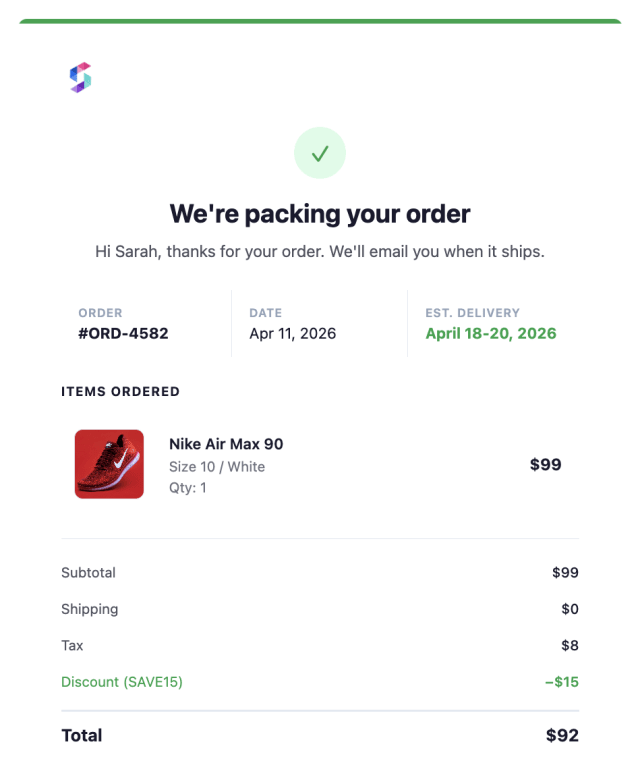
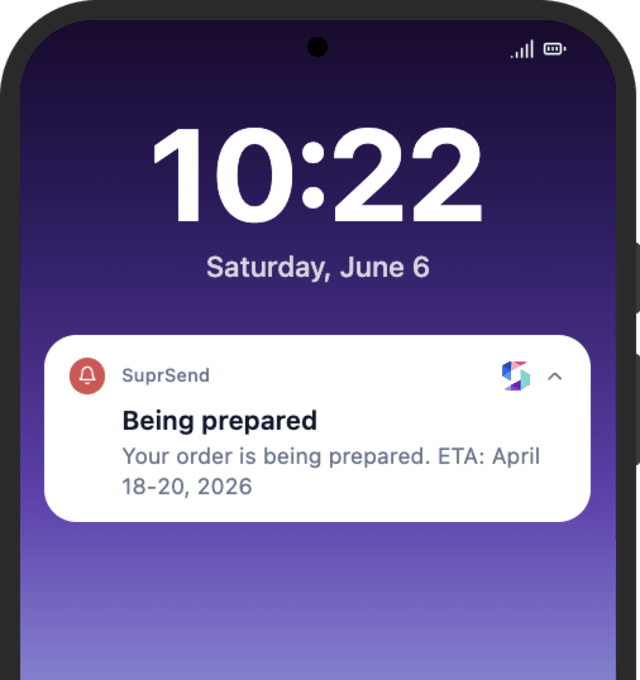
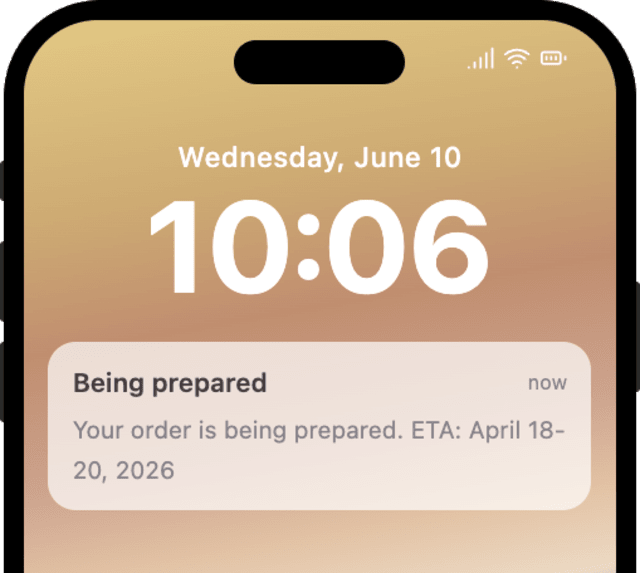
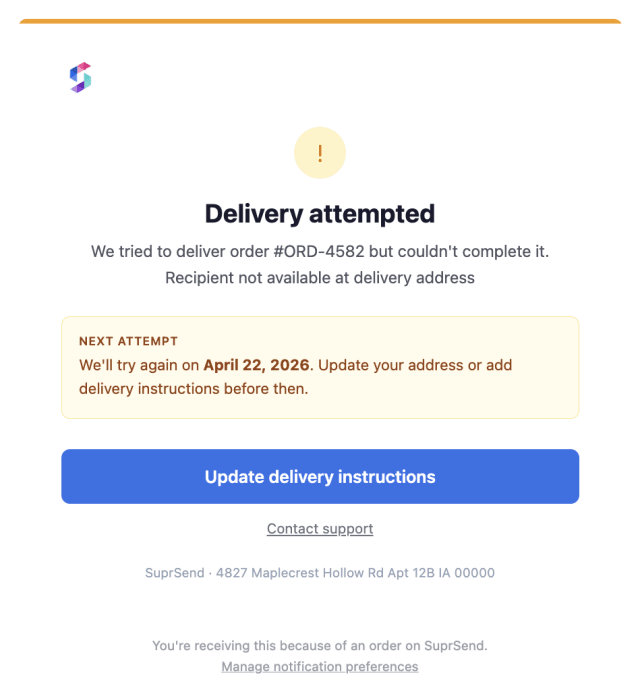
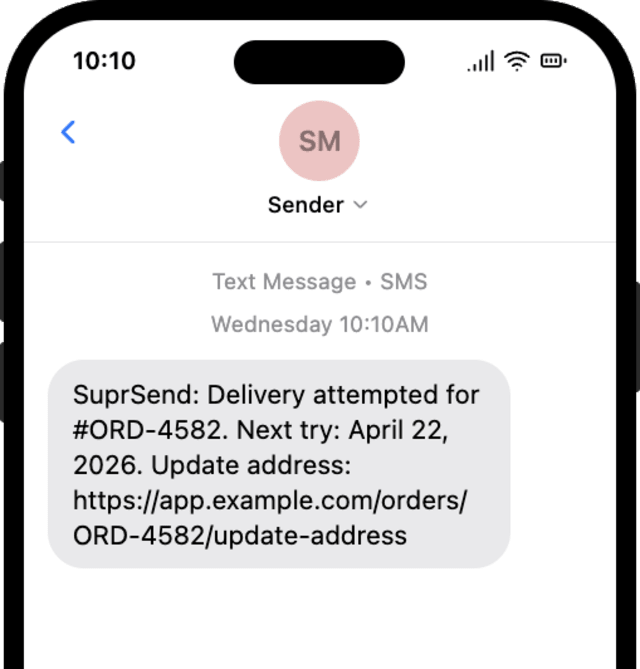
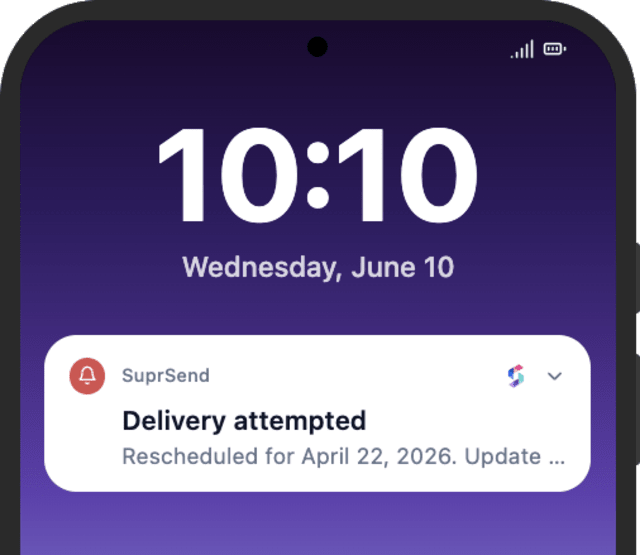
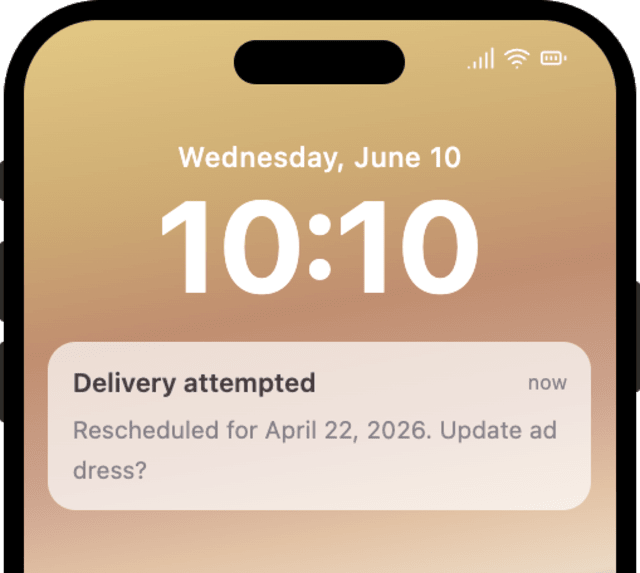
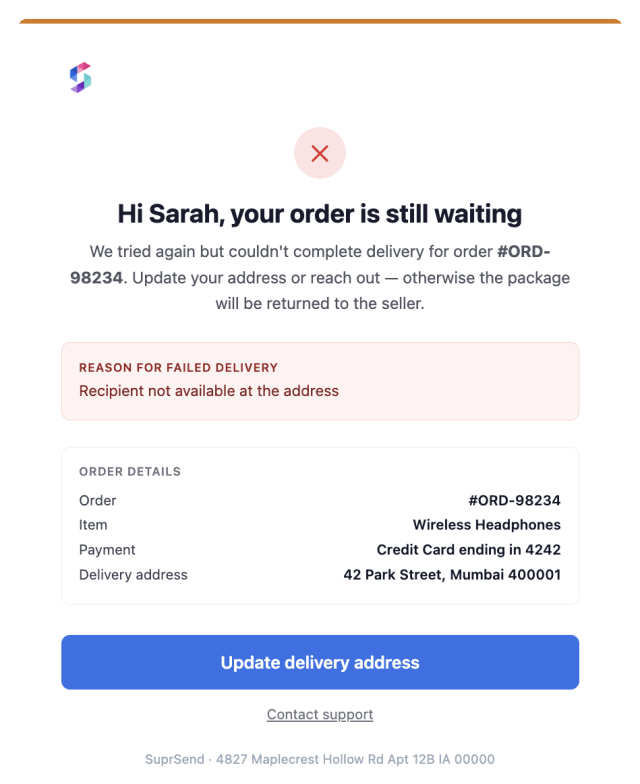
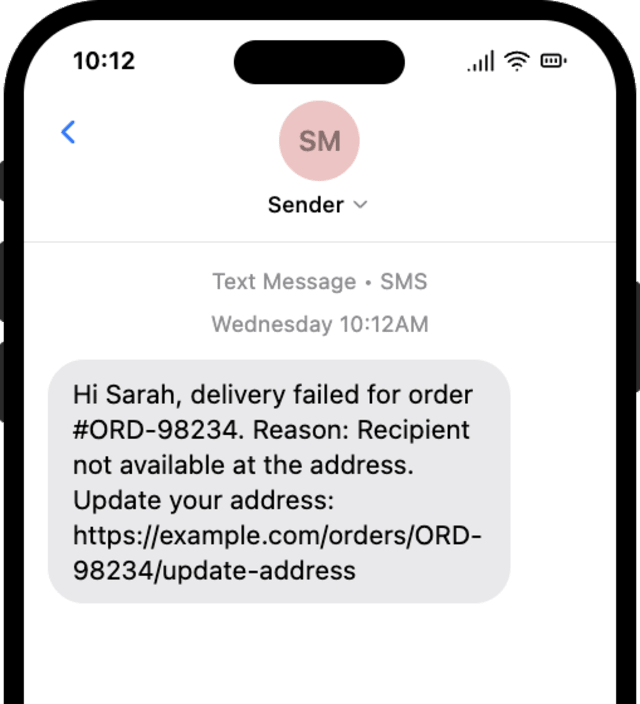
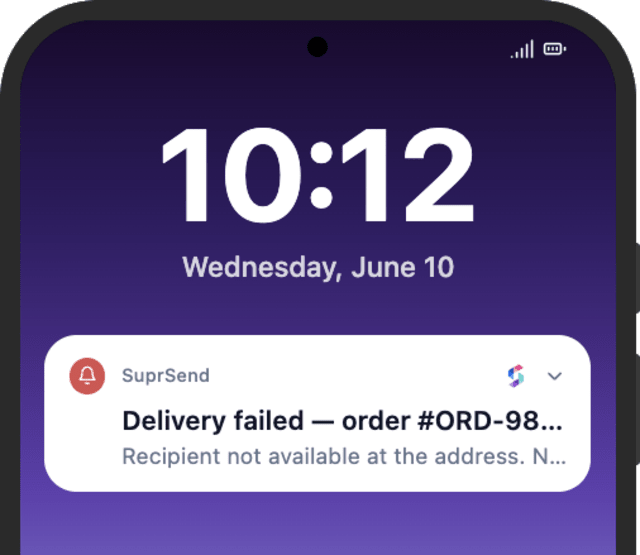
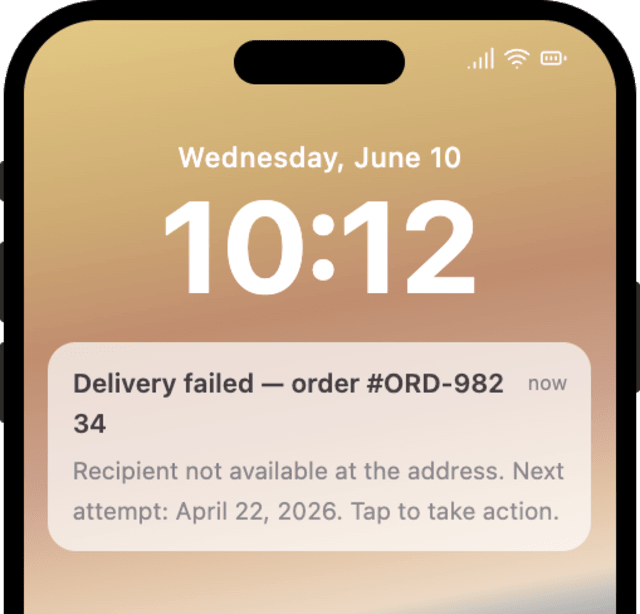
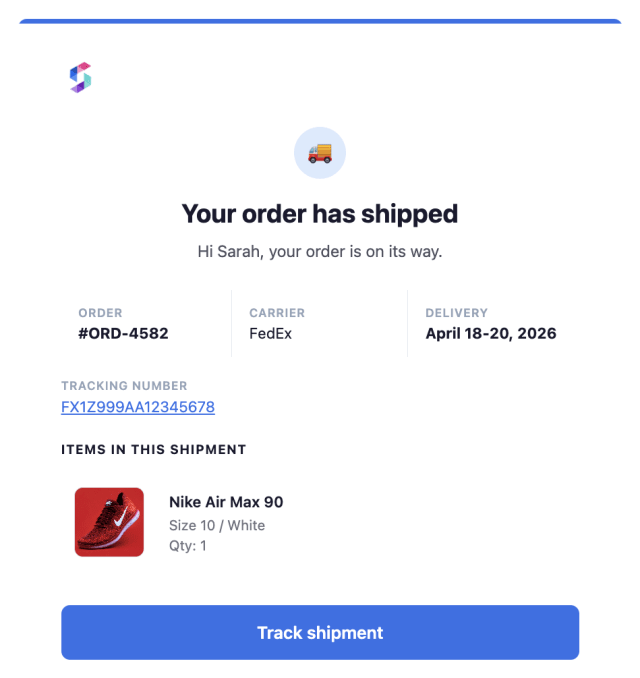
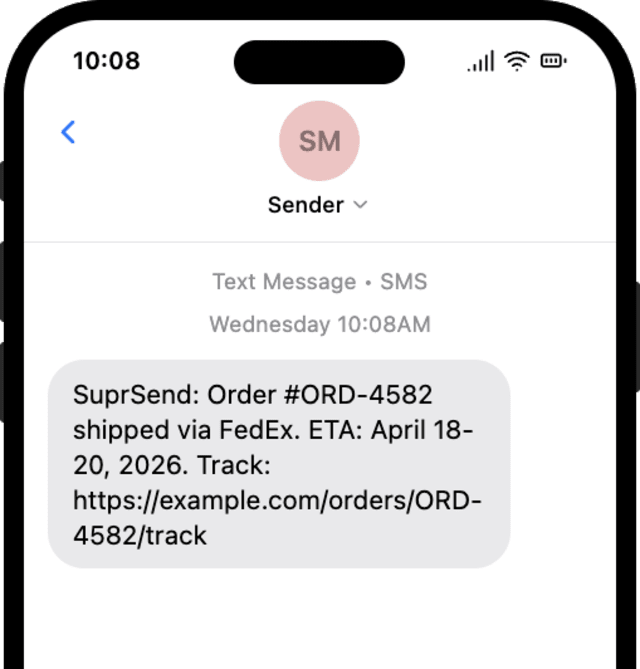
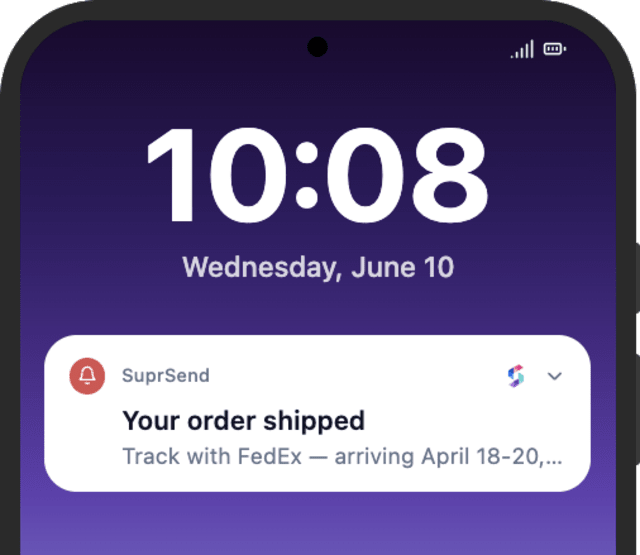
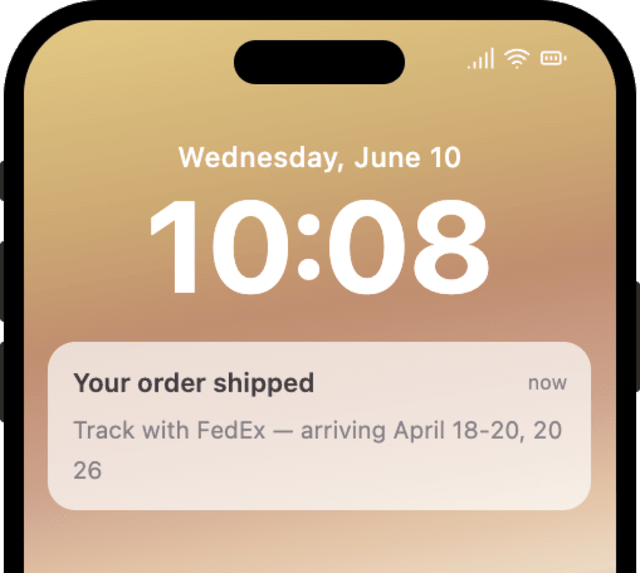
Buyers check the update instead of contacting support when each key status carries live tracking.
When buyers turn off order notifications, updates are firing on minor statuses that did not need a message.
Quick answers about setting up and running this workflow.
Packed, shipped, and a failed delivery, routed by a Branch. Confirmed, delivered, and cancelled are handled by their own workflows, so the buyer does not hear the same news twice.
The buyer is told right away via Smart Channel Routing, with a follow-up a day later if it is still undelivered. The follow-ups stop the moment the order is delivered.
Email and push for the packed and shipped updates, with SMS added on a failed delivery so the buyer sees the urgent one fast.
Yes. Add a Branch path for any status you want the buyer to hear about, with its own message.
Fire ORDER_STATUS_CHANGED with each status - packed, shipped, and delivery failed - to check every path, and ORDER_DELIVERED to confirm the follow-up stops. Use the Test button, the SuprSend Agent, or the API, CLI, or MCP.
Sign up and test the workflow directly in the dashboard.
Copy the prompt, paste it into the Agent in your SuprSend dashboard, and the workflow gets built for you.
Set up SuprSend MCP in Claude Code, Cursor or Windsurf, copy the prompt, and the workflow builds itself in your workspace.