
Primary signal
Responses
More feedback comes back
More users complete the ask when it is short and followed up once, compared with a single request that is easy to ignore.
By clicking “Accept All Cookies”, you agree to the storing of cookies on your device to enhance site navigation, analyze site usage, and assist in our marketing efforts. View our Privacy Policy for more information.
We use cookies to understand how the workflow library is used and to improve it.
Pick how you want to build it.
 Build with the SuprSend Agent
A feedback request sent at a random hour gets ignored. Asked at 3 AM, it is deleted by morning before the user reads it.
A single ask with no follow-up gets a low response. Most people mean to answer later and never do.
Requests keep going after the user responded. Someone who already gave feedback still gets asked again.
Asking the instant it ends gets a rushed answer. Before the experience settles, the reply reflects the last second, not the whole interaction.
An interaction finishes
When an interaction completes (INTERACTION_COMPLETED), the workflow waits a short while.
Asked during working hours
It holds until the user's daytime, then asks for feedback.
One reminder if no response
If there is no answer in two days, a single reminder follows, also in working hours.
Responding ends it
Submitting feedback (FEEDBACK_SUBMITTED) stops the reminder.
A request at 3 AM is gone by morning. A Time Window holds the ask until 9 to 6 in the user's own timezone, when they will actually answer.
Right after an interaction, a single-tap rating gets answered; a long form gets closed. Lead with one question and make any detail optional.
A short Delay after the interaction lets it sink in, so the reply reflects the whole experience rather than a rushed reaction to the last moment.
A "how did we do?" after a failed or escalated interaction rubs salt in. Branch on the outcome so a bad one gets a different ask, or none.
If the user gave feedback through another channel, FEEDBACK_SUBMITTED still has to fire, or they get reminded for something they already did.
One ask and one reminder is plenty for a single interaction. A third nudge for feedback reads as pestering and costs you goodwill.
The actual notifications this workflow sends, on each channel.
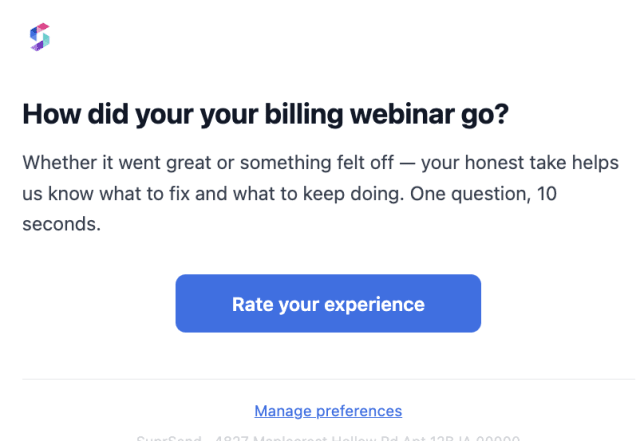
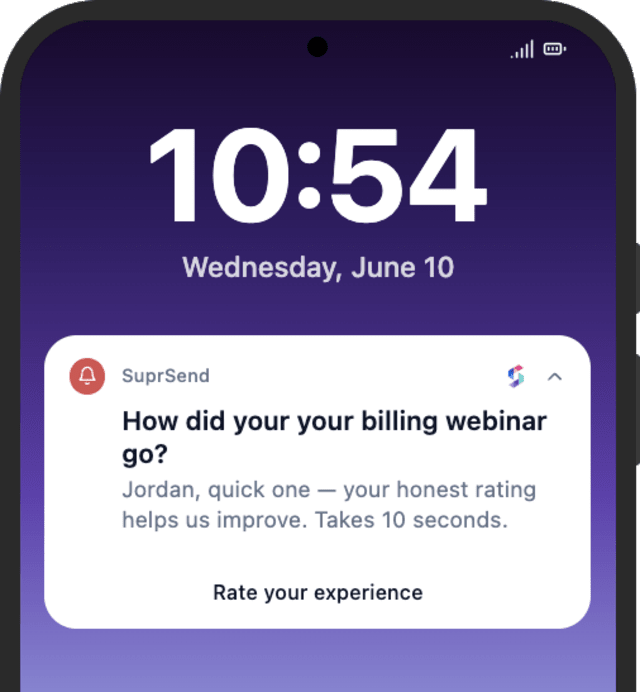
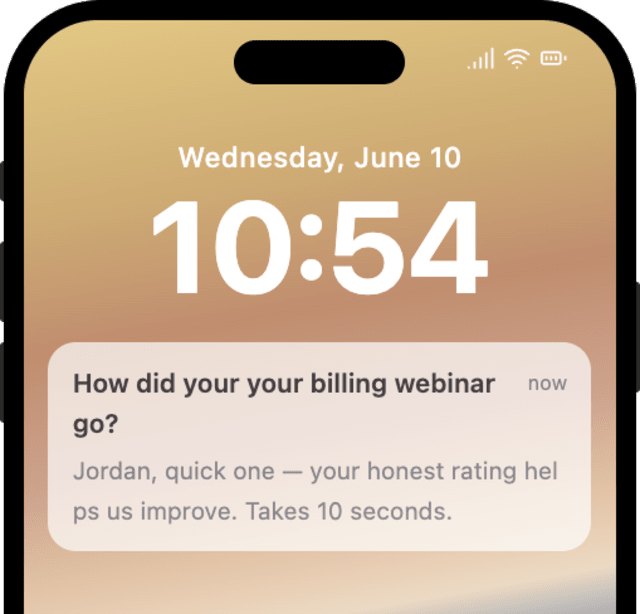
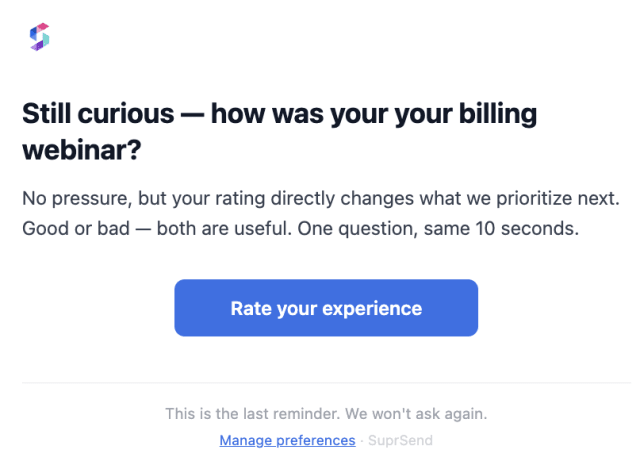
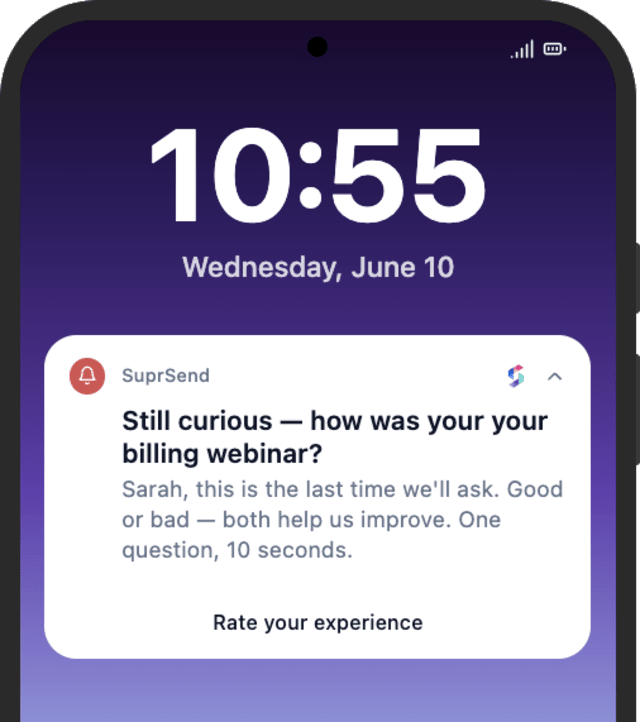
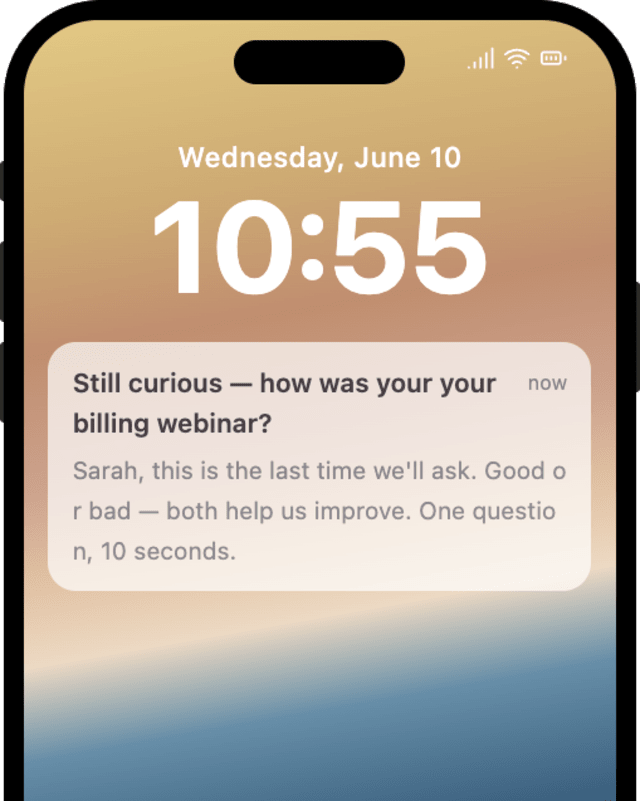
More users complete the ask when it is short and followed up once, compared with a single request that is easy to ignore.
When users mute feedback requests, the asks are too long, too frequent, or arriving after the user already responded.
Quick answers about setting up and running this workflow.
A short while after the interaction (a Delay), then held by the Time Window to the user's 9-to-6 so it lands when they are likely to answer.
Submitting feedback (FEEDBACK_SUBMITTED) stops it at the Wait Until, so a user who answered is not asked again.
Email, mobile push, and WhatsApp, sent by Smart Channel Routing so the ask reaches the user where a quick reply is easy.
Once, then one reminder two days later if there is no response. After that it stops, so a single interaction is never chased more than twice.
Fire INTERACTION_COMPLETED, then FEEDBACK_SUBMITTED with the same interaction_id to confirm the stop. The Time Window may hold the send to daytime. Use the Test button in the editor, the SuprSend Agent, or the API, CLI, or MCP.
Sign up and test the workflow directly in the dashboard.
Copy the prompt, paste it into the Agent in your SuprSend dashboard, and the workflow gets built for you.
Set up SuprSend MCP in Claude Code, Cursor or Windsurf, copy the prompt, and the workflow builds itself in your workspace.