
Primary signal
RSVPs
More invites turn into RSVPs
More people respond when the invite lands in their active hours with a one-tap RSVP and a follow-up that adds a reason.
By clicking “Accept All Cookies”, you agree to the storing of cookies on your device to enhance site navigation, analyze site usage, and assist in our marketing efforts. View our Privacy Policy for more information.
We use cookies to understand how the workflow library is used and to improve it.
Pick how you want to build it.
 Build with the SuprSend Agent
Event invites sent once get a low RSVP. Most people mean to reply later and never circle back.
An invite at the wrong hour is missed. Sent overnight, it is skimmed and gone before the user could respond.
Follow-ups keep going after the user already replied. Someone who RSVP'd still gets chased to RSVP.
An invite with no clear date or RSVP button gets ignored. If replying takes effort, the user puts it off for good.
An event invite goes out
When an invite is triggered (EVENT_INVITE_TRIGGERED), it is sent in the user's active hours.
Waits for the RSVP
It then waits for the user to respond.
One follow-up if no reply
If there is no RSVP in three days, a single follow-up nudges them.
RSVPing ends it
Confirming attendance (RSVP_CONFIRMED) stops the follow-up.
Yes, no, or maybe right in the invite. The fewer steps to RSVP, the more you get.
Keep the people interested in an event as subscribers to the event, then trigger the invite on the event to reach them all in one call. They can subscribe or unsubscribe as their interest changes, so the audience stays current.
The reminder should add something, like spots filling or the agenda. A repeat of the invite earns the same non-answer.
The Wait Until stops only on RSVP_CONFIRMED; a decline does not stop it. Add the decline event as a second stop condition, or a user who said no gets chased to reply again.
A 50-seat workshop sent to your entire base fills inboxes, not seats, and teaches users to skip your invites. Invite the segment the event is actually for, by role, region, or eligibility.
The reminder fires after the Wait Until delay, three days by default. If RSVPs or seats close sooner, shorten it, or the nudge lands after the door has shut.
The actual notifications this workflow sends, on each channel.

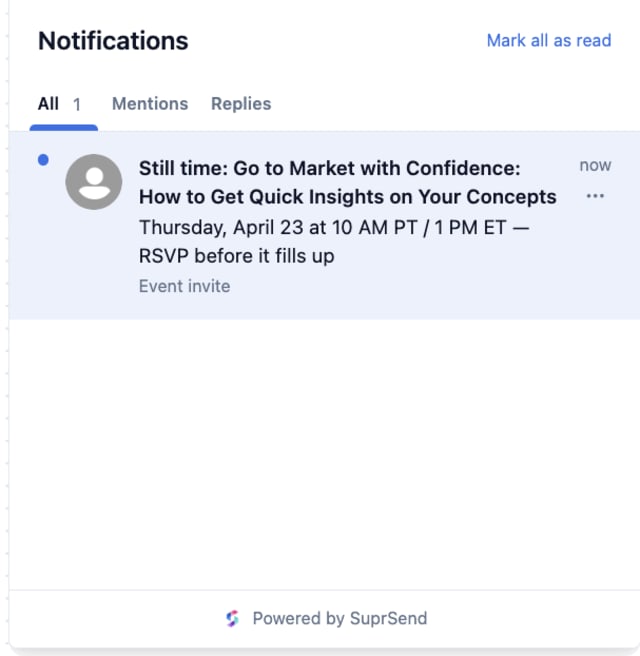
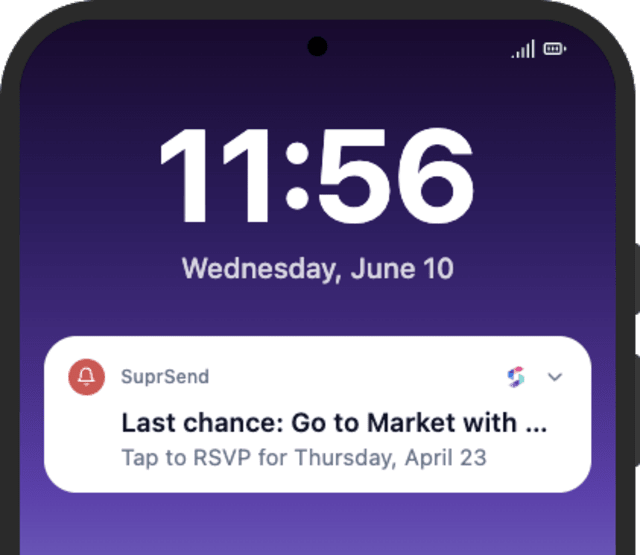
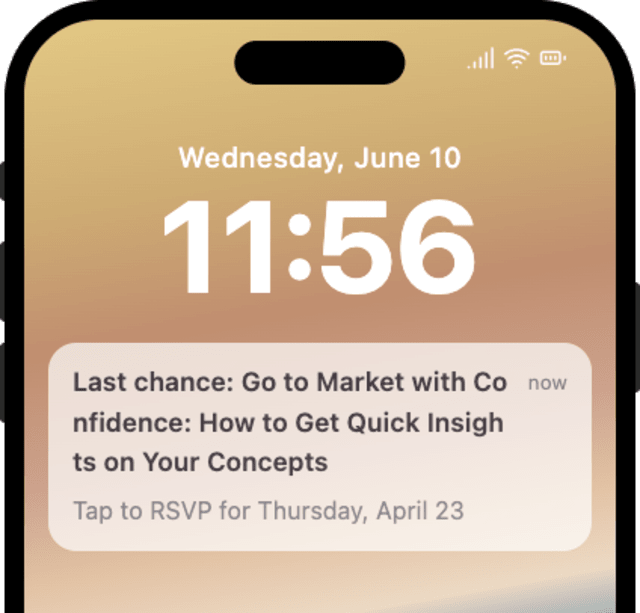

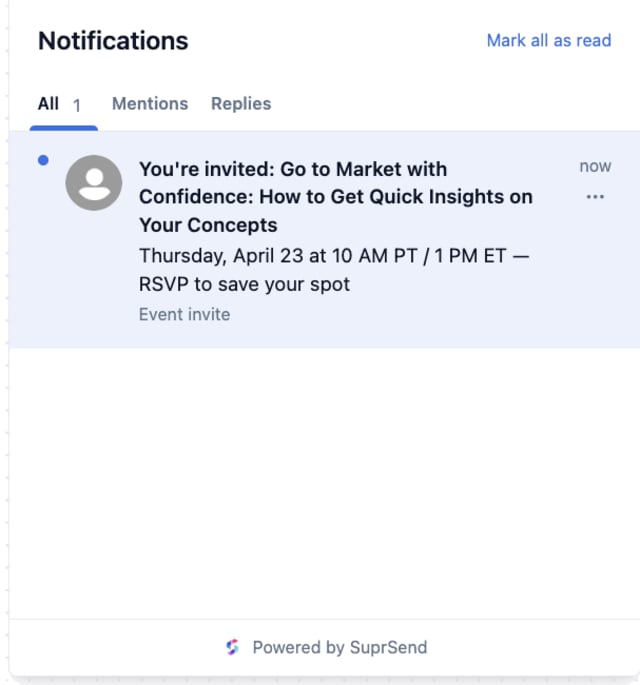
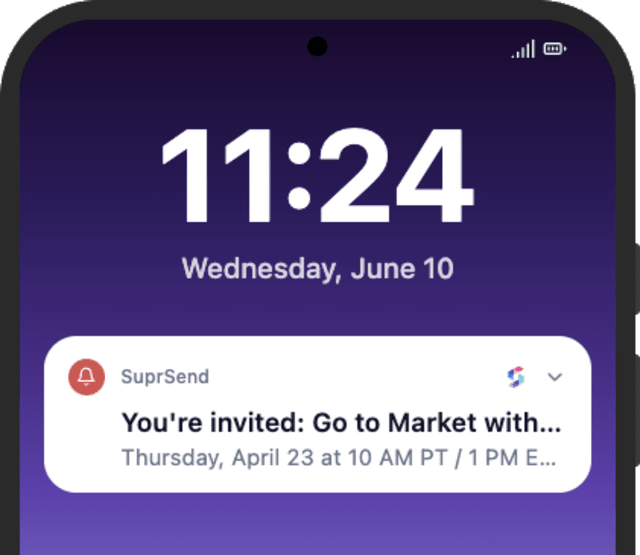
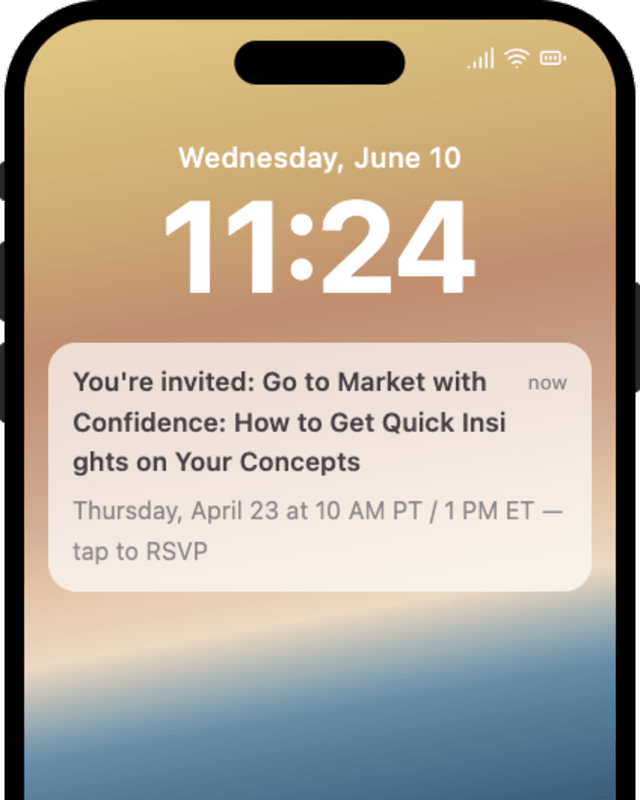
More people respond when the invite lands in their active hours with a one-tap RSVP and a follow-up that adds a reason.
When users mute event invites, they are going to people who cannot attend or being followed up after they already replied.
Quick answers about setting up and running this workflow.
A confirmed RSVP (RSVP_CONFIRMED) stops it through the Wait Until. A decline does not stop it by default, so add the decline event as a stop if you do not want to nudge people who said no.
In the user's local 9 AM to 8 PM window, held there by the Time Window so it lands when they are awake to read and reply.
Email and in-app inbox, sent together by Multi-Channel so the invite and its RSVP reach the user wherever they check.
This invites people and chases an RSVP. Event & Webinar Reminders reminds people who already registered, right up to the moment the event starts.
Fire EVENT_INVITE_TRIGGERED, then RSVP_CONFIRMED with the same event_id to confirm the follow-up stops. The Time Window may hold the send until daytime. Use the Test button in the editor, the SuprSend Agent, or the API, CLI, or MCP.
Sign up and test the workflow directly in the dashboard.
Copy the prompt, paste it into the Agent in your SuprSend dashboard, and the workflow gets built for you.
Set up SuprSend MCP in Claude Code, Cursor or Windsurf, copy the prompt, and the workflow builds itself in your workspace.