
Primary signal
Delivery
Codes arrive and get used
More login codes reach the user and get entered when delivery escalates across channels, compared with a single channel that can fail.
By clicking “Accept All Cookies”, you agree to the storing of cookies on your device to enhance site navigation, analyze site usage, and assist in our marketing efforts. View our Privacy Policy for more information.
We use cookies to understand how the workflow library is used and to improve it.
Pick how you want to build it.
 Build with the SuprSend Agent
A one-time code on a single channel never arrives. A blocked SMS or a spam-filtered email leaves the user stuck at login.
Sending the code on every channel at once is costly and feels like spam. The user gets three codes and you pay for all three.
A code that arrives slowly makes the user request another. Each retry sends a new code and clutters the account.
A code is requested
When a user needs a one-time code (OTP_REQUESTED), the workflow starts.
Sent on the cheapest channel first
The code goes out on the lowest-cost channel the user has.
Escalates if not seen
If the code is not viewed within the window, it tries the next channel.
Stops once the code is seen
The moment the user views the code, no further channel is tried.
Start with the cheapest channel that reliably reaches the user, then escalate. Smart Channel Routing tries each in turn, so most codes go on the low-cost channel and only the missed ones escalate.
An OTP cannot wait for a provider to recover. Configure a vendor fallback so if your SMS or email vendor fails, the code goes out through the backup right away.
A one-time code should expire quickly. A short window limits how long a leaked code is useful and pushes the next channel sooner when delivery is slow.
An OTP should be the code and a short warning, nothing else. Marketing or links trip spam filters and slow down the one message that has to arrive.
If a user requests twice and both codes still work, that is a security hole. Make the latest code the only valid one when a fresh one goes out.
If every channel and vendor fails, the user is locked out with no way forward. Give a clear "request a new code" or contact-support path so a failed code is not a dead end.
The actual notifications this workflow sends, on each channel.
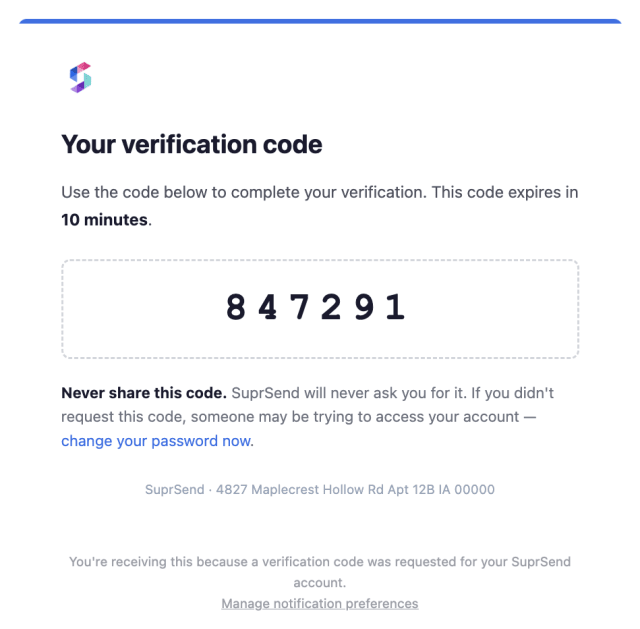
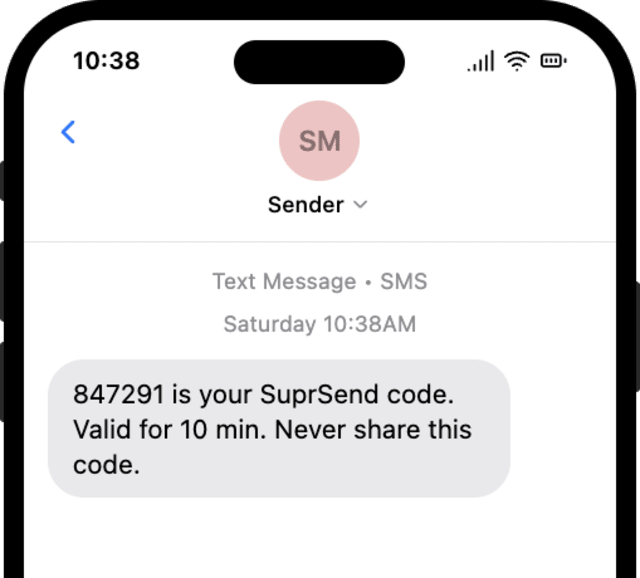
More login codes reach the user and get entered when delivery escalates across channels, compared with a single channel that can fail.
When users ask for a second code, the first is arriving too slowly or not at all, so the channel order or window needs tuning.
Quick answers about setting up and running this workflow.
Smart Channel Routing tries the cheapest channel first and escalates to the next only if the code is not seen, stopping the moment it is. A vendor fallback covers the case where the provider itself is down.
Email, SMS, and WhatsApp, in cost order. You can add push for users who already have the app installed, but a one-time code shown in a push can appear on the lock screen, so many teams keep the code on email or SMS and use an in-app prompt rather than pushing the code itself.
The workflow handles delivery; expiry and single-use live on the code in your auth system. Keep it in the system notification category so a user's preferences cannot suppress a login code.
Fire OTP_REQUESTED and watch the code go to the cheapest channel; block or ignore the first to see it escalate. Trigger from the Test button, the SuprSend Agent, or the API, CLI, or MCP.
Sign up and test the workflow directly in the dashboard.
Copy the prompt, paste it into the Agent in your SuprSend dashboard, and the workflow gets built for you.
Set up SuprSend MCP in Claude Code, Cursor or Windsurf, copy the prompt, and the workflow builds itself in your workspace.