
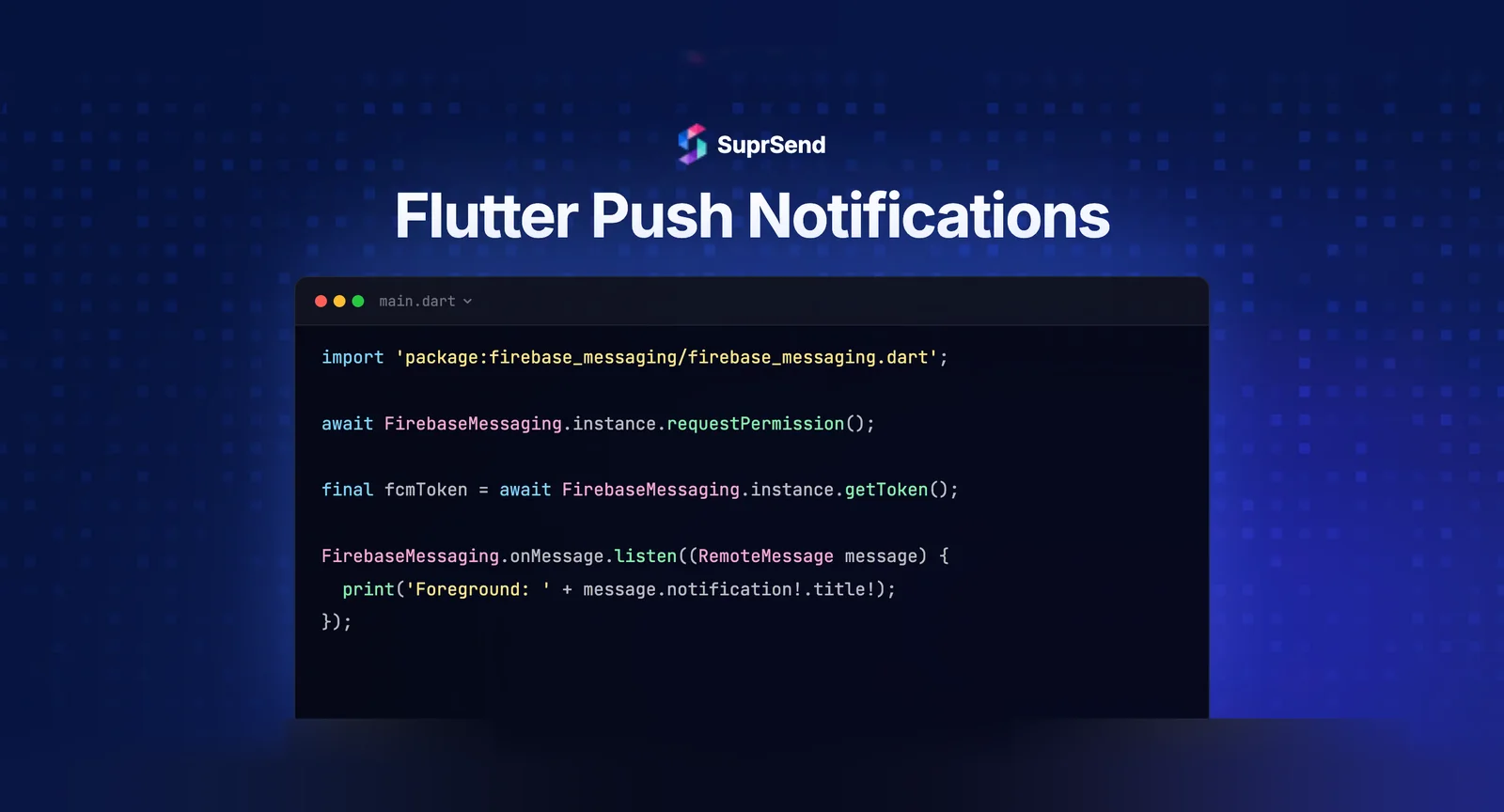
Flutter push notifications run through two delivery services: Firebase Cloud Messaging (FCM) for Android and Apple Push Notification service (APNs) for iOS. The firebase_messaging package abstracts both behind one Dart API, so you write the integration once and FCM relays to APNs on iOS automatically. To add push to a Flutter app, you install firebase_core and firebase_messaging, request permission, fetch the device token, and handle messages in three app states: foreground, background, and terminated.
The part most guides gloss over is that FCM does not display a notification when your app is in the foreground. You handle that case yourself, usually with flutter_local_notifications. This guide walks through the full setup, the three message-handling states, the iOS APNs step that trips up most teams, and how to route push at scale once Firebase alone is not enough.
How Flutter Push Notifications Work
A push notification in Flutter travels through a fixed path. Your server (or a notification platform) sends a message to FCM. FCM delivers it directly to Android devices, and forwards to APNs for iOS devices. The device wakes your app or shows a system notification depending on the app’s state and the message type.
Two message types matter:
- Notification messages: FCM displays them automatically when the app is in the background or terminated. The system tray handles rendering.
- Data messages: always delivered to your code for custom handling, in every app state. No automatic display.
Most production apps send a combined payload, then decide rendering per state. For the underlying mechanics of how FCM and APNs differ, see our breakdown of how iOS and Android push services work technically.
Prerequisites
- A Flutter project on a recent stable SDK
- A Firebase project with Android and iOS apps registered
- An Apple Developer account with an APNs authentication key (for iOS)
- The
flutterfire_cliinstalled for configuration
Step 1: Add the Firebase Packages
Add the two core packages. firebase_core initializes Firebase; firebase_messaging handles push.
flutter pub add firebase_core firebase_messagingThen link the app to your Firebase project. This generates firebase_options.dart with your platform config.
flutterfire configureStep 2: Initialize Firebase and Request Permission
Initialize Firebase before runApp, then request notification permission. On iOS this triggers the system prompt; on Android 13+ it requests the runtime POST_NOTIFICATIONS permission.
import 'package:firebase_core/firebase_core.dart';
import 'package:firebase_messaging/firebase_messaging.dart';
import 'firebase_options.dart';

void main() async {
  WidgetsFlutterBinding.ensureInitialized();
  await Firebase.initializeApp(options: DefaultFirebaseOptions.currentPlatform);

  final settings = await FirebaseMessaging.instance.requestPermission();
  print('Permission status: ${settings.authorizationStatus}');

  runApp(const MyApp());
}
Step 3: Get the Device Token
The FCM registration token identifies this device. You send it to your backend so it can target this device later. On iOS, make sure the APNs token is available before requesting the FCM token.
// On iOS, ensure the APNs token is set first
final apnsToken = await FirebaseMessaging.instance.getAPNSToken();

final fcmToken = await FirebaseMessaging.instance.getToken();
// Send fcmToken to your server or notification platform

// Tokens rotate. Listen for refreshes and re-sync.
FirebaseMessaging.instance.onTokenRefresh.listen((newToken) {
  // Re-send newToken to your backend
});
Step 4: Handle Messages in Every App State
This is where most bugs live. Flutter delivers messages differently depending on whether the app is in the foreground, background, or terminated.
| App state | What FCM does | What you handle |
|---|---|---|
| Foreground | No system notification shown | onMessage fires; render with flutter_local_notifications |
| Background | System notification shown automatically | onMessageOpenedApp fires on tap |
| Terminated | System notification shown automatically | getInitialMessage returns the tap payload on launch |
Foreground messages need a local notification because FCM stays silent. Add flutter_local_notifications for this:
flutter pub add flutter_local_notificationsFirebaseMessaging.onMessage.listen((RemoteMessage message) {
final notification = message.notification;
if (notification != null) {
// Show a local notification while the app is in the foreground
showLocalNotification(notification.title, notification.body);
}
});For background and terminated taps, register handlers for the deep-link or routing logic:
// App opened from background by tapping the notification
FirebaseMessaging.onMessageOpenedApp.listen((RemoteMessage message) {
  navigateFromPayload(message.data);
});

// App launched from terminated by tapping the notification
final initialMessage = await FirebaseMessaging.instance.getInitialMessage();
if (initialMessage != null) {
  navigateFromPayload(initialMessage.data);
}
To process data messages while the app is in the background or terminated, register a top-level background handler. It must be a top-level or static function annotated for the Dart entry point.
@pragma('vm:entry-point')
Future<void> _firebaseBackgroundHandler(RemoteMessage message) async {
  await Firebase.initializeApp(options: DefaultFirebaseOptions.currentPlatform);
  // Process data-only payloads here
}
// Register in main(), before runApp:
FirebaseMessaging.onBackgroundMessage(_firebaseBackgroundHandler);
Step 5: Configure APNs for iOS
FCM cannot deliver to iOS without your APNs authentication key. This is the step that silently breaks iOS push for most teams. Upload the .p8 APNs key from your Apple Developer account to the Firebase console under Project Settings, Cloud Messaging. Then enable the Push Notifications and Background Modes capabilities in Xcode.
Without this, Android push works and iOS push fails silently with no error in your Dart code, which makes it hard to diagnose.
Best Practices for Flutter Push
- Request permission in context, not on launch. Asking for notification permission the moment the app opens leads to high denial rates. Ask after the user hits a moment where push has clear value.
- Re-sync tokens on refresh. Tokens rotate on reinstall, restore, and at intervals. A stale token is the most common cause of “notifications stopped working.”
- Send data with every payload. Include the routing target in
message.dataso taps deep-link correctly in all three states. - Respect quiet hours and frequency. Opt-out rates climb with volume. Our guide on reducing push opt-out rates covers the thresholds.
- Test on real iOS hardware. FCM-based push does not work on the iOS simulator regardless of Xcode version — the FCM/APNs relay requires a physical device.
Beyond Firebase: Routing Push at Scale
The setup above sends push from Firebase directly. That works until you need more than raw delivery: per-user preferences, an in-app inbox alongside push, fallback to email or SMS when push fails, batching to avoid notification floods, or analytics across channels. Building those on top of firebase_messaging yourself becomes its own project.
That is the layer SuprSend handles. It is notification infrastructure: you register the device’s FCM and APNs tokens once, and SuprSend routes push through Firebase while adding the orchestration around it. The mobile push quick start and FCM integration docs cover token setup.
For Flutter specifically, SuprSend also ships a drop-in in-app inbox through the suprsend_flutter_inbox package, so you can pair push with a persistent notification feed. See the Flutter inbox docs and our walkthrough on adding an in-app inbox to a Flutter app. On top of push, SuprSend adds a cross-platform inbox, preference center, vendor fallback, and SMS, email, and WhatsApp as additional channels through one API.
TL;DR
To add Flutter push notifications, install firebase_core and firebase_messaging, run flutterfire configure, request permission, and fetch the FCM token. Handle messages in three states: foreground (render with flutter_local_notifications since FCM stays silent), background, and terminated (use onMessageOpenedApp and getInitialMessage for taps). For iOS, upload your APNs key to Firebase or push fails silently. Once you need preferences, in-app inbox, fallback, or cross-channel analytics, route through a notification platform layered on top of FCM.
Next Steps
If push is one of several channels you are adding, our guides on Android push with FCM and Flutter in-app notifications go deeper on each.
Start building for free or book a demo to see how SuprSend routes Flutter push alongside email, SMS, and in-app inbox.
FAQ
Which package do I use for Flutter push notifications?
Use firebase_messaging for push delivery and firebase_core to initialize Firebase. Add flutter_local_notifications to display notifications while the app is in the foreground, since FCM does not show them automatically in that state.
Why don't my Flutter push notifications show when the app is open?
This is expected behavior. FCM only displays notifications automatically when the app is in the background or terminated. In the foreground, the onMessage listener fires, and you render the notification yourself with flutter_local_notifications.
Why does Flutter push work on Android but not iOS?
The most common cause is a missing APNs authentication key. FCM relays to APNs for iOS, so you must upload your .p8 APNs key to the Firebase console and enable the Push Notifications capability in Xcode. Without it, iOS push fails silently.
Do Flutter push notifications work on the iOS simulator?
No. APNs push requires a real iOS device. The simulator cannot register for remote notifications, so always test iOS push on physical hardware.
How do I handle a notification tap that opens a specific screen?
Include the destination in the message's data payload. Then read it from onMessageOpenedApp for background taps and from getInitialMessage for taps that launch the app from a terminated state, and route accordingly.
Can I send Flutter push without Firebase?
On Android, FCM is effectively required. On iOS you could integrate APNs directly, but most teams use FCM as the single Flutter integration because it relays to APNs. To route push alongside other channels, a notification platform sits above FCM rather than replacing it.