Back
Tutorials
WhatsApp Business API Templates Explained: Categories, Approval Flow, and Code Examples (2026)

Gaurav Verma
May 18, 2026
•
May 18, 2026
•
Read summary :
Last Updated: May 2026
WhatsApp Business API templates are the only way to message a user who has not contacted you in the last 24 hours. Meta requires every business-initiated message to use a pre-approved template. That single rule shapes every architectural decision you make: which categories you submit, how you handle rejections, how you version variables, and how you scale sending without losing your quality rating.
This guide is a developer-first walkthrough of templates as they exist in May 2026. It covers the three categories Meta supports today, the four-component template anatomy, the approval flow with concrete rejection fixes, code samples for the WhatsApp Cloud API, and the changes that landed in the last 12 months: the US marketing-template pause and the full migration off the On-Premises API.
What WhatsApp Business API Templates Are
A WhatsApp template is a message format that you submit to Meta in advance, Meta reviews and approves, and your application then sends with variable substitution at runtime. Approval typically takes minutes for low-risk templates and up to 24 hours for marketing content. Once approved, the template gets a unique name and language pair that your code references when sending.
Templates exist for one reason: Meta wants to prevent businesses from spamming WhatsApp the way they spammed SMS in the 2000s. Every business-initiated outbound message must be a template. Free-form replies are only allowed inside the 24-hour conversation window after a user messages you.
If you are sending OTPs, password resets, order confirmations, or shipping updates, every one of those is a template. For an OTP-specific deep dive, see WhatsApp OTP notifications.
The 24-Hour Conversation Window
WhatsApp's messaging rules split into two states.
- Inside the 24-hour window. A user has messaged your business in the last 24 hours. You can reply with any free-form message, no template required. The window is per user, per business, and resets every time the user sends a new message.
- Outside the 24-hour window. You can only send approved templates. Trying to send free-form text returns an error from the Cloud API.
Almost every notification you care about (OTPs, transactional alerts, marketing) lives outside the 24-hour window, which is why templates are not optional. The only exception is customer-support replies that happen quickly after a user reaches out.
Template Categories: Authentication, Utility, Marketing
Meta classifies every template into one of three categories. Pick the wrong one and approval gets rejected, or worse, gets reclassified mid-flight to a more expensive category.
- Authentication. One-time passcodes, two-factor verification, account recovery codes. Strict format rules: the body must be a fixed authentication string with a single OTP variable, and the buttons (if any) must be a copy-code or autofill button. Cheapest category in most regions.
- Utility. Order confirmations, shipping updates, appointment reminders, account alerts, payment receipts. Must be a direct, expected follow-up to a user action. Mid-priced category.
- Marketing. Promotions, offers, product launches, newsletters, re-engagement campaigns. Anything that is not strictly transactional or authentication. Most expensive category and most heavily restricted.
The category dictates pricing on a per-conversation basis. As of May 2026, Meta charges per conversation (a 24-hour billing window opened by your first template send), with conversation rates set per country. Authentication conversations in the US run roughly $0.0135, utility around $0.014, and marketing the highest at variable rates depending on volume tier.
The most common mistake: stuffing promotional language into a Utility template to avoid the marketing rate. Meta's reviewers catch this and either reject the template or reclassify it after approval, which silently shifts your billing.
Anatomy of a WhatsApp Template
Every template has up to four components. The body is required; the rest are optional.
- Header. Optional. Either text (60 character limit, supports one variable), an image, a video, a document, or a location. Use sparingly; the visual weight is high.
- Body. Required. Up to 1,024 characters. Supports unlimited variables in
{{1}},{{2}}, ... format. Most templates use 1 to 4 variables. - Footer. Optional. 60 characters, no variables. Good for fine print like "Reply STOP to unsubscribe" on marketing templates.
- Buttons. Optional. Up to three buttons of two types: quick-reply (sends a postback) or call-to-action (URL or phone). Authentication templates can have a copy-code button that copies the OTP to the clipboard with one tap.
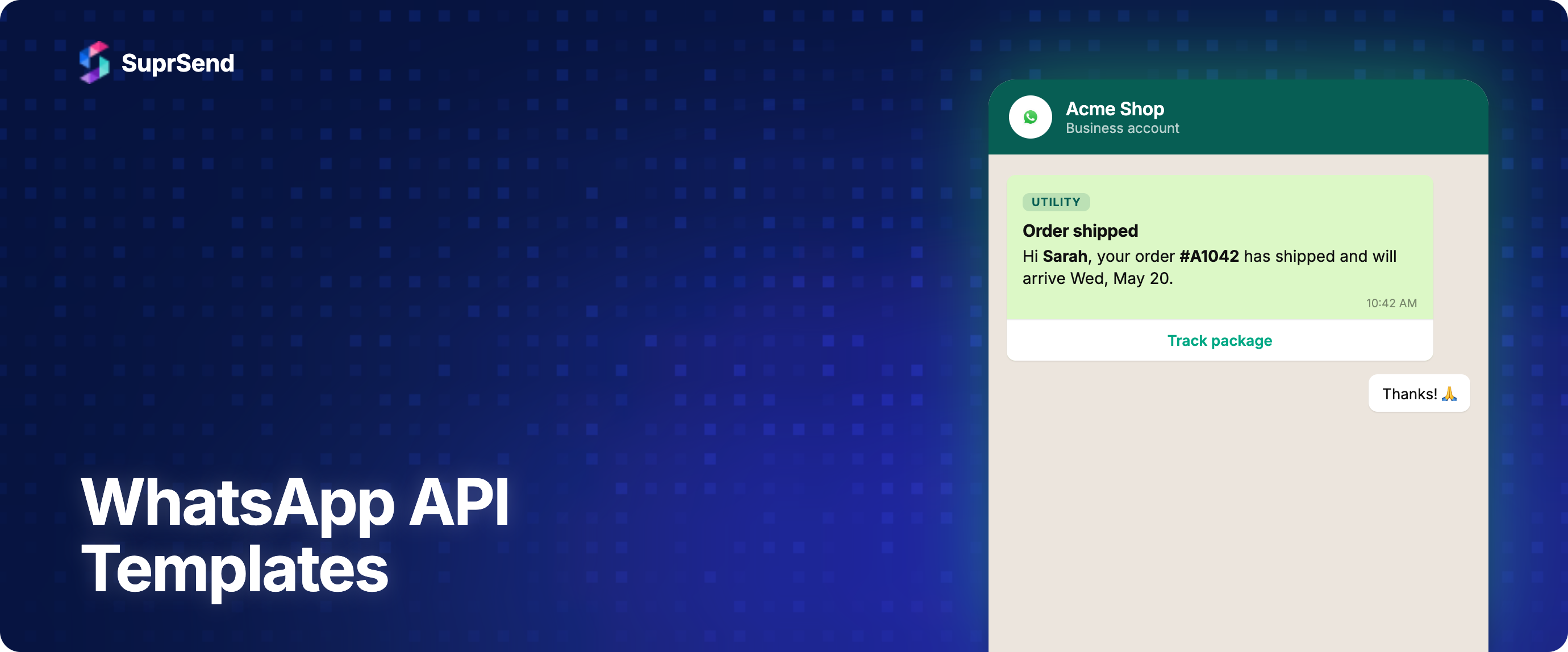
A worked example for a US e-commerce shipping update (Utility):
- Header: Text, "Order shipped"
- Body: "Hi {{1}}, your order #{{2}} has shipped via {{3}}. Track it with the link below."
- Footer: "Acme Inc."
- Buttons: URL button "Track package" pointing to
https://acme.com/track/{{1}}
Creating a Template
You have two paths: the WhatsApp Business Manager UI and the Cloud API. The UI is faster for one-off submissions; the API is required if you have many templates, multiple languages, or per-tenant template generation.
Cloud API request to create a template:
POST https://graph.facebook.com/v20.0/{WABA_ID}/message_templates
Authorization: Bearer {ACCESS_TOKEN}
Content-Type: application/json
{
  "name": "shipping_update_us",
  "language": "en_US",
  "category": "UTILITY",
  "parameter_format": "positional",
  "components": [
    {
      "type": "HEADER",
      "format": "TEXT",
      "text": "Order shipped"
    },
    {
      "type": "BODY",
      "text": "Hi {{1}}, your order #{{2}} has shipped via {{3}}. Track it with the link below.",
      "example": {
        "body_text": [["Sarah", "A1023", "FedEx"]]
      }
    },
    {
      "type": "FOOTER",
      "text": "Acme Inc."
    },
    {
      "type": "BUTTONS",
      "buttons": [
        {
          "type": "URL",
          "text": "Track package",
          "url": "https://acme.com/track/{{1}}",
          "example": ["https://acme.com/track/A1023"]
        }
      ]
    }
  ]
}
Two details that catch first-time submitters:
- The
examplefield is mandatory for any component with variables. Reviewers use these sample values to evaluate whether your template makes sense. - The
namemust be lowercase, snake_case, and unique within your WhatsApp Business Account. You cannot rename a template after creation; you can only delete and recreate.
Template Approval Flow
After submission, the template enters one of four states.
- PENDING. Submitted, awaiting review. Authentication and Utility templates often clear in 1 to 5 minutes. Marketing templates can take up to 24 hours, sometimes 48 during peak campaign cycles.
- APPROVED. Live and sendable.
- REJECTED. Failed review with a rejection reason. The template cannot be sent. You can edit and resubmit, or create a new one.
- PAUSED. Was approved but quality dropped (too many user reports or blocks). Template sending is temporarily disabled until quality recovers or you delete it.
Meta sends webhooks to your callback URL when state changes. Subscribe to the message_template_status_update webhook to drive your template lifecycle automatically:
{
  "object": "whatsapp_business_account",
  "entry": [{
    "id": "WABA_ID",
    "changes": [{
      "field": "message_template_status_update",
      "value": {
        "event": "APPROVED",
        "message_template_id": "1234567890",
        "message_template_name": "shipping_update_us",
        "message_template_language": "en_US",
        "reason": null
      }
    }]
  }]
}
Without this webhook, you have to poll GET /message_templates on your WABA, which is wasteful and slower.
Common Rejection Reasons and Fixes
Six rejection patterns account for the vast majority of failures. Each has a clean fix.
- INVALID_FORMAT. Variables not declared sequentially (e.g., using
{{1}}and{{3}}but skipping{{2}}), or theexamplearray length does not match the variable count. Fix: number variables consecutively starting at 1, and provide one example value per variable. - NON_TRANSACTIONAL_CONTENT in a Utility template. Body contains promotional language ("Shop now", "Limited offer", "Don't miss out"). Fix: either rewrite the body to be strictly transactional or resubmit as Marketing.
- SCAM/PHISHING flag. Body asks for sensitive data, includes shortened URLs, or impersonates a known brand. Fix: use full URLs on your domain, never request passwords or card numbers in the body.
- ABUSIVE_OR_THREATENING. Tone is aggressive or threatens negative consequences. Common in collections templates. Fix: rewrite in neutral, factual language.
- VARIABLE_PARAMS_MISMATCH. Examples do not look like real values for the variable's role. Fix:
{{1}}for a name should look like a name in the example, not "VAR1" or "TEST". - TAG_CONTENT_MISMATCH. Authentication template body does not match Meta's required Authentication string format. Fix: use Meta's Authentication template builder rather than free-form bodies for OTPs.
Sending an Approved Template
Once a template is APPROVED, sending is a single Cloud API call:
POST https://graph.facebook.com/v20.0/{PHONE_NUMBER_ID}/messages
Authorization: Bearer {ACCESS_TOKEN}
Content-Type: application/json
{
  "messaging_product": "whatsapp",
  "to": "+15555550123",
  "type": "template",
  "template": {
    "name": "shipping_update_us",
    "language": { "code": "en_US" },
    "components": [
      {
        "type": "body",
        "parameters": [
          { "type": "text", "text": "Sarah" },
          { "type": "text", "text": "A1023" },
          { "type": "text", "text": "FedEx" }
        ]
      },
      {
        "type": "button",
        "sub_type": "url",
        "index": "0",
        "parameters": [
          { "type": "text", "text": "A1023" }
        ]
      }
    ]
  }
}
Same call in Node.js using fetch:
const response = await fetch(
  `https://graph.facebook.com/v20.0/${PHONE_NUMBER_ID}/messages`,
  {
    method: "POST",
    headers: {
      Authorization: `Bearer ${ACCESS_TOKEN}`,
      "Content-Type": "application/json",
    },
    body: JSON.stringify({
      messaging_product: "whatsapp",
      to: "+15555550123",
      type: "template",
      template: {
        name: "shipping_update_us",
        language: { code: "en_US" },
        components: [
          {
            type: "body",
            parameters: [
              { type: "text", text: "Sarah" },
              { type: "text", text: "A1023" },
              { type: "text", text: "FedEx" },
            ],
          },
          {
            type: "button",
            sub_type: "url",
            index: "0",
            parameters: [
              { type: "text", text: "A1023" },
            ],
          },
        ],
      },
    }),
  }
);
const data = await response.json();
The response returns a message ID; subscribe to the messages webhook to track delivery, read receipts, and failures.
Variables, Localization, and Versioning
Three operational patterns that separate a hobby integration from a production one.
Variables. Pass them as ordered parameters in the send payload, matching the {{1}}, {{2}}, ... order in the approved body. Variable values are passed as plain strings; do not include formatting characters (asterisks, underscores) inside a variable, since Meta's renderer treats them as the literal characters and not as bold/italic markdown.
Localization. Templates are scoped per name + language pair. To support English, Spanish, and French, you submit three separate templates (or three language variants of one template name). Submit all language variants in the same batch when possible, since Meta's reviewers tend to be consistent within a session.
Versioning. You cannot edit an approved template's body. To change wording, you have two choices: edit the existing template (which sends it back to PENDING and may break in-flight sends until re-approved), or create a v2 template with a new name like shipping_update_us_v2 and migrate sending in your code. The v2 approach is safer for high-volume templates because you can canary the new version on a fraction of traffic before cutting over.
The 2026 US Marketing-Template Pause
In April 2025, Meta paused all Marketing-category templates sent to US phone numbers. As of May 2026, the pause remains in effect. The reasons Meta cited were user-reported spam complaints from US recipients running ahead of other regions and a desire to stabilize the experience before reopening.
What still works for US recipients:
- Authentication templates (OTPs, 2FA codes)
- Utility templates (transactional notifications, shipping updates, appointment reminders)
- Free-form replies inside the 24-hour conversation window
What does not work for US recipients:
- Marketing templates of any kind, including newsletters, promotions, abandoned-cart, and re-engagement campaigns
If you are building for a US audience and your use case is marketing-driven, fall back to email or SMS for that channel for now. For transactional notifications to US users, WhatsApp is fully usable through Authentication and Utility templates.
Cloud API Is the Only Path Now
Meta sunset the WhatsApp On-Premises API in October 2025. As of May 2026, all new and existing integrations must use the Cloud API. The migration is functionally complete, but a few practical implications:
- You no longer manage your own WhatsApp Docker containers, certificate rotation, or media storage. Meta hosts everything.
- You cannot self-host for data residency. If you need data residency for regulated industries, work with a Business Solution Provider that offers regional Cloud API endpoints.
- The webhook contract is identical to the old On-Premises API, so most integration code only needs the base URL and auth swapped.
Quality Rating and Rate Limits
WhatsApp grades every phone number on a Quality Rating: Green (high), Yellow (medium), or Red (low). The rating is computed from user actions: blocks, reports, and ignored messages drag it down; reads and replies push it up.
Rate limits scale with your phone number's tier and quality. New numbers start at Tier 1 (1,000 unique recipients per 24 hours). Sustained green-quality sends earn promotion to Tier 2 (10K), Tier 3 (100K), and Tier 4 (unlimited). A drop to Red triggers throttling and can pause your number entirely.
Three habits that protect quality:
- Send only to opted-in users. WhatsApp is more sensitive to consent than email or SMS.
- Honor opt-outs immediately. Build a quick-reply "STOP" button into marketing templates.
- Don't fan out the same template to your entire user base in one minute. Spread sends over hours; sudden spikes look like spam.
Sending WhatsApp Templates Through SuprSend
Calling the Cloud API directly works for a single channel. Once you also need email, SMS, push, or in-app for the same notification, you end up writing routing, fallback, and preference logic by hand. That is the case for using a notification infrastructure layer.
SuprSend abstracts WhatsApp templates as part of a multi-channel API. You define the template in SuprSend's editor, point it at your approved Meta template name and language, and SuprSend handles the variable mapping, the Cloud API call, and the delivery webhook capture. Workflows can also fall back to SMS if a WhatsApp send fails or the user has opted out of WhatsApp.
The SuprSend WhatsApp template docs are at docs.suprsend.com/docs/whatsapp-template. For the broader template management story across channels, see notification template management.
Common Pitfalls
- Submitting Marketing content as Utility. Meta reclassifies it post-approval and your bill spikes silently.
- Forgetting the
examplefield. Auto-rejected with INVALID_FORMAT. - Hardcoding template names in application code. Use environment variables or a template registry so you can swap to a v2 without a code deploy.
- Not subscribing to the status webhook. Polling for approval state wastes API quota and slows your launch.
- Sending Marketing templates to US numbers. Returns an error since April 2025; check your recipient country before category selection.
- Using shortened URLs in template bodies. Triggers SCAM rejection; always use full URLs on your domain.
- Editing an approved template instead of creating v2. The template goes PENDING and existing sends start failing.
FAQ
How long does WhatsApp template approval take?
Authentication and Utility templates usually clear in 1 to 5 minutes. Marketing templates take up to 24 hours, sometimes 48 hours during peak periods. If a template sits in PENDING for more than 48 hours, it is worth deleting and resubmitting.
Can I send Marketing templates to US users in 2026?
No. Meta paused Marketing templates for US recipients in April 2025 and the pause is still in effect as of May 2026. Authentication and Utility templates still work for US users.
What is the difference between Authentication, Utility, and Marketing templates?
Authentication is for OTPs and verification codes with strict format rules and the lowest cost. Utility is for transactional follow-ups to user actions (order, shipping, appointment). Marketing is for promotional content and is the most expensive and most restricted category.
Can I edit an approved template?
You can, but it sends the template back to PENDING and existing sends may fail until re-approval. The safer pattern is to create a new template with a v2 name and migrate your code to it.
How do I handle template rejections programmatically?
Subscribe to the message_template_status_update webhook on your WhatsApp Business Account. Every state transition (APPROVED, REJECTED, PAUSED) fires a webhook with the rejection reason, which you can route to a queue for human review or automatic resubmission with a fix.
Do I need a Business Solution Provider (BSP) to use templates?
No. Since the Cloud API became the only path in October 2025, you can integrate directly with Meta. BSPs are still useful for regional data residency, billing consolidation, or hands-on support, but they are no longer required.
How is sending a template different from sending a free-form message?
Free-form messages are only allowed inside the 24-hour conversation window after a user messages you. Outside that window, every business-initiated message must use an approved template. For most notification use cases (OTPs, order confirmations, alerts), templates are the only path.
On this page