
Last Updated: May 2026
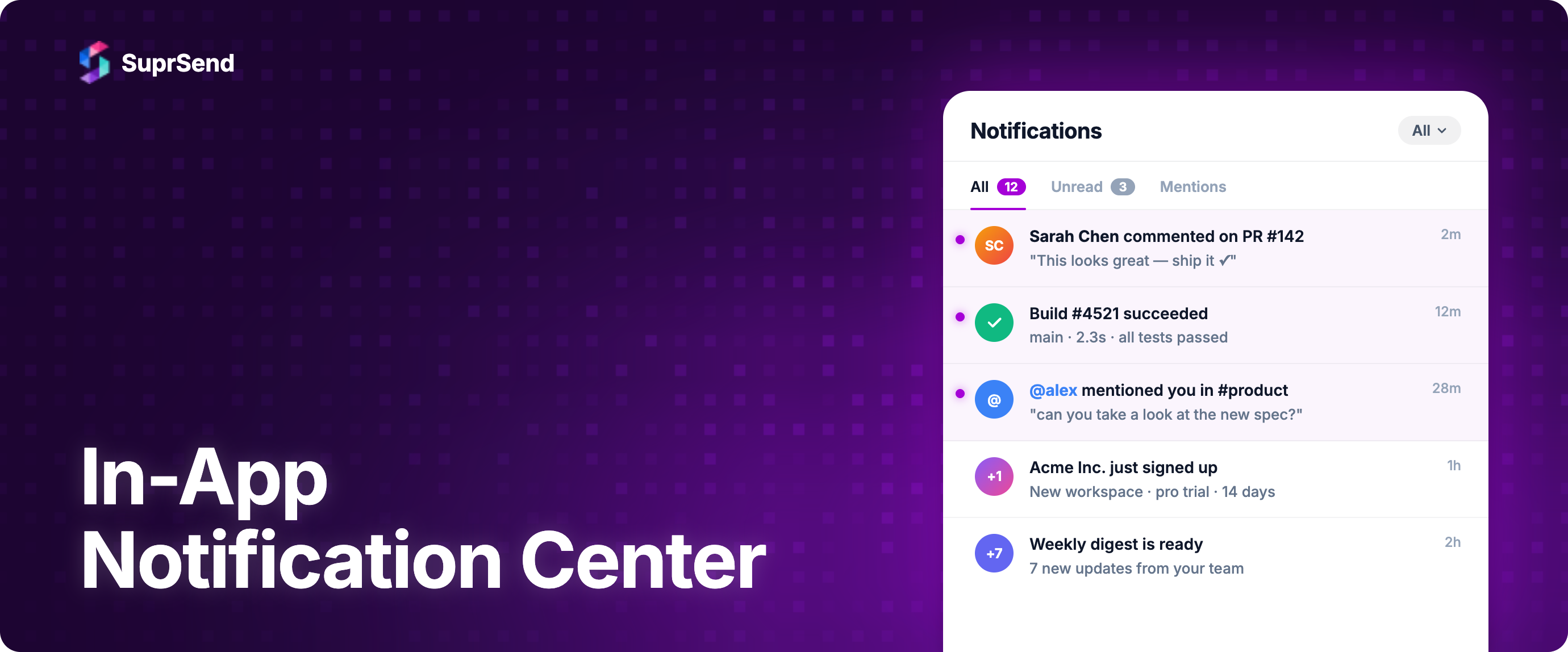
An in-app notification center is the single place inside your product where users find every update, alert, and action item waiting for them. It is the bell icon in the top nav, the slide-out panel with unread counts, and the persistent feed that replaces "did you see my email?" with something users actually check. For any SaaS product with more than a handful of active users, an in-app notification center is no longer optional. It is the channel that keeps engagement inside your product instead of scattering it across email inboxes, push prompts, and SMS threads.
The average US smartphone user receives 46 push notifications per day (Business of Apps). With that volume of external noise, the in-app channel is the only one where your message does not compete with every other app on the device. No permission prompt. No OS-level muting. No spam folder. Just a notification waiting exactly where the user is already working.
This guide covers the five types of in-app notifications, how leading SaaS products design their notification centers, UX patterns that separate good implementations from bad ones, and how to decide whether to build your own or use an existing platform.
What Is an In-App Notification Center?
An in-app notification center is a dedicated UI surface inside your application that aggregates and displays notifications for the logged-in user. It serves as the inbox for everything that happens within your product: comments, assignments, status changes, system alerts, billing updates, and team activity.
At a minimum, an in-app notification center includes:
- A trigger element: Usually a bell icon in the header or sidebar, with a badge showing the unread count.
- A notification feed: A scrollable, chronologically sorted list of notifications with read/unread states.
- Click-through actions: Each notification links to the relevant resource (the comment, the ticket, the document).
- Read state management: Mark individual items or all items as read, with state persisted across sessions and devices.
More mature implementations add category tabs (e.g., "Mentions," "Assigned to me," "System"), preference controls inline, real-time updates via WebSocket, and notification grouping to collapse related updates into a single entry.
The in-app notification center is not a replacement for email or push. It is a complement. Email handles notifications when the user is away. Push handles urgent, time-sensitive alerts. The in-app center handles everything that should be available the next time the user opens your product. When these three channels work together with intelligent routing (send in-app first, fall back to email if unread after a delay), users get the right message through the right channel at the right time.
Types of In-App Notifications
Most guides treat in-app notifications as a single category. In reality, there are five distinct types, each serving a different purpose and requiring different design decisions.
1. Persistent Feed (Notification Inbox)
The feed is the core of the notification center. It is a permanent, scrollable list of all notifications the user has received. Notifications persist until the user reads or dismisses them. The feed is always accessible from the header icon and retains its state across sessions.
Best for: Comments, mentions, task assignments, status updates, approval requests. Anything the user might need to reference later.
Design consideration: The feed needs pagination or infinite scroll, read/unread visual distinction, and a "mark all as read" action. Without these, it becomes unusable after a few days of accumulated notifications.
2. Toast Notifications
Toasts are small, temporary popups that appear at the edge of the screen (usually top-right or bottom-right) and auto-dismiss after a few seconds. They notify the user of something that just happened without requiring immediate action.
Best for: Real-time confirmations ("Message sent"), live activity ("Sarah just commented on your doc"), and low-urgency alerts that do not need to persist.
Design consideration: Toasts should stack when multiple arrive simultaneously, and they should never block primary UI elements. If a toast contains an action, give it enough display time (5 to 8 seconds) for the user to react.
3. Banners
Banners are full-width bars that appear at the top or bottom of the application, typically for system-wide announcements. They persist until the user dismisses them or the condition resolves.
Best for: Scheduled maintenance warnings, plan upgrade prompts, feature announcements, and system degradation notices.
Design consideration: Banners should not stack. If multiple banners compete for attention, prioritize by severity and show only the most important one. Always include a dismiss action unless the banner communicates an active incident.
4. Modals
Modals are overlay dialogs that require the user's attention before they can continue. They block the underlying UI and demand a response (accept, dismiss, or take action).
Best for: Breaking changes, mandatory security updates, terms of service acknowledgments, and onboarding steps that cannot be skipped.
Design consideration: Use modals sparingly. Every modal interrupts the user's workflow. If the notification is not urgent enough to justify blocking the screen, use a banner or toast instead. Overuse of modals is one of the fastest ways to frustrate users.
5. Badges
Badges are small numeric or dot indicators attached to navigation elements (sidebar items, tab headers, icons) that signal unread or pending items within a specific section.
Best for: Unread message counts on a chat tab, pending review counts on a pull request section, unresolved alert counts on a monitoring dashboard.
Design consideration: Badges should update in real time and clear automatically when the user visits the relevant section. Stale badges (showing counts for items the user has already seen) erode trust in the notification system.
Choosing the Right Type
| Type | Persistence | Urgency | User Action Required | Example |
|---|---|---|---|---|
| Feed | Permanent until read | Low to Medium | Optional | New comment on your task |
| Toast | Auto-dismiss (3–8s) | Low | No | File uploaded successfully |
| Banner | Until dismissed or resolved | Medium | Awareness | Scheduled maintenance in 2 hours |
| Modal | Blocks UI until responded | High | Yes | Accept updated terms of service |
| Badge | Until section visited | Low | No | 3 unread messages in #general |
Why Every SaaS Product Needs an In-App Notification Center
1. External channels are saturated
Push fatigue is real and documented (see the 46-per-day stat above). SMS is expensive and intrusive. The in-app notification center is the only channel where you can communicate at volume without triggering opt-outs, because users only see these notifications while they are actively using your product.
2. Context and action proximity
When a user gets an email about a new comment on their document, they have to: open the email, click the link, wait for the app to load, navigate to the comment. With an in-app notification center, the user clicks the notification and lands directly on the comment thread. The distance between "notification received" and "action taken" is one click instead of five.
3. Multi-tenant complexity in B2B SaaS
B2B SaaS products serve multiple organizations (tenants) on the same platform. Each tenant needs to see only their own notifications. A user who belongs to multiple workspaces needs notifications scoped to the workspace they are currently viewing. This tenant isolation is a fundamental requirement that email and push cannot solve natively, but an in-app notification center can, because it is aware of the user's current session context.
4. Audit trail and reference
Unlike toasts or push notifications that disappear, the notification center serves as a persistent log. Users can scroll back to find the approval request from last Tuesday, the deployment alert from this morning, or the billing change notice from last month. This reference function becomes critical as your product grows in complexity.
5. Foundation for intelligent routing
The in-app notification center enables a layered notification strategy: deliver everything to the in-app feed first, then escalate to email if unread after 30 minutes, and send push only for truly urgent items. Without an in-app channel, every notification has to go through an external channel, which increases fatigue and cost. With it, you gain a "free" first-touch channel that reduces reliance on paid channels like SMS. This kind of routing logic is what a notification workflow engine manages across all your channels.
Design Patterns for In-App Notification Centers
Not every SaaS product should design its notification center the same way. The right pattern depends on your product's information density, collaboration model, and how frequently users need to act on notifications. Here is how five leading products approach the problem differently.
Slack: Channel-Scoped Activity Feed
Slack organizes notifications around channels and threads rather than a single unified feed. The "Activity" panel shows mentions, reactions, and thread replies. Notifications are scoped to the workspace the user is currently in, and unread indicators appear on individual channels rather than in a global inbox.
Why it works: Slack is a real-time communication tool where context is everything. A global feed would mix conversations from dozens of channels into an unreadable stream. Channel-level scoping keeps notifications contextual.
Pattern: Scoped activity feed with per-channel badges. Best for products where activity is organized into distinct spaces or projects.
GitHub: Unified Inbox with Filters
GitHub's notification center is a full-page inbox (github.com/notifications) that aggregates activity across all repositories the user watches or participates in. Users can filter by reason (review requested, assigned, mentioned), by repository, and by read status. Each notification links directly to the relevant issue, pull request, or discussion.
Why it works: Developers contribute to many repositories simultaneously. A global inbox with strong filtering lets them triage across all projects in one place without switching context between repos.
Pattern: Full-page inbox with multi-axis filtering. Best for products where users interact with many independent workstreams.
Linear: Minimal Inbox Focused on Action
Linear's notification inbox is intentionally minimal. It shows only items that require the user's attention: issue assignments, mentions, and status changes on issues they are involved in. There is no noise from "someone starred a project" or "a new member joined." The inbox is tightly coupled to the user's active work.
Why it works: Linear is a project management tool where every notification should lead to an action. By filtering out informational noise at the system level, Linear keeps the inbox actionable rather than overwhelming.
Pattern: Action-only inbox with aggressive server-side filtering. Best for products where notifications should drive task completion.
Notion: Sidebar Inbox with Context Preview
Notion places its notification center in the sidebar. Each notification shows a preview of the content (the comment text, the page title, the mention context) so users can assess relevance without clicking through. Notifications are grouped by page, reducing clutter when multiple comments happen on the same document.
Why it works: Notion is a document collaboration tool. Users need to see what was said, not just that something happened. Content previews reduce the number of clicks needed to process the inbox.
Pattern: Sidebar feed with inline content previews and grouping. Best for content-centric products where notification context matters more than the count.
Figma: Contextual Overlay with Cursor-Level Precision
Figma's notification bell opens a dropdown panel, but the real innovation is in how notifications connect to the canvas. Clicking a comment notification takes the user directly to the comment pin on the design file, zoomed and positioned exactly where the feedback was left. Notifications are not just pointers to pages; they are spatial references.
Why it works: Design collaboration happens at the pixel level. A notification that says "new comment on Homepage.fig" is not useful. One that takes you to the exact frame and comment thread is.
Pattern: Dropdown feed with deep-linked spatial context. Best for products with spatial or visual interfaces where position matters.
Summary of Patterns
| Product | Pattern | Placement | Key Feature | Best For |
|---|---|---|---|---|
| Slack | Scoped activity feed | Sidebar panel | Per-channel badges | Real-time communication tools |
| GitHub | Full-page inbox | Dedicated page | Multi-axis filters | Multi-repo/multi-project platforms |
| Linear | Action-only inbox | Sidebar panel | Server-side noise filtering | Task/project management |
| Notion | Preview inbox | Sidebar panel | Inline content previews | Document collaboration |
| Figma | Spatial context feed | Dropdown overlay | Deep-linked spatial navigation | Visual/design tools |
Build vs Buy: In-App Notification Center
Every engineering team that needs an in-app notification center faces this decision. The UI component itself (a dropdown with a list of items) seems straightforward. The complexity hides in everything behind the UI.
Here is an honest breakdown of what building in-house actually requires versus what a platform provides out of the box.
| Capability | Build In-House | Use a Platform (e.g., SuprSend) |
|---|---|---|
| Basic UI (bell icon + dropdown) | 1–2 weeks. Straightforward React/Vue component | Drop-in SDK component. Minutes to integrate |
| Real-time delivery (WebSocket) | Set up WebSocket server, handle reconnection, scaling, auth. 2–4 weeks | Included. SDK handles connection lifecycle |
| Read state sync (multi-device) | Database schema, API endpoints, conflict resolution. 1–2 weeks | Handled automatically across sessions |
| Multi-tenant scoping | Tenant-aware queries, workspace switching logic, data isolation. 2–3 weeks | Built-in tenant model. Configure via API |
| Notification grouping/batching | Aggregation logic, time windows, group keys. 1–2 weeks | Configurable batching rules via dashboard |
| Preference management | UI for user preferences, backend enforcement, per-category controls. 2–3 weeks | Pre-built preference center with SDK |
| Cross-channel routing | Integration with email, push, SMS providers. Routing logic. 3–4 weeks | Unified API. Route to any channel from one trigger |
| Pagination and infinite scroll | Cursor-based pagination, API + frontend. 1 week | Built into SDK component |
| Ongoing maintenance | Bug fixes, scaling, schema migrations, SDK updates. Ongoing | Managed by the platform. You update the SDK version |
| Total estimated effort | 8–16 weeks of engineering time | 1–3 days integration time |
When building makes sense
- Your notification center is deeply coupled to a proprietary data model that no external platform can represent.
- You have strict data residency requirements that no vendor meets.
- Notifications are a core differentiator of your product (you are building a notification platform yourself).
When buying makes sense
- Your team's core product is not notifications. Engineering time is better spent on features that differentiate your product.
- You need multi-channel support (in-app + email + push + SMS) and do not want to integrate with four different providers.
- You need production-grade real-time delivery, read state sync, and multi-tenant isolation without building the infrastructure.
What to Look for in an In-App Notification Center Platform
If you decide to use a platform, these are the capabilities that matter for a production-grade in-app notification center.
| Feature | Why It Matters | Questions to Ask |
|---|---|---|
| Drop-in UI components | Reduces frontend work from weeks to hours | Does it support React, Vue, Angular, vanilla JS? Is it headless or styled? |
| Real-time updates | Users expect notifications to appear instantly | WebSocket or SSE? Does the SDK handle reconnection and auth refresh? |
| Multi-tenant support | B2B SaaS requires tenant-scoped notifications | Can notifications be scoped per tenant? Does the SDK support workspace switching? |
| Notification categories/tabs | Users need to filter by type as volume grows | Can you define custom categories? Are they filterable in the UI component? |
| Read/unread state sync | State must persist across devices | Is state synced server-side? Does it handle multi-tab and multi-device? |
| Notification actions | Buttons (Approve/Reject) drive higher engagement | Can you add custom action buttons? Do actions trigger backend callbacks? |
| Batching and digest | Without batching, high-activity periods flood the feed | Can you group notifications by key? Is there a configurable batch window? |
| Theming and customization | Must match your product's design system | CSS overrides? Theme tokens? Or locked into the platform's styling? |
| Cross-channel routing | In-app should be one channel in a larger strategy | Can the same trigger route to email, push, SMS based on rules? |
| Analytics | You need read rates, click-through rates, and time-to-read | Does the platform provide delivery and engagement analytics? |
For teams evaluating React-specific notification inbox SDKs, the SDK evaluation adds another layer: bundle size, render performance, headless vs pre-built components, and compatibility with your state management library.
How SuprSend's In-App Notification Center Works
SuprSend provides an in-app notification center as part of its multi-channel notification infrastructure. Here is how the key components work together.
Frontend SDK
SuprSend offers drop-in inbox components for React, Angular, React Native, and Flutter, plus web components for other frameworks. See the React inbox integration docs for the standard drop-in and headless patterns. The components include the bell icon with unread badge, the notification feed panel with infinite scroll, toast alerts for new notifications, and read/unread state management. The components are themeable and support headless mode for teams that want full control over the UI.
Real-Time Delivery
Notifications are delivered to the frontend via WebSocket. The SDK handles connection lifecycle, authentication, reconnection on network drops, and multi-tab synchronization. When a notification is triggered through the API, it appears in the user's inbox within milliseconds.
Multi-Tenant Isolation
SuprSend's data model is built for multi-tenant SaaS, with the multi-tenant modelling docs covering the layered preference and template structure in detail. Notifications are scoped to tenants. When a user switches workspaces, the inbox automatically loads only the notifications relevant to that tenant.
Cross-Channel Routing
The in-app notification center is one channel in SuprSend's routing layer. A single API call can trigger a notification that goes to the in-app feed first, then falls back to email if the user has not seen it within a configurable window, and escalates to push or SMS for urgent items. Workflow-level routing rules control this logic without code changes.
Notification Categories and Tabs
You can define custom categories and map each notification template to a category. The inbox component renders these as filterable tabs, so users can focus on the type of notification that matters to them right now.
Batching and Grouping
For high-frequency events, SuprSend batches notifications within a configurable time window and delivers them as a single grouped notification. This keeps the feed clean and prevents individual low-value items from drowning out important ones.
User Preferences
SuprSend includes a pre-built preference center, documented as the embedded preference centre, that lets users control which notification categories they receive on which channels. If a user turns off email for "Comments" but keeps in-app enabled, the routing engine respects that per-channel preference automatically.
FAQ
What is the difference between an in-app notification center and push notifications?
An in-app notification center lives inside your application and is only visible when the user is actively using your product. Push notifications are delivered by the operating system and appear on the user's device even when your app is closed. The in-app center is persistent, while push notifications are transient. Most SaaS products need both.
How do in-app notifications work in a multi-tenant SaaS product?
Notifications must be scoped to the tenant the user is currently viewing. When a user switches tenants, the notification center should load only that tenant's notifications. This requires the notification backend to store tenant context with every notification and the frontend SDK to pass the current tenant ID.
Should every notification go to the in-app notification center?
No. The in-app center works best for notifications the user should see the next time they open your product. System alerts are better as banners. Confirmations work better as toasts. Urgent items may need push or SMS in addition.
How do you prevent notification overload in the in-app feed?
Three strategies: batch related notifications within a time window, use category tabs so users can filter, and implement server-side relevance filtering so low-priority notifications never reach the feed.
What is the difference between a notification inbox and a notification feed?
"Inbox" implies read/unread state management and action buttons (like email). "Feed" implies a chronological stream that may not track read state (like social media). For SaaS, the inbox pattern is almost always the right choice.
Can in-app notifications work alongside email and push?
Yes. Use in-app as the primary channel (zero cost, zero permission friction), then fall back to email for unread notifications after a time window, and use push or SMS only for urgent items. A notification workflow engine handles this routing automatically.
How do you measure the effectiveness of an in-app notification center?
Key metrics: read rate, click-through rate, time-to-read, and feed engagement (percentage of DAUs who open the notification center daily). Low read rates indicate poor relevance filtering or overload.
What frontend frameworks are typically supported by notification center SDKs?
Most platforms provide React SDKs primarily. Some offer Vue, Angular, and vanilla JS. SuprSend covers React, Angular, React Native, Flutter, plus web components for other frameworks. For a hands-on look at how this maps across frameworks, see implementing app inbox in React, Angular, Flutter, Vue, Next.js.
TL;DR
- An in-app notification center is the persistent, in-product feed where SaaS users find updates, alerts, and action items. Zero permission friction, zero competition from other apps.
- Five types of in-app notifications: persistent feed, toasts, banners, modals, and badges. Each serves a different urgency level.
- Design patterns vary by product type. GitHub uses a full-page filterable inbox. Linear uses an action-only minimal feed. Figma uses spatially deep-linked notifications.
- Building from scratch takes 8 to 16 weeks including real-time delivery, read state sync, multi-tenant scoping, and cross-channel routing. A platform reduces this to days.
- Multi-tenant notification scoping is a hard requirement for B2B SaaS that most guides overlook.
- The in-app channel works best as part of a multi-channel strategy: deliver in-app first, escalate to email if unread, reserve push and SMS for urgent items.
- SuprSend provides a production-ready in-app notification center with drop-in SDKs, real-time WebSocket delivery, multi-tenant isolation, cross-channel routing, batching, and a pre-built preference center.
Get Started
SuprSend's in-app notification center integrates in under a day. Drop-in React, Angular, React Native, and Flutter components with real-time delivery, multi-tenant support, and cross-channel routing built in.


