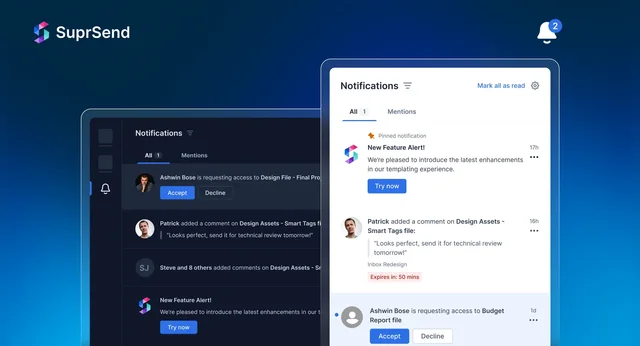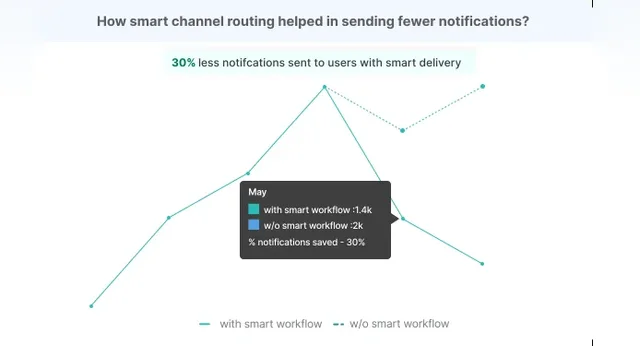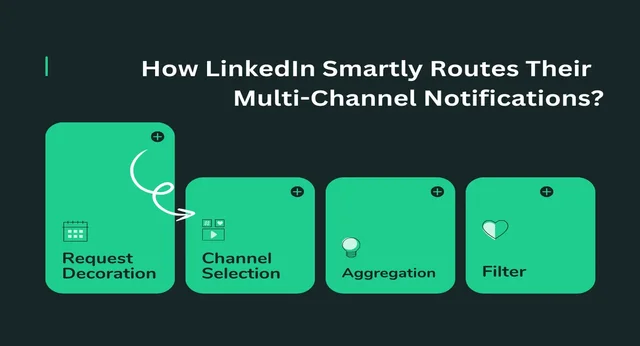

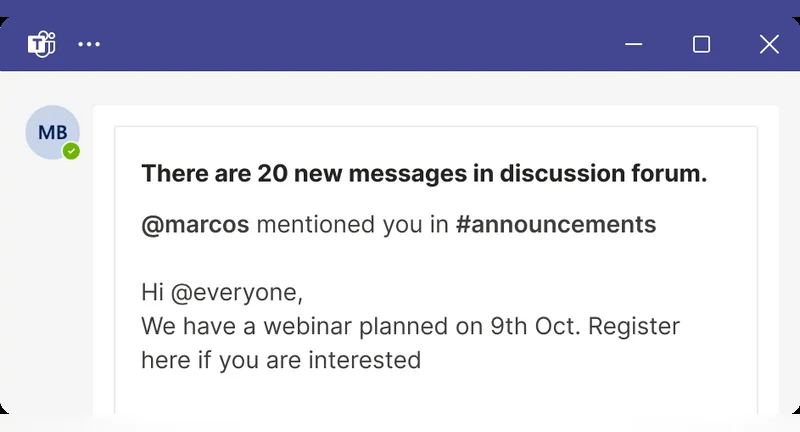
Batching notifications represents a valuable feature extensively implemented by prominent social media platforms and collaborative tools globally. Some popular examples include LinkedIn, MS Teams and Google Workspace products like Google Docs. This technique involves aggregating multiple alerts into a concise summary, displayed within a singular notification.
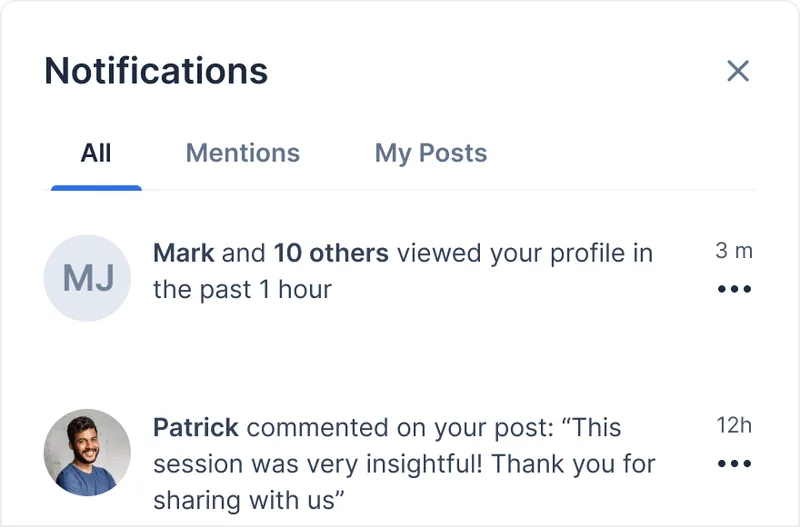
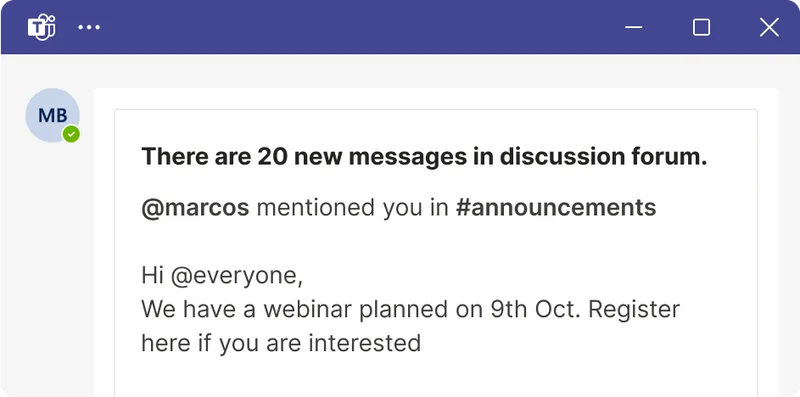
Batching notifications creates a clutter-free user experience and fewer interruptions. When users are bombarded with too many alerts, it can lead to notification fatigue, resulting in decreased engagement. If users become less attentive to updates, it could ultimately lead to a decline in product usage or even indifference towards the platform over time.
How Batching Works:
Notifications often become a secondary concern for companies, trailing behind primary business objectives. Establishing complex workflows, such as efficient batching, demands significant development resources that could otherwise be directed towards core competencies. Below, we examine the technical aspects involved in batching:
- Aggregation Engine: Efficiently aggregating related notifications, such as likes, shares, and comments on a specific item for a user, involves sophisticated sorting and clustering based on metadata attributes. Besides, you might want to aggregate different type of activity alerts separately on the same entity.
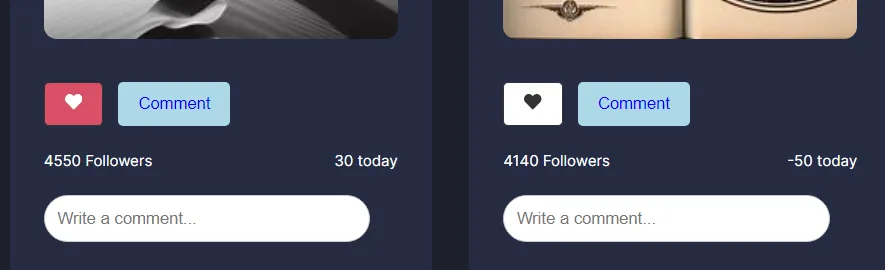
- Example: For an Instagram photo, Instagram aggregates story likes and comments separately. Thus, the user receives batched notifications for likes and comments separately, ensuring that information is organized and understood neatly.
- Batching Window: The appropriate batching window for notifications can vary significantly based on the specific use case. For instance, you might implement a fixed batching window, such as every 30 minutes, or define a window based on specific time intervals, like from 9 AM to 6 PM. Additionally, batching can be tailored to user preferences, accommodating requests for hourly, daily or weekly notifications. It can also be adjusted based on user behavior, such as period of inactivity, or on maximum counts.
- Example: LinkedIn sends batched email alerts for new messages received within a 30-minute window, while Google Docs batches comments based on user activity, ensuring updates are grouped when the user has stopped commenting.
- Scheduling: Once aggregated, scheduling determines the most effective time for delivering the notification. It could be instantly when the first trigger happens, or at the end of batched window, or at another strategically chosen time when the user is most likely to engage with the notification.
- Example, In case of post likes, the message is immediately sent to the user within in-app feed. But on subsequent likes, the same message is batched and updated. On the other hand, many SaaS companies create a daily digest for all the activities happening in a day, and schedules them for next morning.
- Batched message: How a batched message is presented to the user is critical to ensure clarity and engagement. Options range from a simple counter indicating the number of messages (e.g., “You have 2 messages”) to more engaging messages that provide a snapshot of the activity.
- For instance, you could show a brief summary like “Patrick and 3 others liked your photo,” or list all activities, or provide detailed information up to a set limit. Each option requires careful consideration to balance informativeness, increase interactive appeal without information overload and thorough testing.
- Cancelling aggregation: During a batching window, if a counter-activity is performed, then the aggregation has to be updated accordingly.
- Example, if a user likes a post then aggregation counter is increased by one, but if the user unlikes within the batch window, then aggregation counter has to be reduced by one.Let’s implement a batching use-case for notifications in the simplest way without coding. Assuming a React application, as our demo app is created in React, let me show you the process.
You can access the demo application and code here:
Github: https://github.com/SuprSend-NotificationAPI/social-app-react-app-inbox
Deployed Application: https://suprsend-notificationapi.github.io/social-app-react-app-inbox/
Creating Batching Workflows for Notifications on SuprSend
Pre-requisites:
- Account on SuprSend - Signup here
- Integration of any existing SuprSend SDK in your project where trigger happens - Documentation
- Successful event call made to SuprSend with necessary details
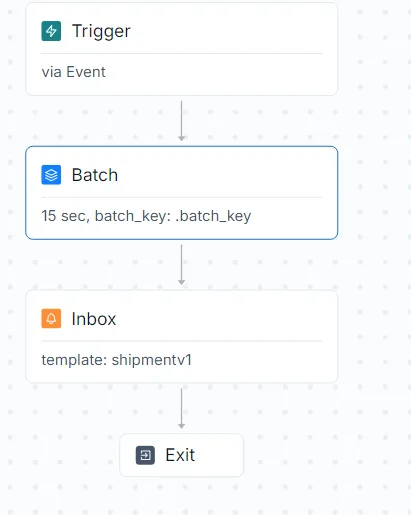
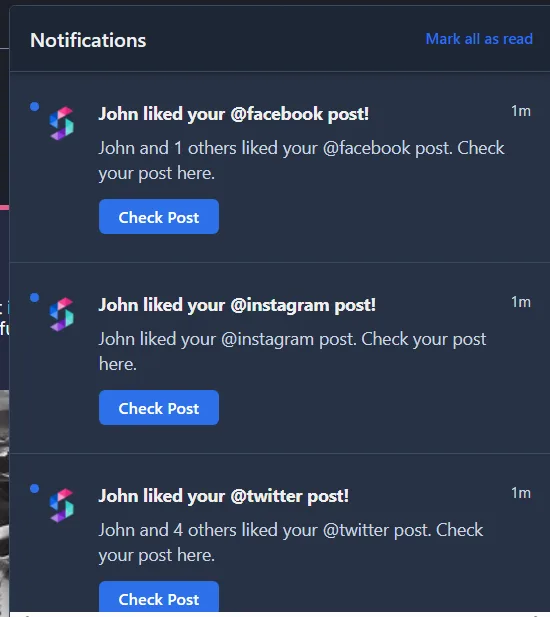
Creating a batching mechanism for notifications entails establishing multiple triggers of an event occurring within a designated period for a particular user. An alert can be batched based on a chosen criterion, which is often tied to a distinct user ID. Given our sample scenario of a social media tool generating plentiful activities, let’s dive into how batching works in practice.We would be trying to achieve this particular workflow (on left) and the desired output (on bottom) from this article.
1. Identifying Triggers:
Recurring events which aren’t time sensitive are best presented in a batched notification. For this demo application purpose, we would trigger a ‘Like_Event’ event whenever someone likes a post. You can also unlike the post, and like the post again to trigger back the event to test the batch workflow.
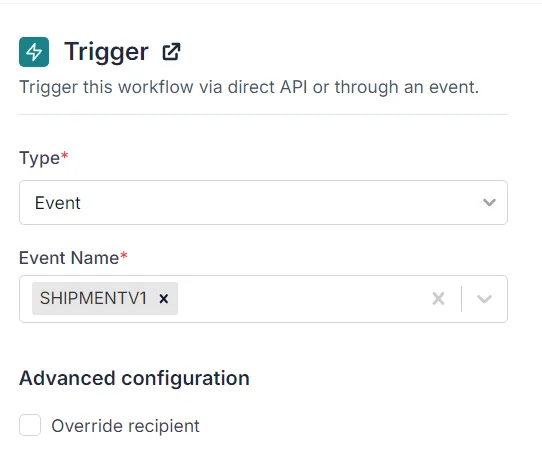
To start events on SuprSend Workflows, just pick the ‘Trigger’ node on the workflow builder. Make sure your backend sends events when specific triggers occur. For example, when someone clicks the ‘Like’ or ‘Comment’ button, it sends the ‘LIKE_EVENT’ event. For this demo application, we are using SuprSend’s Javascript SDK.
If you see our demo app Card.js component, we have initialized our Javascript SDK and sending the Like_Event event along with the properties such as name or location on button click as below. In real applications, these variables would be fetched from your logged in user state object.


2. Setting up Parameters for Batch:
On SuprSend choose the ‘Batch’ node to initialise this process in your workflow. Make sure, the node preceding it has some incoming events.
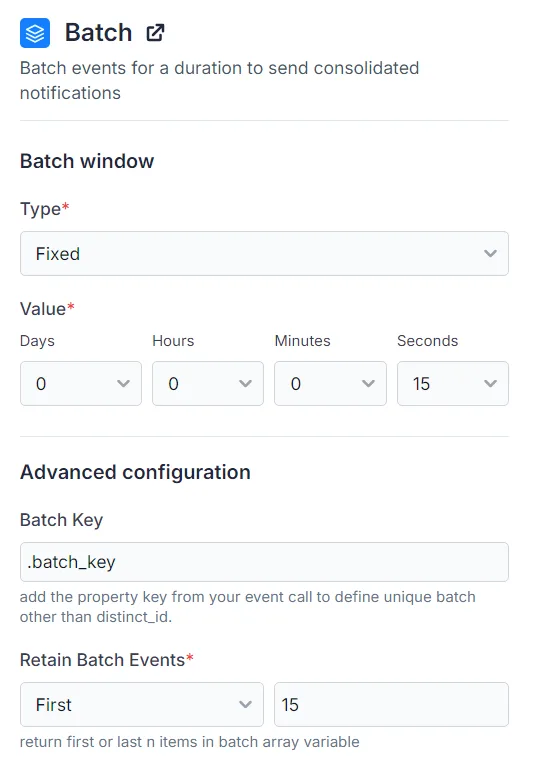
- Batch Window: It’s the duration you want to listen to the events to create a batched alert. You can put a ‘Fixed’ batch window or define a custom batching window personalized to the end-user by selecting the ‘Dynamic’ type and passing the
.duration_keyJQ expression as a property in your payload in this format:**d **h **m **s
For the demo and quick testing, we would be selecting ‘Fixed’ batch window of 15 seconds.
- Batch Key: It is the property on which you define the unique batch events passed on as
.batch_keyJQ expression in your.trackevent call.
By default, the batching is done on the user-level, corresponding to a distinct_id. Incase you want to batch alerts further on a property (eg. batch likes of a post together, for another post, batch it separately); you can set it up here. Since collaborative or social application often need more advanced batching properties, let’s go with a custom .batch_key on userName variable which would signify the type of post someone likes on the application (eg. - facebook, twitter, instagram or youtube).
- Retain Batch Events: When you send the event payload, you can showcase any number of objects from that in your notification as an array. Let’s retain 15 objects in the array for this demo purpose.
With above configurations, our suprsend.track event call looks like this:

Once it’s done, you can ‘Save’ and ‘Commit Changes’ to the workflow.
How will batching work in templates?
Once you define the batch properties in thetrackevent call, every incoming event object would be stored and appended in a$batched_eventsarray and it’s counted in$batched_event_countsystem variable, which can be later used to represent the event count in the templates. You can use these system variables in your templates with handlebar helpers. Let’s create one!
3. Creating Templates that can handle Batched Events
This is the last part of our workflow process. You can create the template over the dashboard or using Template API.
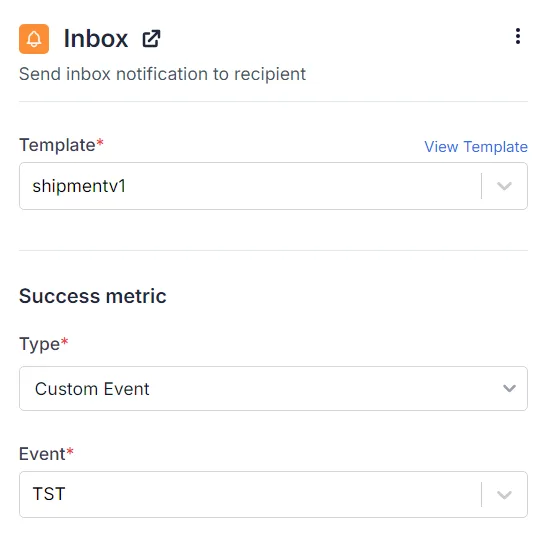
For this demo, let’s go over to the Templates section on the dashboard.Since we want to show a conditional templating content, we would be using Handlebar Helpers to achieve that. You can read more about Handlebar Helpers here: https://docs.suprsend.com/docs/handlebars-helpers
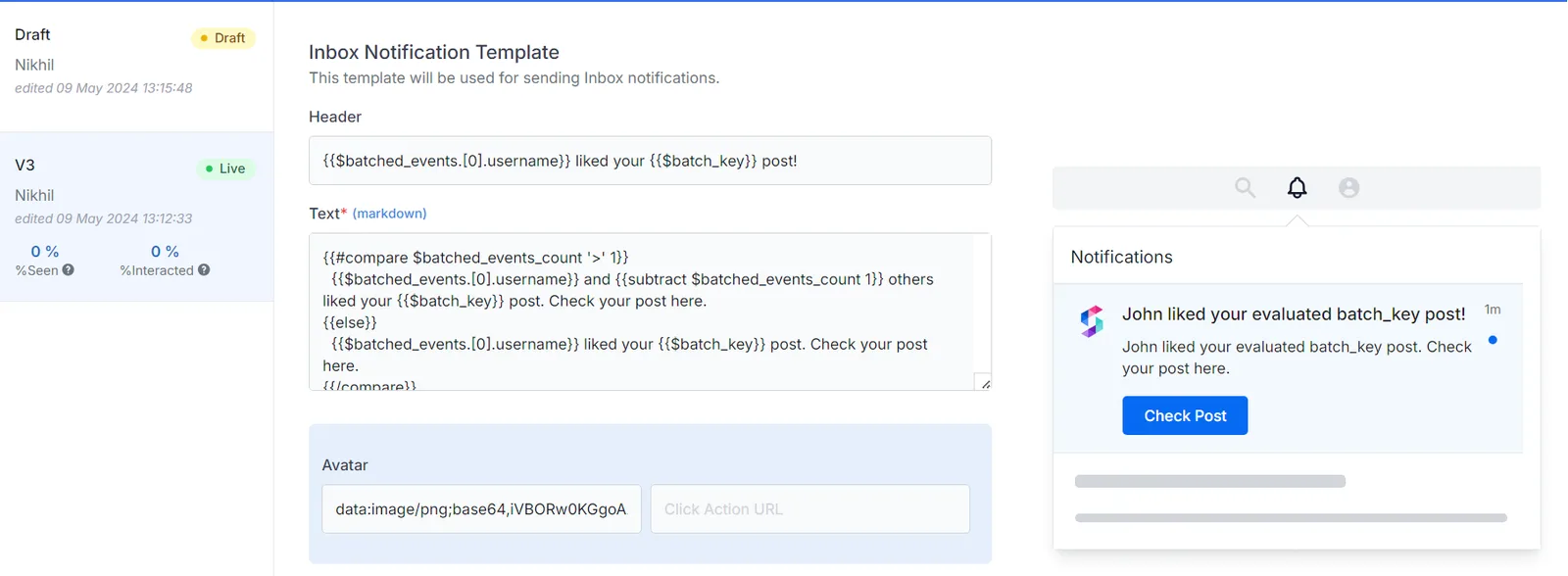
This is our template content for App Inbox. It uses compare condition to check if the $batched_events_count is more than 1. If it is we would need to showcase our notification in this format: John and 2 others liked your post.You can also test this behavior via Enable batching option in Mock data button on template details page.
Once enabled, you’ll start getting $batched_events* variable in auto suggestion on typing {{ in template editor.
{{#compare $batched_events_count '>' 1}} {{$batched_events.[0].username}} and {{subtract $batched_events_count 1}} others liked your {{$batch_key}} post. Check your post here.{{else}} {{$batched_events.[0].username}} liked your {{$batch_key}} post. Check your post here.{{/compare}}Once done, you can preview and test the template from the same page. Save it to use.
Why Batching Alone Isn’t Enough?
While batching notifications can help reduce the total number of messages sent, it is first step towards ensuring a clean and organized notification experience. When numerous events occur within a small batch window, users may still receive several batched notifications throughout the day for various purposes like likes, comments, recommendations, etc.Introducing throttling limitations alongside batch processing significantly enhances the overall user experience by managing notification frequency.
By setting an upper limit on daily notifications (e.g., three alerts per day), even when batching occurs multiple times during the same period, excess batches will be halted and prevented from being executed. This approach ensures that users benefit from a clutter-free interaction while staying informed about relevant updates.In the following section, we will discuss implementing a Throttle node along with batched notifications at SuprSend to achieve optimal results.
FAQ
What is notification batching and when should I use it?
Notification batching aggregates multiple related events into a single grouped notification within a configurable time window. Use it for high-frequency, low-urgency events like likes, comments, mentions. Avoid it for time-sensitive transactional notifications like OTPs or payment confirmations.
What is the difference between batching and digests?
Batching aggregates events into a single notification over a short window (minutes to hours), triggered when the first event arrives. Digests aggregate over a longer, scheduled window (daily or weekly) and fire on a fixed schedule. SuprSend supports both via Batch node and Digest node.
How do I batch notifications by a custom property, not just per user?
SuprSend's Batch node accepts a custom batch_key in addition to the default per-user batching. Pass it as a JQ expression in your track event call to batch by post ID, thread ID, or any other entity within the per-user scope.
What happens if a user undoes an action like unliking during a batch window?
The aggregation counter needs to be decremented. Fire a counter-event that decrements the batch counter, or filter the batched_events array in the template using Handlebars helpers to exclude reversed actions before rendering.
How do I display batched events in my notification template?
SuprSend exposes $batched_events (the array) and $batched_events_count (the count) as system variables. Use Handlebars helpers like compare and subtract to render conditional content showing Jane and N others liked your post.
Should I use batching, throttling, or both?
Both, for different problems. Batching solves many events in a short window become one notification. Throttling solves even after batching, the user gets too many notifications per day. Chain a Throttle node downstream of the Batch node.
What is the typical batch window for social-style notifications?
30 seconds to 5 minutes for in-app feed notifications. LinkedIn uses around 30-minute windows for email digests of new messages. Start with a 60-second window for in-app and tune from there based on engagement data.