
Batch email campaigns are dying a slow death. Users have learned to tune out newsletters and blasts that weren't meant specifically for them. What works - what actually drives opens, clicks, and conversion - is email that arrives at the exact moment it's relevant.
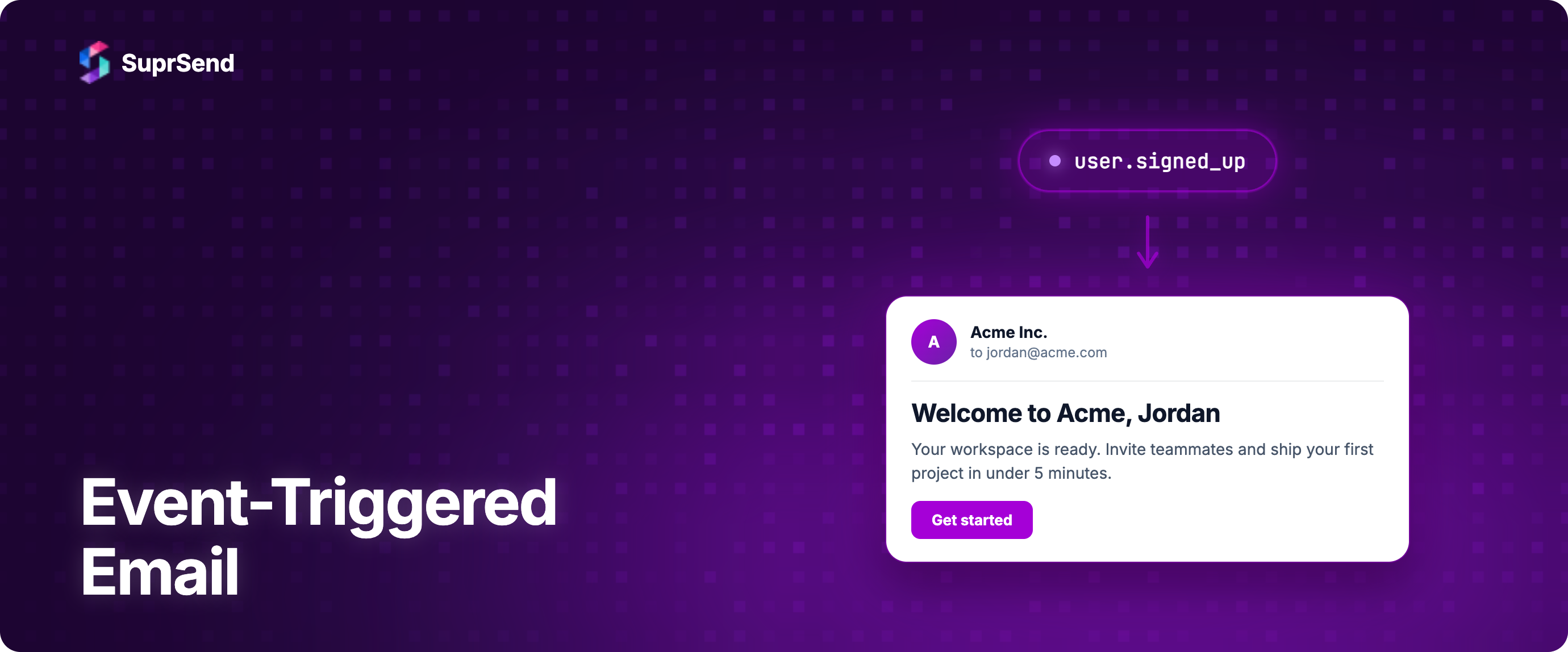
That's the promise of event-triggered email campaigns: messages sent automatically in response to specific user actions or system events. A user hits a usage limit, an email fires. A trial is about to expire, an email fires. A team member hasn't logged in for seven days, an email fires. The trigger and the context are inseparable, and that's why they convert.
This guide covers how event-triggered email campaigns work, how to design them well, and when to use a notification infrastructure platform instead of (or alongside) a traditional marketing automation tool.
What Is an Event-Triggered Email?
An event-triggered email is an automated message sent in response to a specific action taken by a user or a system state change in your product. Unlike scheduled campaigns (which are sent to a list at a fixed time regardless of user behavior), event-triggered emails are individual and contextual - they fire when something meaningful happens.
Examples span a wide range of product contexts:
- User signs up - welcome email fires immediately
- User invites a teammate - invitation email fires to the invitee
- Payment fails - dunning email fires to account owner
- User hasn't logged in for 14 days - re-engagement email fires
- Project milestone reached - congratulations and next-step email fires
- Storage limit is at 90% - upgrade prompt email fires
The common thread: the email is triggered by something the user did (or didn't do), making it inherently more relevant than any broadcast message could be.
Triggered emails drive significantly higher performance than batch campaigns. Industry data shows triggered emails generate roughly 30% of all email revenue despite accounting for only 2% of send volume - a signal that relevance, not volume, is what drives results.
Types of Event-Triggered Email Workflows
Not all event-triggered emails are the same. It helps to understand the main workflow categories before diving into design.
Transactional Triggers
These are functional emails that users need to complete an action or stay informed. They're triggered by specific system events and have very high open rates because users are actively expecting them.
- Account confirmation (email verification)
- Password reset
- Order confirmation and shipping updates
- Payment receipt or failed payment alert
- Invoice delivery
- Security alert (new device login, suspicious activity)
Transactional triggers have the highest delivery priority and should be treated as product-critical infrastructure, not just marketing messages. A delayed or failed password reset is a broken user experience, not just a missed engagement opportunity.
Lifecycle Triggers
Lifecycle emails are sent in response to where a user is in their journey with your product. They're triggered by milestones, inactivity, or time-bound conditions.
- Welcome email (triggered by signup)
- Onboarding step completion or incompletion
- Trial expiry warning (3 days before, day of)
- First feature adoption ("congrats, you've used X for the first time")
- Inactivity nudge (7 days, 14 days, 30 days without login)
- Upgrade prompt (usage threshold reached)
Lifecycle triggers are usually built as multi-step sequences. A new user might receive a welcome email on day 0, a setup guide on day 2 if they haven't completed setup, and a check-in on day 7 if they haven't activated a key feature.
Behavioral Triggers
Behavioral triggers fire based on specific in-product actions - or the absence of them. They're the most granular and often the highest-converting category.
- User viewed a pricing page but didn't upgrade - send comparison or social proof
- User abandoned an incomplete profile - send a prompt to finish
- User exported data for the first time - send tips for what to do with it
- User's team reached 10 members - prompt to consider an enterprise plan
Behavioral triggers require good event instrumentation in your product. The richer your event tracking, the more targeted your triggers can be.
Digest and Summary Triggers
Digest emails aggregate multiple smaller events into a single, batched message. Instead of sending five individual notifications about comments on a document, one daily digest covers all of them.
- Daily activity summary (new comments, mentions, updates)
- Weekly analytics report
- Monthly usage review
Digest triggers are important for high-frequency events where individual notification sends would quickly overwhelm users. They're also a strong retention tool - a weekly summary brings users back into the product with context.
How to Design a Triggered Email Workflow
A triggered email workflow is more than a single email. It's a sequence with logic: when to send, to whom, with what content, and what to do based on what the user does (or doesn't do) next.
Step 1: Define the Trigger Event
Every workflow starts with a trigger - a specific event that initiates the sequence. Be precise. "User signs up" is a trigger. "User views pricing" is a trigger. "Payment fails" is a trigger.
Triggers should come from reliable event data: your product's event tracking (Segment, Mixpanel, or direct instrumentation) or system webhooks from payment providers (Stripe), CRM platforms, or your own backend.
Poorly defined triggers lead to workflows that fire at the wrong time or for the wrong users. Take time to define the exact condition, including any filters (e.g., "user signed up AND is on a free trial" vs "user signed up AND is a paying customer").
Step 2: Add Delays and Wait Conditions
Not every triggered email should fire immediately. Some workflows need a delay to be contextually appropriate.
A welcome email fires immediately. A "did you complete setup?" email should wait 24 hours - give the user a chance to do it first. A re-engagement email should wait at least 7 days of inactivity before assuming disengagement is real.
Wait conditions can be time-based ("wait 24 hours then continue") or state-based ("wait until the user completes step X, or continue after 48 hours whichever comes first").
Step 3: Define Branching Logic
Good workflows adapt based on what the user does after the trigger. Branching logic lets you create conditional paths.
For example: send a trial expiry warning on day 25. If the user upgrades, exit the sequence and trigger a welcome-to-paid workflow. If they don't, send a follow-up on day 27 with a discount or case study. If they still don't upgrade, send a cancellation confirmation on day 30 and move to a win-back sequence.
This kind of conditional branching is what separates a thoughtful triggered workflow from a rigid blast. Users who take action shouldn't keep receiving messages designed to push them to take that action.
Step 4: Set Exit Conditions and Frequency Caps
Always define when a user should exit a workflow. If they convert, exit. If they unsubscribe, exit immediately. If they become ineligible (their plan changes, their role changes), exit.
Also set frequency caps. Even triggered emails can feel like spam if they stack up. A user who is enrolled in three different lifecycle sequences simultaneously might get five emails in a day. That's a problem for unsubscribe rates, complaint rates, and inbox placement.
Step 5: Personalize the Content
Triggered emails derive their power from context. Use it. Include the user's name, relevant product data, the specific action they took, and a clear next step that makes sense given where they are in their journey.
A re-engagement email that says "Hi Alex, it's been 10 days since you last logged in. Your team has added 3 new tasks while you were away - here's what's new" is dramatically more effective than "We miss you! Come back to [Product]!"
Dynamic content powered by user attributes and event data is the difference between triggered emails that feel personal and those that feel automated.
Event-Triggered Email: Notification Platform vs Marketing Automation Tool
A common question is whether to handle event-triggered emails through a marketing automation platform (MAP) like Customer.io, Braze, or Iterable - or through a notification infrastructure platform. The answer depends on what type of triggered email you're building.
Marketing automation platforms are optimized for lifecycle and behavioral email sequences driven by marketing goals - onboarding, retention campaigns, upsell sequences, re-engagement. They typically have strong visual workflow builders, segmentation tools, and campaign analytics. They're less designed for real-time transactional triggers (OTPs, payment alerts) that require near-instant delivery and multi-channel reliability.
Notification infrastructure platforms like SuprSend are designed for product notifications first - transactional, operational, and real-time alerts. The key difference: they're built for multi-channel orchestration (email, SMS, push, in-app, WhatsApp from a single workflow), provider failover, user preference management, and high-reliability delivery. They handle event-triggered emails as part of a broader notification system, not just a marketing email tool.
For most product teams, the answer isn't either/or. Marketing automation handles the lifecycle and campaign side. Notification infrastructure handles the product notification side - and those two categories of triggered email have meaningfully different reliability, personalization, and routing requirements. See how multi-channel messaging orchestration works across both transactional and lifecycle use cases.
Best Practices for Event-Triggered Email Campaigns
A few principles separate high-performing triggered email programs from the average:
- Instrument events at the source - your trigger quality is only as good as your event tracking. Invest in reliable, consistent event data before building complex workflows.
- Start simple, then iterate - a well-designed single-step trigger outperforms a complex, buggy multi-step sequence every time. Launch simple, measure, then add complexity.
- Test before you scale - send triggered emails to internal users or a small beta group first. Verify that edge cases (user already converted, user already unsubscribed) are handled correctly.
- Monitor trigger volume and suppression rates - if a trigger is firing more than expected, investigate. If suppression rates are high (meaning your checks are blocking sends), your logic may be too aggressive.
- Respect quiet hours and user preferences - even behavioral triggers should respect user-set quiet hours. A triggered email at 3 AM local time erodes trust regardless of how contextually relevant it is.
- Track per-trigger performance - open rate, click rate, and conversion rate for each workflow separately. Aggregate email metrics hide what's working and what's failing at the workflow level.
FAQ
What is the difference between event-triggered email and a marketing campaign?
Marketing campaigns are scheduled and sent to a list at a fixed time regardless of individual user behavior. Event-triggered emails are sent automatically in response to a specific user action or system state change, making them highly contextual, personalized, and timed to the exact moment of relevance for each recipient.
What are examples of event-triggered email campaigns?
Common examples include welcome emails triggered by signup, password reset emails, order confirmations, payment failure alerts, trial expiry reminders sent 3 and 1 days before expiry, re-engagement emails triggered by a set period of inactivity, and weekly digest summaries of in-product activity.
What is the best tool for event-triggered email campaigns?
The right tool depends on your use case. For lifecycle and marketing sequences (onboarding, re-engagement, upsell), Customer.io, Braze, and Iterable are strong options. For product notifications (transactional triggers, multi-channel reliability, real-time delivery), a notification infrastructure platform like SuprSend provides better multi-channel orchestration and delivery reliability than a marketing tool is designed to offer.
How do I measure whether a triggered email is working?
Track open rate, click-through rate, and conversion rate (did the user take the intended action after receiving the email?) per workflow. For re-engagement triggers, also track what percentage of triggered users return to the product within 7 days. For payment failure workflows, track recovery rate - what percentage of failed payments are resolved after the dunning sequence.
Should triggered emails go through a different IP than marketing emails?
Yes, for the same reason transactional emails should have infrastructure separation from marketing email. Keeping triggered product notifications on dedicated IPs or through a separate sending domain protects their deliverability from the higher complaint and unsubscribe rates that large-list marketing campaigns tend to generate.
How often is too often for triggered emails?
There's no universal threshold, but a good rule is: if a user can receive more than one triggered email per day from your product, you need frequency caps and suppression logic in place. Set a maximum of 1-2 emails per day from triggered workflows, and ensure a user can't be enrolled in multiple competing sequences simultaneously.
TL;DR: Event-triggered email campaigns fire in response to specific user actions or system events, making them contextually relevant and high-converting. Design workflows with precise triggers, conditional branching, delay logic, and exit conditions. Use marketing automation for lifecycle sequences and notification infrastructure platforms like SuprSend for transactional and product notification triggers that require multi-channel reliability and real-time delivery.
Ready to build event-triggered email workflows that cover every channel - not just email? Try SuprSend for free or talk to the team.


